To Change your Password
Note
You must be logged in to change your password. If you have forgotten your password, you must reset your password.
For more information, see To Reset Your Forgotten Password.
If you use a Personal Identity Verification (PIV) Card to access e‑GOS, you do not have a password, and the Password page does not appear.
In e‑GOS, click Account > Profile & Preferences.
In the Left Rail, click Security.
In the Security page, in the Password area, click Edit.
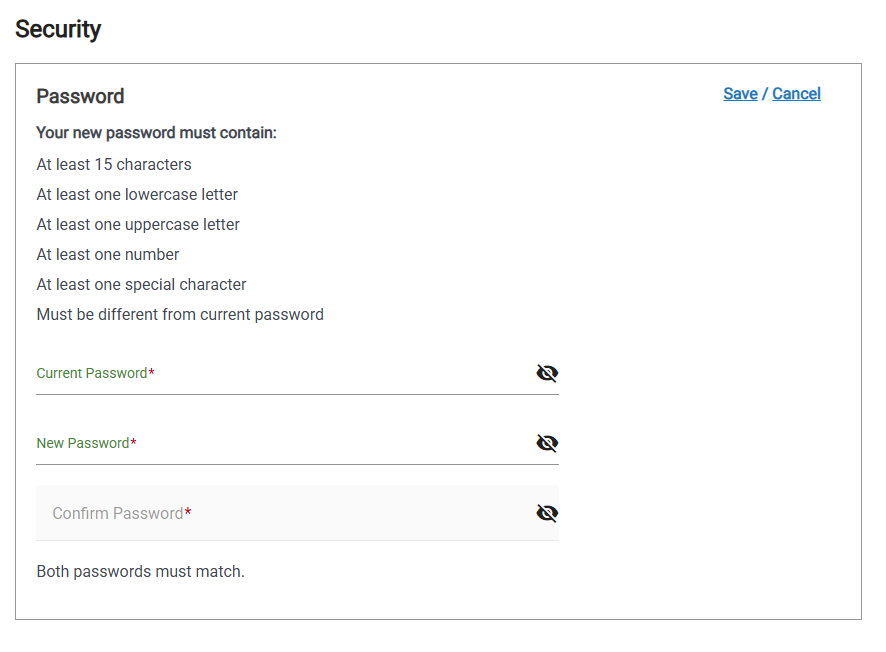
In the Password page, do the following:
Enter your Current Password
Enter your New Password
Confirm your New Password
Click Save.
Note
Your New Password must meet the Password Requirements before you can confirm it.