To Reset Your Password
If you use a username and password to log in to e‑GOS, you can reset your password if you lose it, forget it, or if you simply need to change it.
Tip
If you are an NIH staff member and use your PIV card to log in, you cannot change your PIN from e‑GOS. Contact the NIH Help Desk for assistance in changing your PIV card PIN.
At the e‑GOS Login page, click Forgot your password?
In the Forgot Password page, enter your email address or username, then click Send Link.
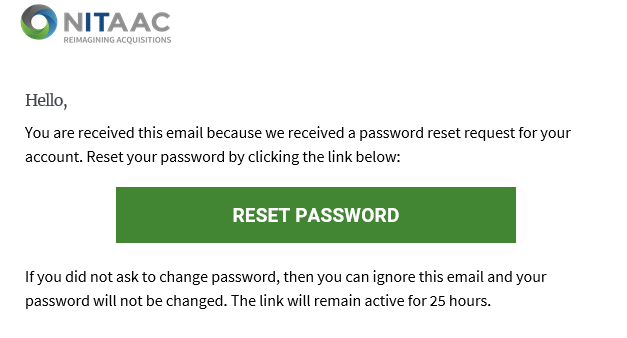
If you're a registered user, the e‑GOS system will send an email with a link you can use to reset your password. Click Reset Password in the email.
In the Answer Secret Question page, enter the answer that you entered when you registered for e‑GOS, then click Verify Answer.
Note
If you do not remember your secret question, the NITAAC Support Desk must reset your account. Please contact the NITAAC Support Desk using one of the following options:
(888) 773-6542
In the Create New Password page, enter the new password, then re-enter it and click Reset Password.
In the Password Reset page, click Login, then log in with your new password.