Amendments
Amendments are used to update the Activity before the response deadline.
To View Existing Amendments
Do one of the following to locate the Activity whose amendments you want to view:
Do the following to view the existing amendments:
In the Details page for the Activity, in the Left Rail, click Compete.
If it's not already selected, in the Left Rail, click Q & A.
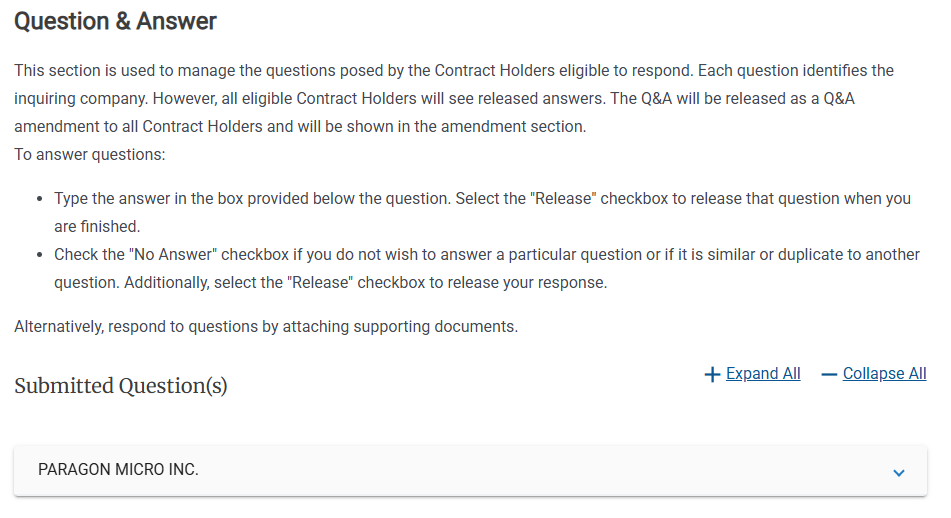
The Question and Answer page lists the names of all Contract Holders who have asked questions.
In the Question and Answer page, click the Contract Holder's name or the disclosure triangle (
 ) to view the questions the Contract Holder submitted.
In the Left Rail, click Amendments.
Tip
The number is the current number of Amendments to the Activity.
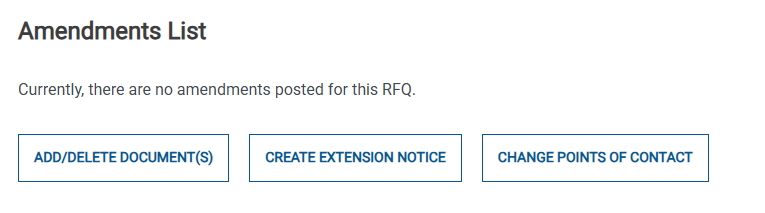
Amendments List without Amendments
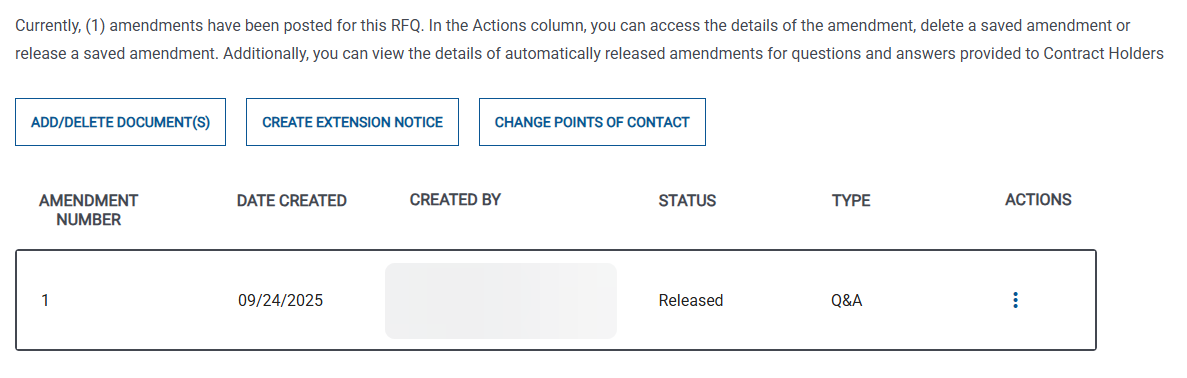
Amendments List with one Amendment
To Create an Amendment
In e‑GOS, do one of the following to locate the Activity to edit:
Do the following to view the existing amendments:
In the Details page for the Activity, in the Left Rail, click Compete.
If it's not already selected, in the Left Rail, click Q & A.
The Question and Answer page lists the names of all Contract Holders who have asked questions.
In the Question and Answer page, click the Contract Holder's name or the disclosure triangle (
) to view the questions the Contract Holder submitted.In the Left Rail, click Amendments.
Tip
The number is the current number of Amendments to the Activity.
Amendments List without Amendments
Amendments List with one Amendment
Do the following to create a new amendment:
In the Amendments List page, do one of the following:
Add or Delete Documents
In the Amendments List page, click Add/Delete Documents.
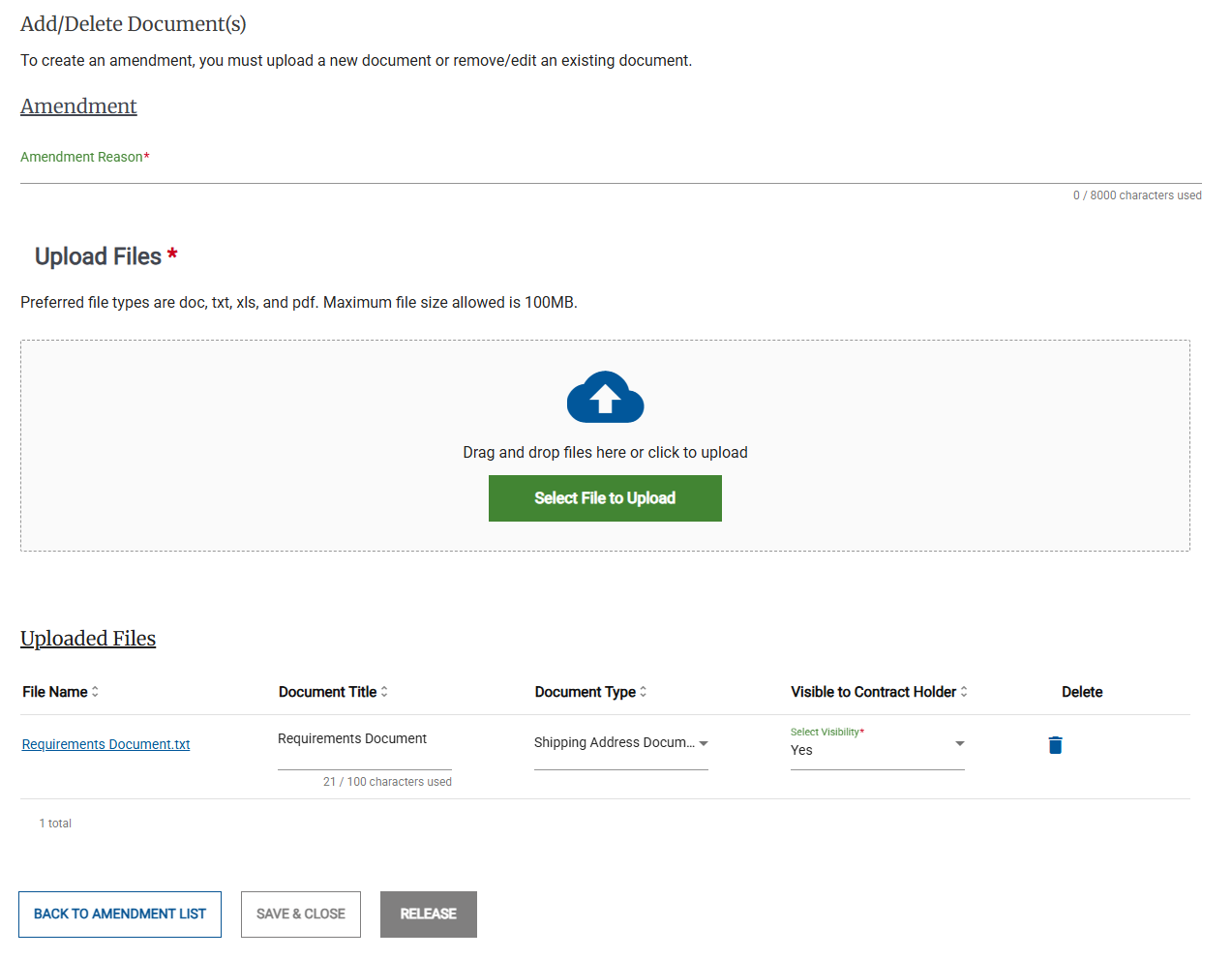
Type or paste a reason for the amendment in the Amendment Reason field.
Do one of the following:
Use the Upload Files area to upload one or more additional documents,
In the Uploaded File(s) area, delete any unneeded files.
Click Release to release the amendment to Contract Holders.
In the Release Amendment pop-up, click Release.
Create an Extension Notice
In the Amendments List page, click Create Extension Notice.
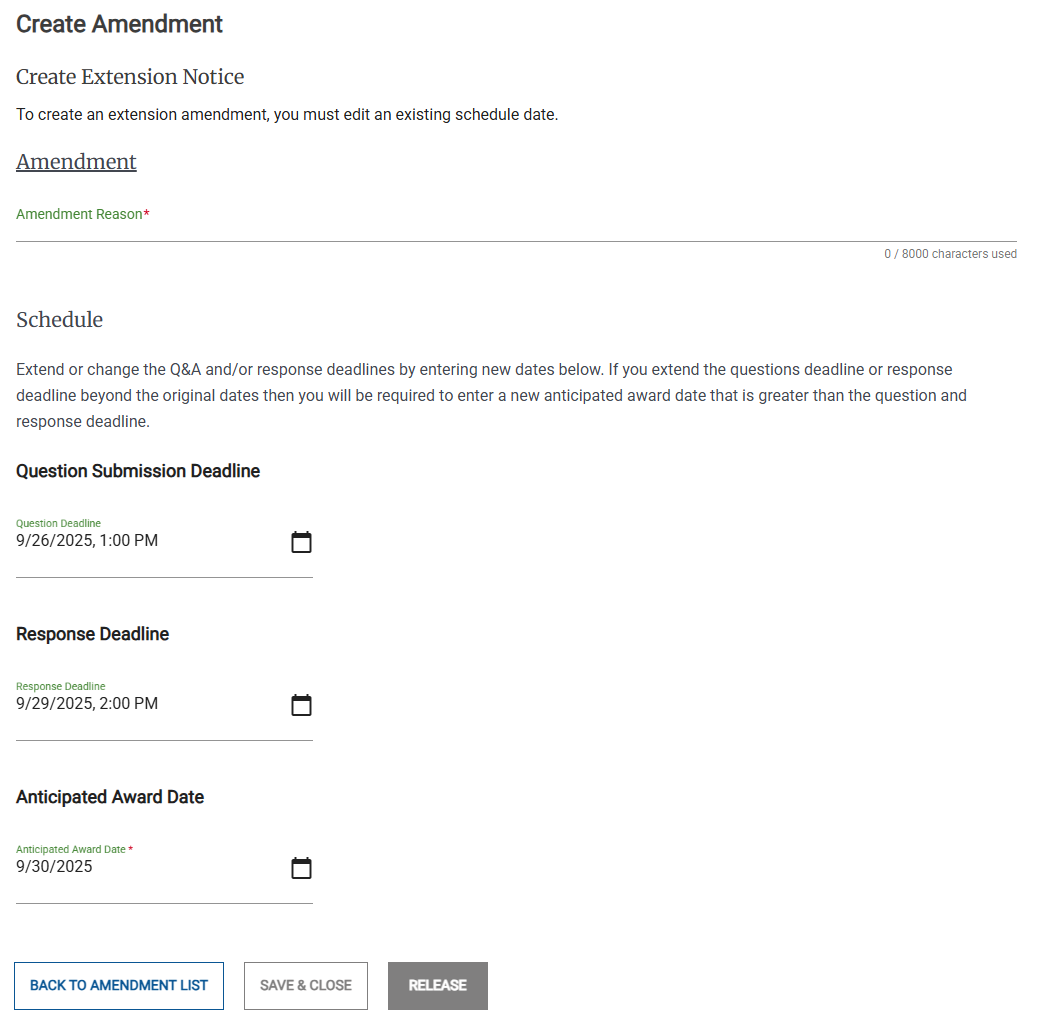
Type or paste a reason for the amendment in the Amendment Reason field.
Update one or more of the following dates:
Question Submission Deadline
Response Deadline
Anticipated Award Date
Note
The Response Deadline must be after the Question Submission Deadline.
The Anticipated Award Date must be after the Question Submission Deadline and the Response Deadline.
Use the Upload Files area to upload one or more additional documents,
Click Release to release the amendment to Contract Holders.
In the Release Amendment pop-up, click Release.
Change the Activity Points of Contact
In the In the Amendments List page, click Change Points of Contact.
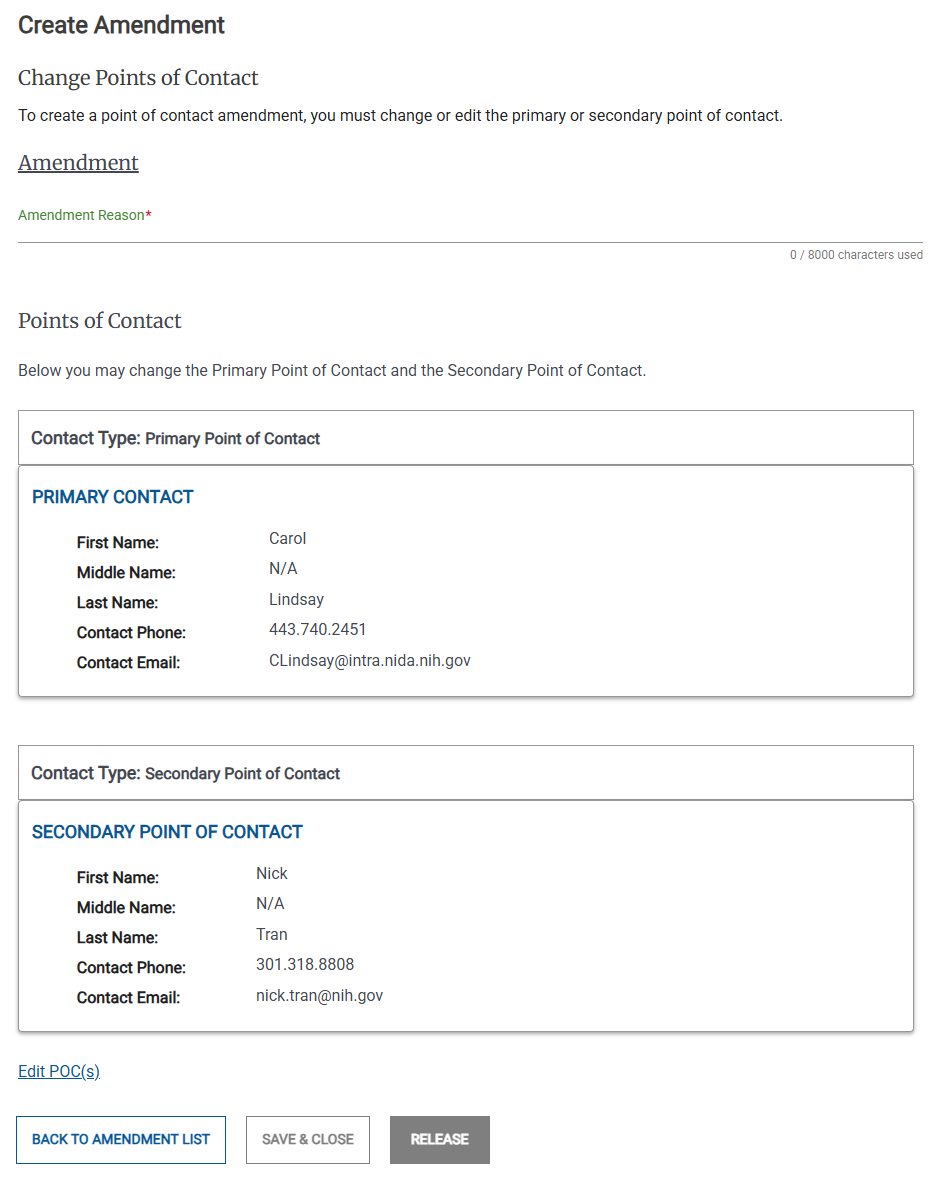
Type or paste a reason for the amendment in the Amendment Reason field.
Click Edit POC(s).
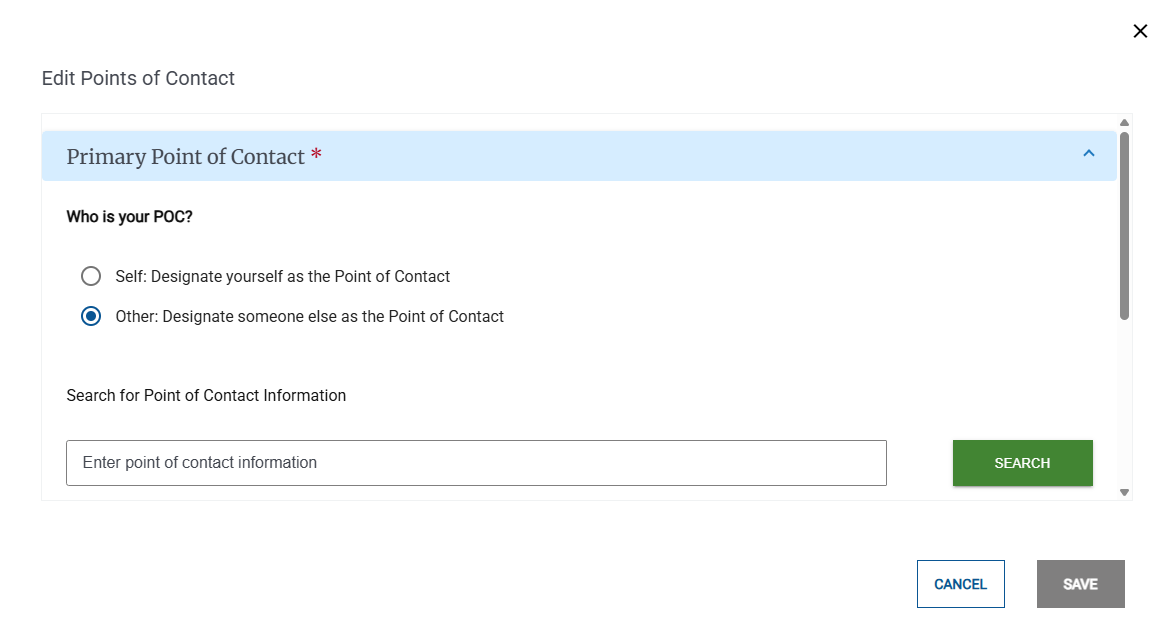
In the Change Points of Contact pop-up, make any needed changes to the Primary or Secondary points of contact.
If needed, use the Upload Files area to upload one or more documents,
Click Save.
Click Release to release the amendment to Contract Holders.
