Cloning
Cloning lets you make a copy of an existing activity. When you clone an Activity, you create a new Activity with the same settings as the original. Cloning can help you with several tasks, including:
Create duplicate Activities for different delivery locations
Repeat an Activity in a new time period
You can clone an Activity if its definition is complete. An Activity can be cloned in any status except Definition.
When you clone an Activity, you can clone any of the items that define the Activity.
To Clone an Activity
On the Activities dashboard click the ID of the order.
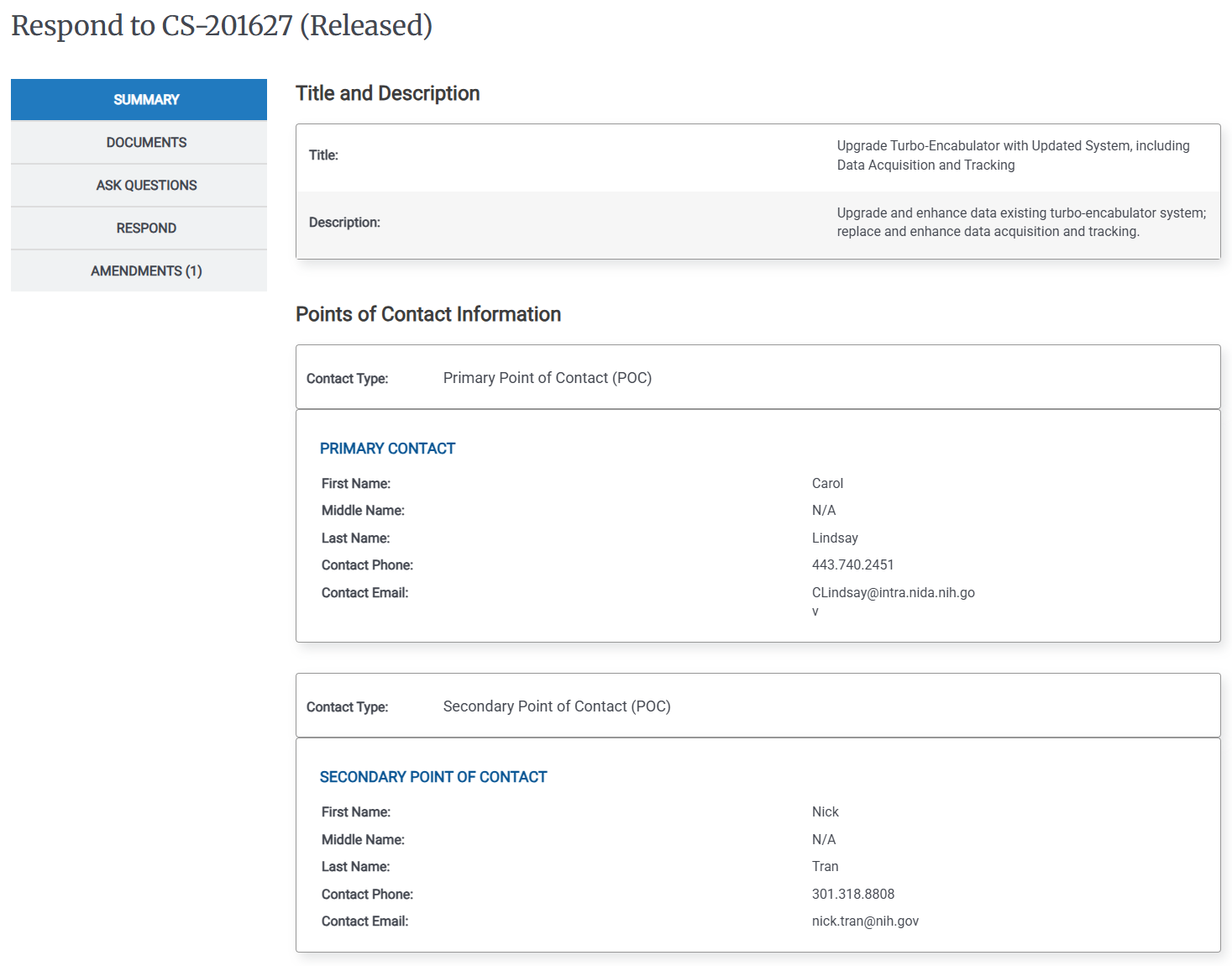
In the Details page, click the Activity Details menu (
 ), then click Clone. The Clone area appears.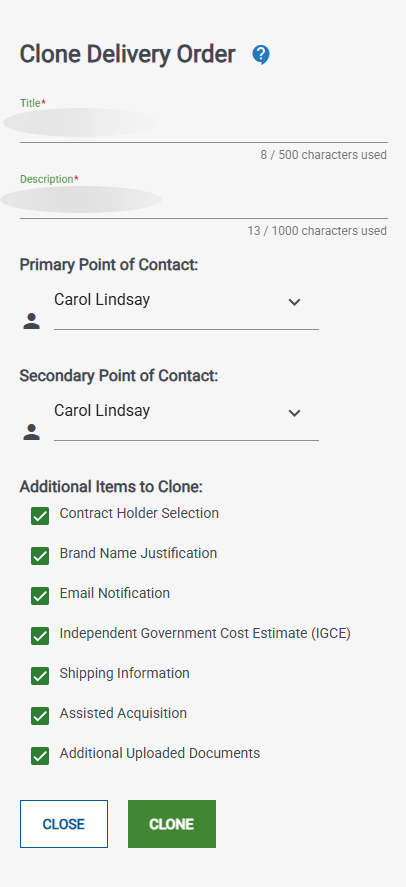
Tip
The Additional Items available to Clone vary, depending on the original Activity. You can clone some or all settings in the original Activity.
In the Clone area, do the following for the new Activity, then click Clone:
If needed, update the Title
If needed, update the Description
If needed, change the Primary and Secondary points of contact.
Select the Additional Items to Clone. Checked items will be cloned to the new Activity.
In the Your Activity has successfully been cloned dialog, click Review to make any additional changes, review, and release the activity. The Activity definition appears. The cloned items are marked as complete in the Left Rail. Click any item that is not marked as complete to skip to it.
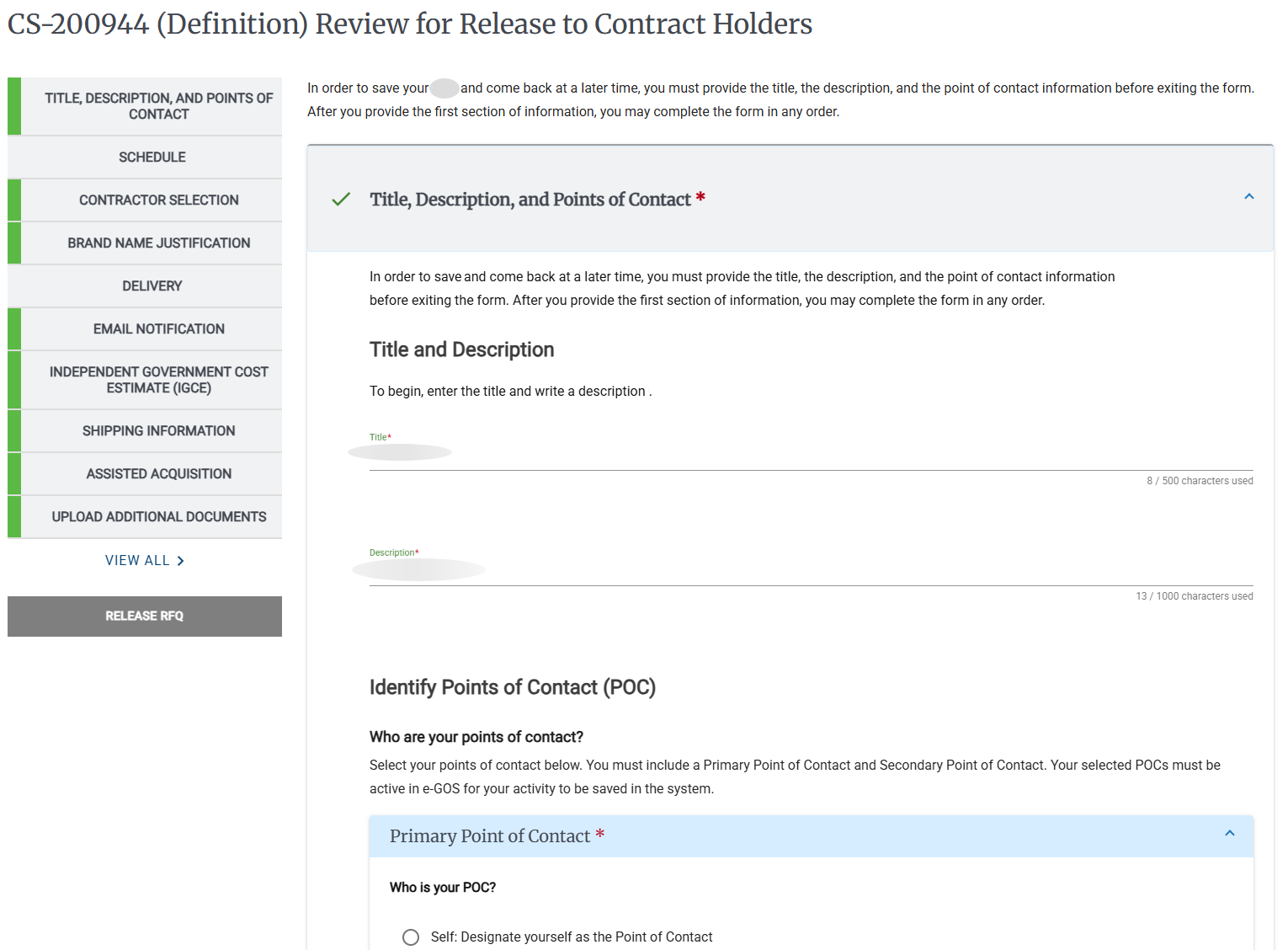
Tip
The items in the Left Rail vary, depending on the type of Activity that you cloned. You must complete all items and release the Activity to complete the definition.