Roles
In e‑GOS, a Role is a collection of permissions that control what you can see and do in the system. What you see in e‑GOS depends on that role that you're assigned to. For example, only Contract Holders can submit bids for Activities. Similarly, some Activity types require a Contracting Officer as a Point of Contact.
Most users are only assigned to a single role. For some users, their work requires that they have multiple roles.
If you are assigned to multiple roles, e‑GOS prompts you to select the role that you want to use when you log in. You can also change roles without logging out and back in.
To Switch Roles
Tip
Very few users have multiple roles assigned. If you have a single role assigned, this option does not appear.
On the top right of the screen, click Account.
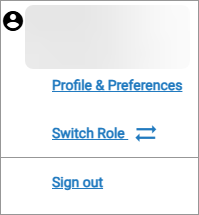
Click Switch Role,
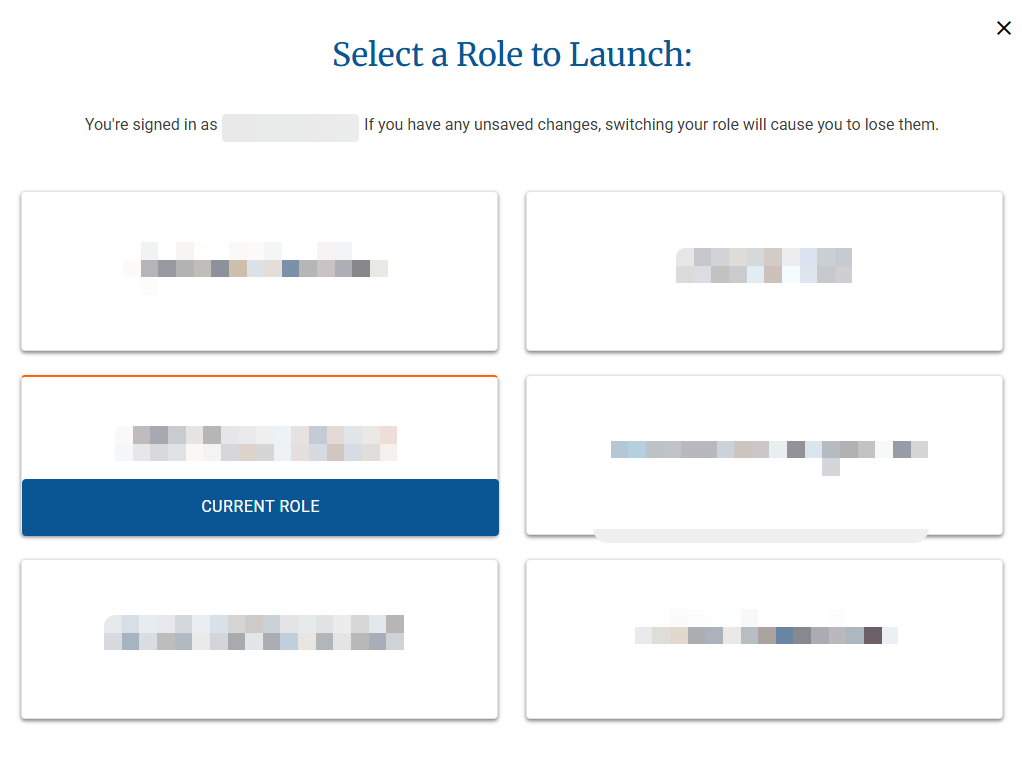
In the Select Role to Launch dialog, click the role that you want to switch to.
Note
The current role has a dark bar at the bottom of it. When you switch to a new role, you will lose any unsaved changes. If you have unsaved changes, click Cancel and save your changes, then switch roles.
In this screenshot, the username and role names are blurred. Only the roles assigned to you will be visible.