To Create a Task Order Request (TOR) (SP3)
In the Left Rail in the e‑GOS Dashboard, click Create, then click CIO-SP3/CIO-SP3 Small Business (IT Services & Solutions).
In the CIO-SP3/CIO-SP3 Small Business (IT Services & Solutions) page, click Task Order Request.
Specify the title, description, and points of contact:
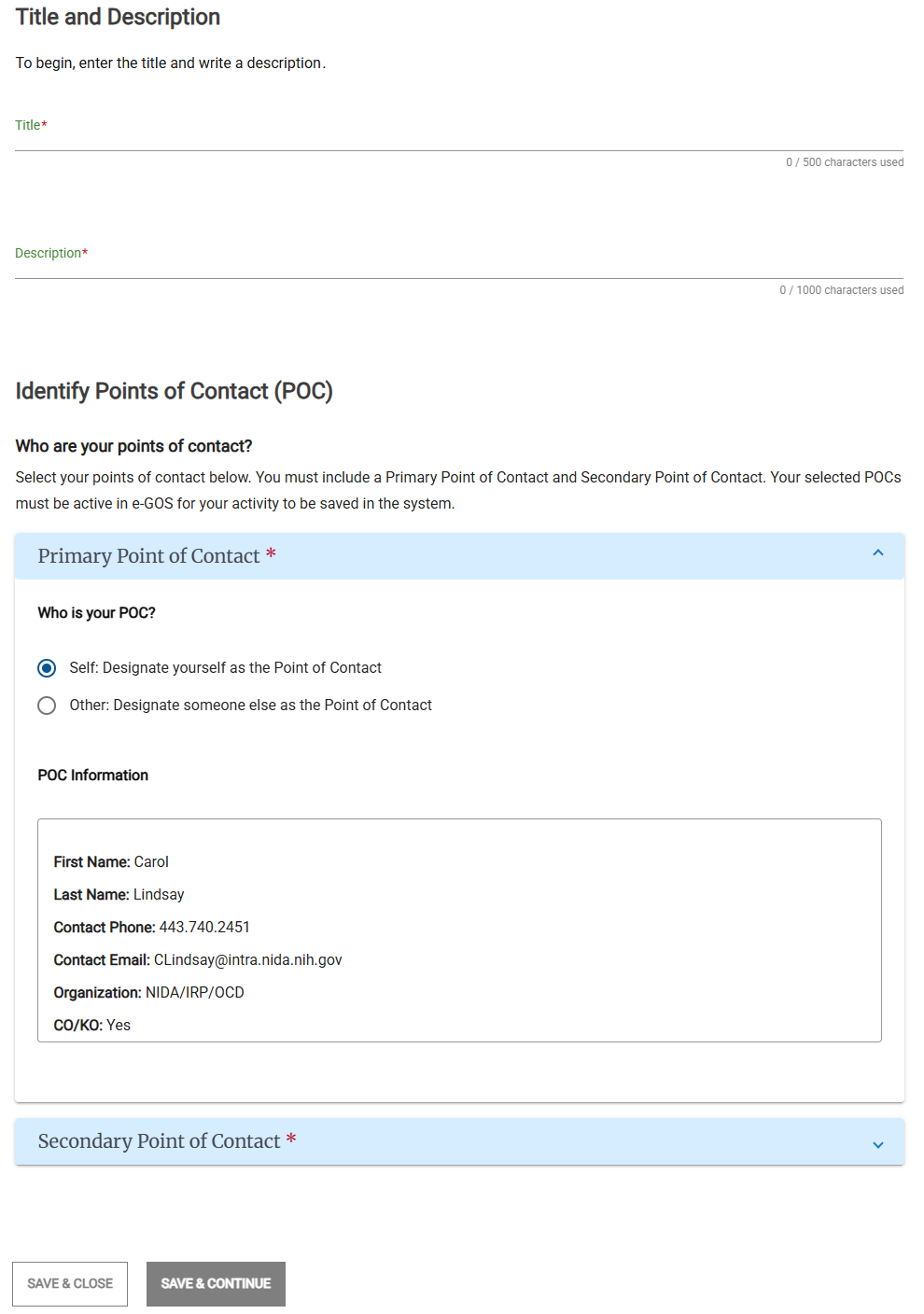
In the Title, Description, and Points of Contact page, enter the following information:
Title
Description
Point of Contact
Secondary Point of Contact
Note
You must select one Primary and one Secondary Point of Contact. Both contacts must be active in e‑GOS.
In the Primary Point of Contact area, do one of the following to set the Primary Point of Contact:
Click Self to make yourself the Primary Point of Contact.
Click Other, then search for a Point of Contact in your organization who already has an e‑GOS account or select one of the suggested users.
Note
You can send an invitation to users who do not have an e‑GOS account. Until the user registers for e‑GOS, you cannot add them as a Point of Contact. You can wait for the user to register or select a different point of contact for the Activity.
In the Is the Primary POC a Contracting Officer? area, select Yes or No.
Click the Secondary Point of Contact or the disclosure triangle
 and set the Secondary Point of Contact.
Click Save & Continue.
Specify the schedule:
On the Determine your Schedule page, in the When would you like to release? area, select one of the following:
Release immediately
Release on specific date, then select the date to release.
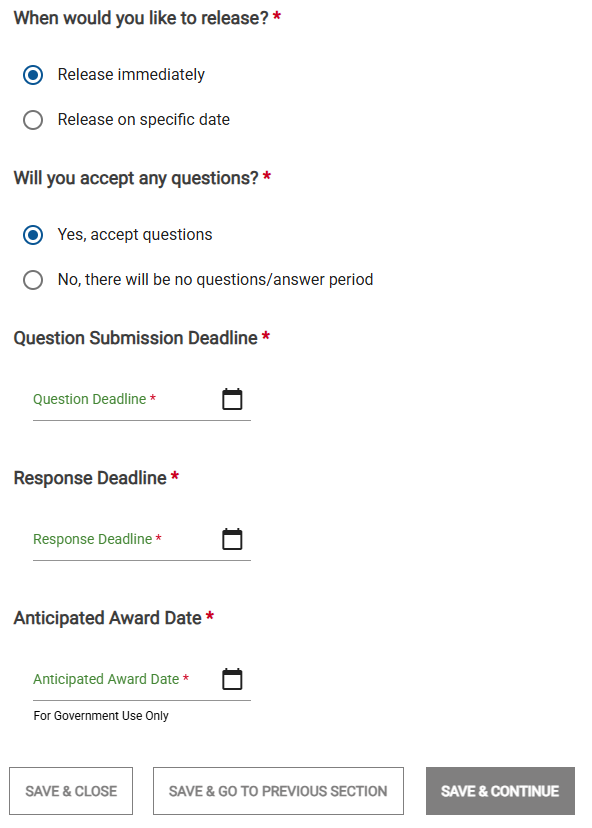
In the Will you accept any questions? area, select one of the following:
Yes, accept questions, then select the Question Submission Deadline.
No, there will be no questions/answer period.
Note
All dates must be in the future; you cannot select a date in the past.
If you accept questions, the Question Submission Deadline must be after the Release Date.
The Response Deadline must be after the Release date and any Question Submission Deadline.
The Anticipated Award Date must be after both the Release date, the Question Submission Deadline, and the Response Deadline.
Times are in your time zone. Contract holders or NITAAC users may be in another time zone.
Select the Response Deadline.
Select the Anticipated Award Date.
Click Save & Continue.
Select the contract type:
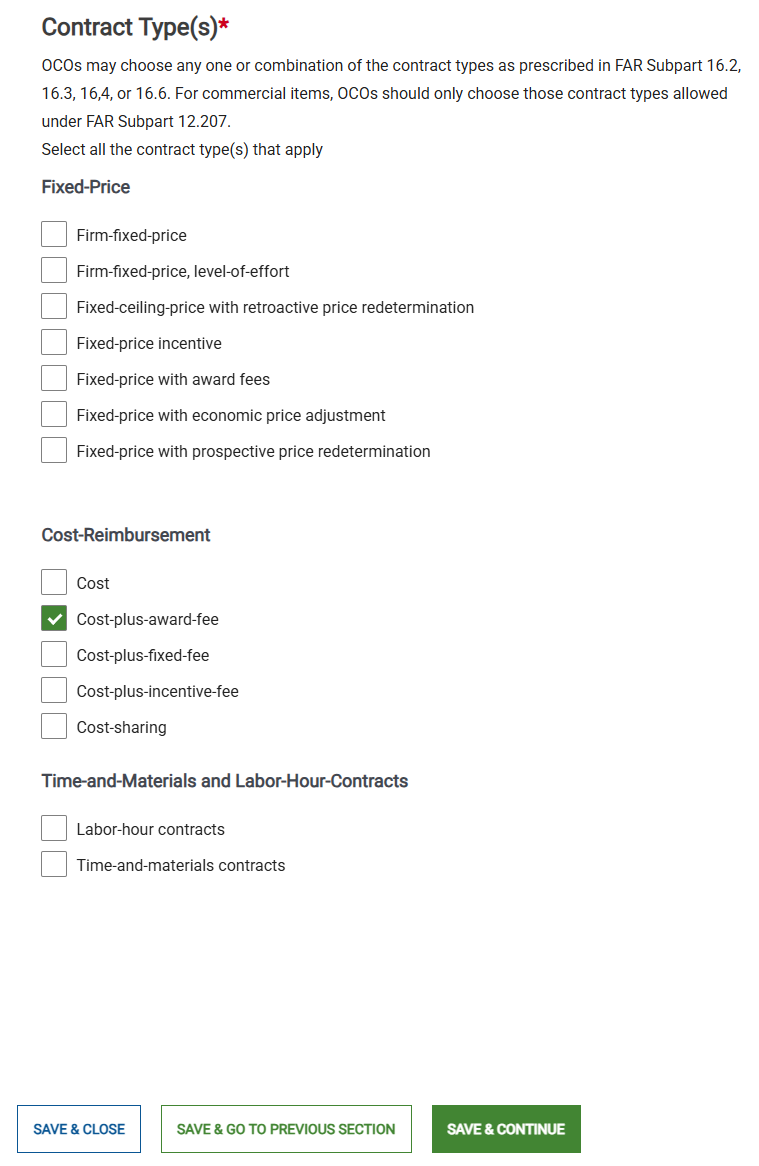
In the Determine Your Contract Type page, select one or more contract types that apply.
Tip
The Related Tools area includes links to Federal Applications Regulation (FAR) definitions for contract types. Click one of the links if you need more information about the definitions.
Click Save & Continue.
Select the contract holders to include:
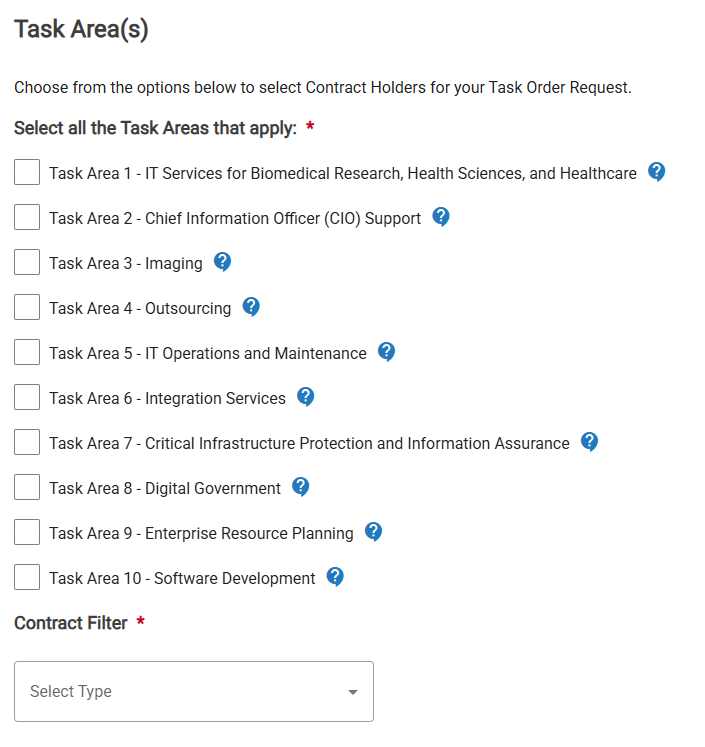
On the Determine Your Contractor Selection page, in the Task Area(s) section, select one or more Task Areas that apply to the contract. You can click Select All to select all task areas or click Clear All to clear all selections.
Tip
Click the More Information (
 ) icon for additional information about each task area.
In the Contract Filter drop-down list, select the type of contract to include in your Activity.
Tip
For information about the Task Areas, click Task Areas in the Related Tools area.
For more information about contracts, contract definitions, and Contract Holder eligibility for set-asides, please see the Federal Acquisition Regulation (FAR).
In the Additional Filters drop-down list, select the additional filter to apply.
The Contract Holders Matching Your Selection Above list shows all contract holders that meet all of the criteria.
If you select multiple task areas, only contract holders who have all the task areas will be included. The request will be sent to all selected contract holders. Use the Select All and Clear All buttons and the check boxes to select the contract holders to include. Click the arrow
 icon to access a company's website for more information.
Depending on your selections, e‑GOS may display additional questions. If the questions appear, enter your answer.
Click Save & Continue.
Set the email notification options:
On the Email Notification page, select the email notification options.
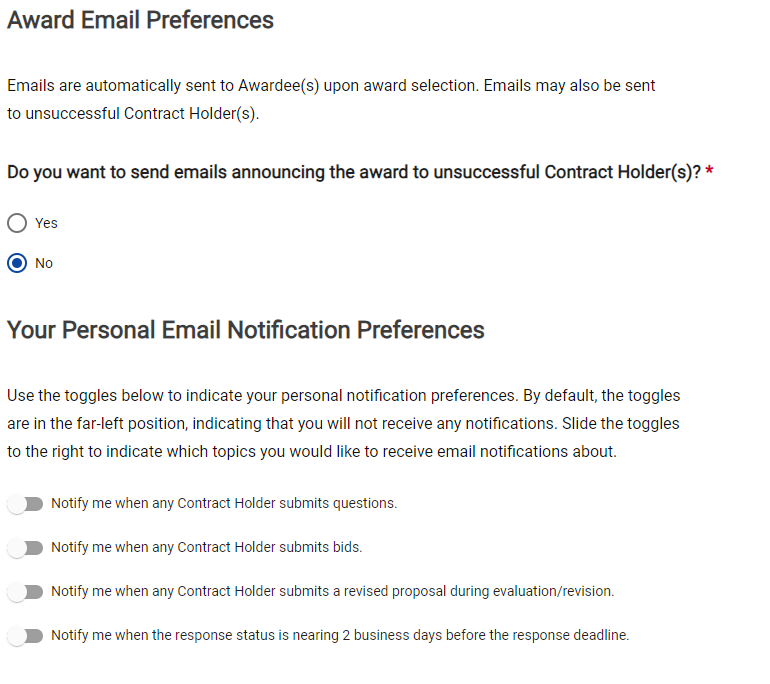
Click Save & Continue.
Specify the independent government cost estimate:
In the Independent Government Cost Estimate (IGCE) page, enter the expected total value of the award, including the base and any options.
Tip
For more information about the IGCE and a template that you can use to help calculate the estimate, click IGCE Template in the Related Tools area.
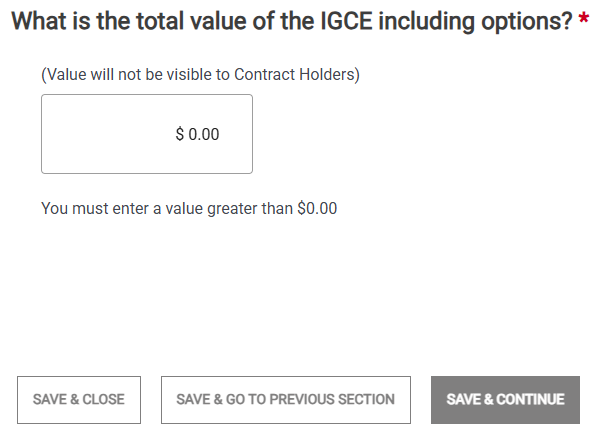
Click Save Section.
Set the assisted acquisition options:
In the Is this an assisted acquisition? area, select Yes or No.
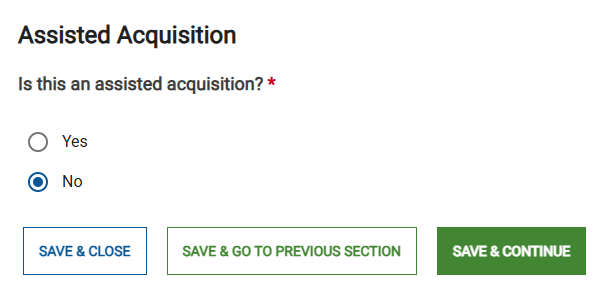
Click Save & Continue.
Upload any needed documents:
You must attach all documents needed to define your Activity.
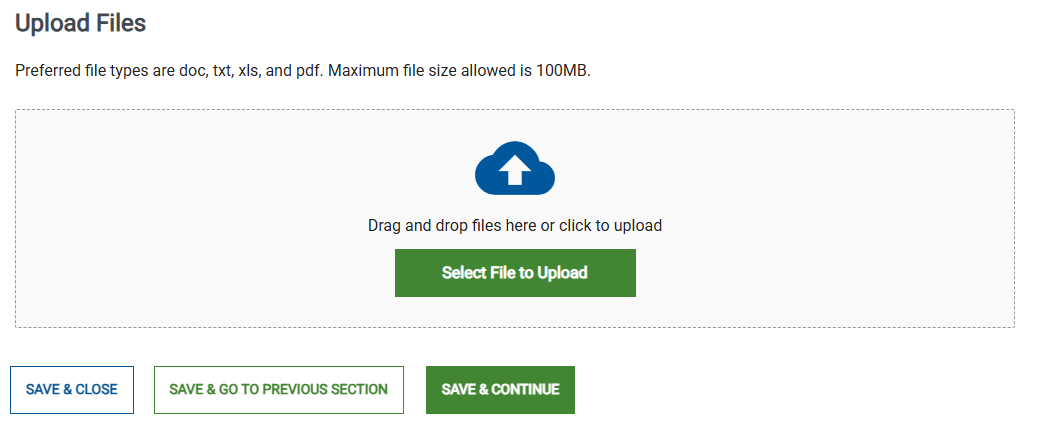
Click Save & Continue.
Review the Activity:
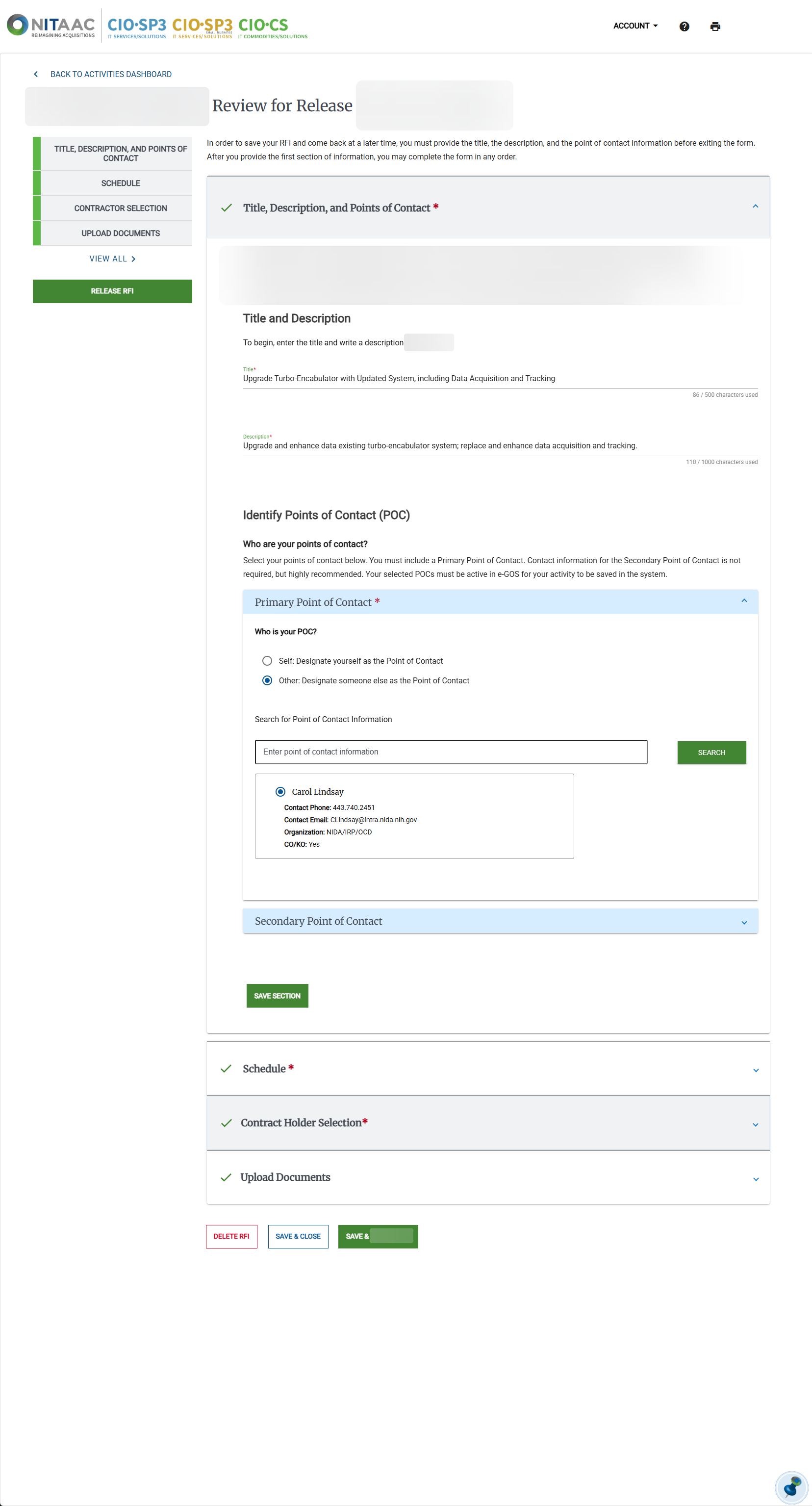
In the Review page, review the information for accuracy and make any needed changes.
Tip
One section appears for each page used to create the Activity.
To expand a closed section, click the down arrow (
) beside the group name.To hide the information in an open section, click the up arrow (
 ) beside the group name.
Click Save & Submit To NITAAC.
Click Save & Release.
Release the Activity to NITAAC:
In the Submit to NITAAC for Approval pop-up, select the I verify that this information is accurate to the best of my knowledge checkbox.
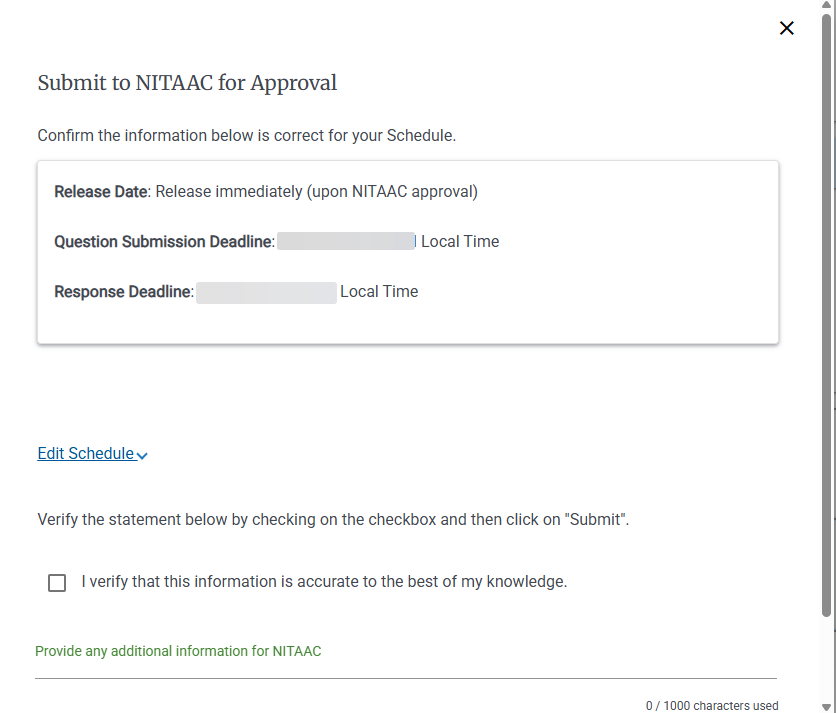
Add any additional information in the Provide any additional information for NITAAC field.
Click Submit.
In the Successfully Submitted pop-up, click Go To e‑GOS Dashboard.