About e‑GOS Search
The Search Field on a Dashboard lets you search for Activities or other relevant items. You can type the text to search for in the Search for Previously Created/Released Activities field and then click Search to search all fields.
For more information about searching for an Activity, see To Search for an Activity.
To Search for an Activity
When it appears in a dashboard, you can use the Search Field to search for an existing Activity. When you search, you can do one of the following:
Simple Search
Advanced Search
Simple Search

Type the text you're searching for in the Search for Previously Created/Released Activities field.
Normally, Search looks in every field. If you wish, you can choose any field in the Search within… drop-down list to search in that field alone.
Click Search or press Enter.
The results of the search appear.
Advanced Search Options
You can use the Advanced Search Options to limit the scope of a search. Click Advanced Search Options to show the options.
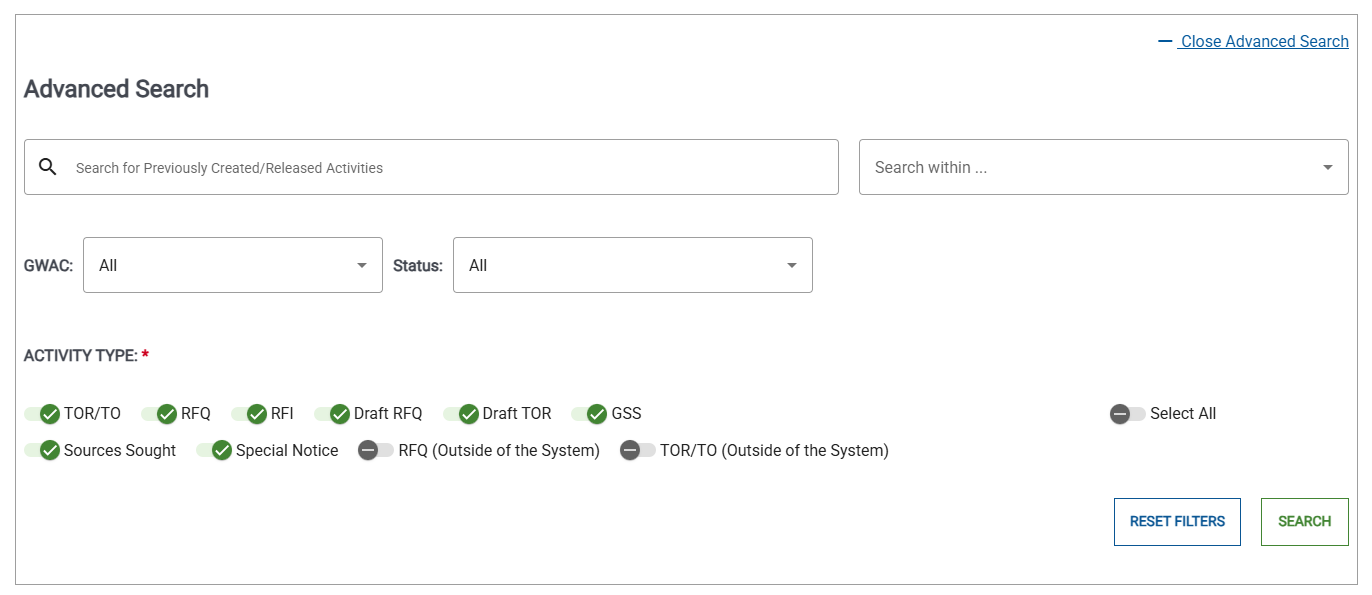
Type the text you're searching for in the Search for Previously Created/Released Activities field.
Normally, Search looks in every field. If you wish, you can choose any field in the Search within… drop-down list to search in that field alone.
Normally, Search looks in every Activity type. Click the toggles in the Activity Type area to include or exclude specific Activity types.
Click Search or press Enter.
The results of the search appear.