Q&A
If you allow questions when you create an Activity, you can respond to the questions or ignore them. When you respond to a question, all contract holders can see questions and the answers. Contract holders do not see unanswered questions.
Tip
When you create an Activity, you can choose to receive a notification email when a Contract Holder submits questions. The email includes the ID number of the Activity. You can use the ID number to search for the Activity.
To View Questions
Locate the Activity in Actions.
Click Actions in the Left Rail.
Tip
The number in the Actions button is the number of unread alerts.
The Actions page lists items that require your attention. An Activity that needs attention appears as <Activity Type> <ID> Has Questions,
Tip
<Activity Type> and <ID> change, based on your activity.
In the list, locate the Activity that you want to revise, then click one of the following:
Order ID in the ID column
Action needed in the Action column
Open Details
Search for an Activity.
In the Dashboard, enter on of the following into the Search for Previously Created/Released Activities field:
The Activity ID.
Text from the Activity title.
Text from the Activity description.
The name or email address of the person who created the Activity or one of the points of contact.
Do one of the following:
Press Enter
Click Search
In the list, locate the Activity that you need to revise, then click one of the following:
Order ID in the ID column
Open Details
In the Details page for the Activity, in the Left Rail, click Compete.
If it's not already selected, in the Left Rail, click Q & A.
The Question and Answer page lists the names of all Contract Holders who have asked questions.
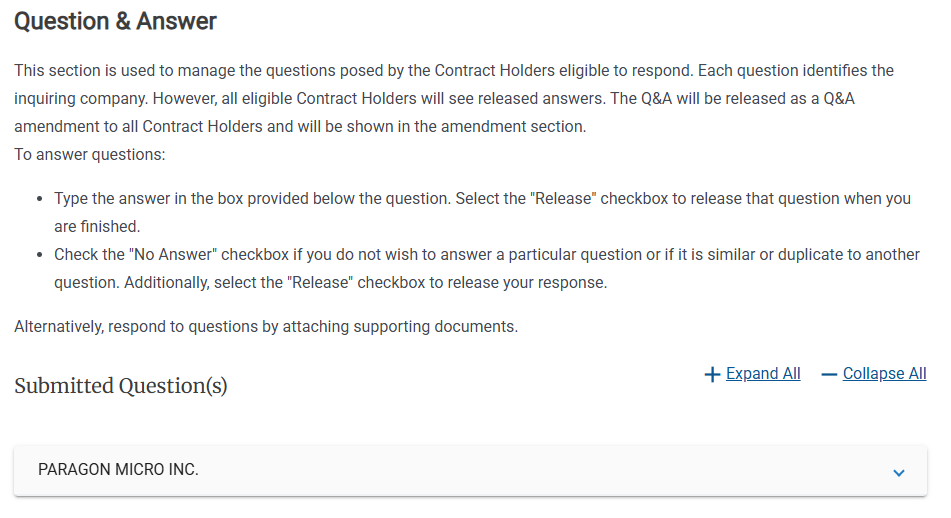
Click the Contract Holder's name or the disclosure triangle
to view the questions the Contract Holder submitted.
To Download Questions
Do one of the following to locate the Activity whose questions you want to download:
Locate the Activity in Actions.
Click Actions in the Left Rail.
Tip
The number in the Actions button is the number of unread alerts.
The Actions page lists items that require your attention. An Activity that needs attention appears as <Activity Type> <ID> Has Questions,
Tip
<Activity Type> and <ID> change, based on your activity.
In the list, locate the Activity that you want to revise, then click one of the following:
Order ID in the ID column
Action needed in the Action column
Open Details
Search for an Activity.
In the Dashboard, enter on of the following into the Search for Previously Created/Released Activities field:
The Activity ID.
Text from the Activity title.
Text from the Activity description.
The name or email address of the person who created the Activity or one of the points of contact.
Do one of the following:
Press Enter
Click Search
In the list, locate the Activity that you need to revise, then click one of the following:
Order ID in the ID column
Open Details
Do the following to download the questions:
In the Activity details, in the Left Rail, click Documents.
Click Request Package (RP) or click the disclosure triangle
.
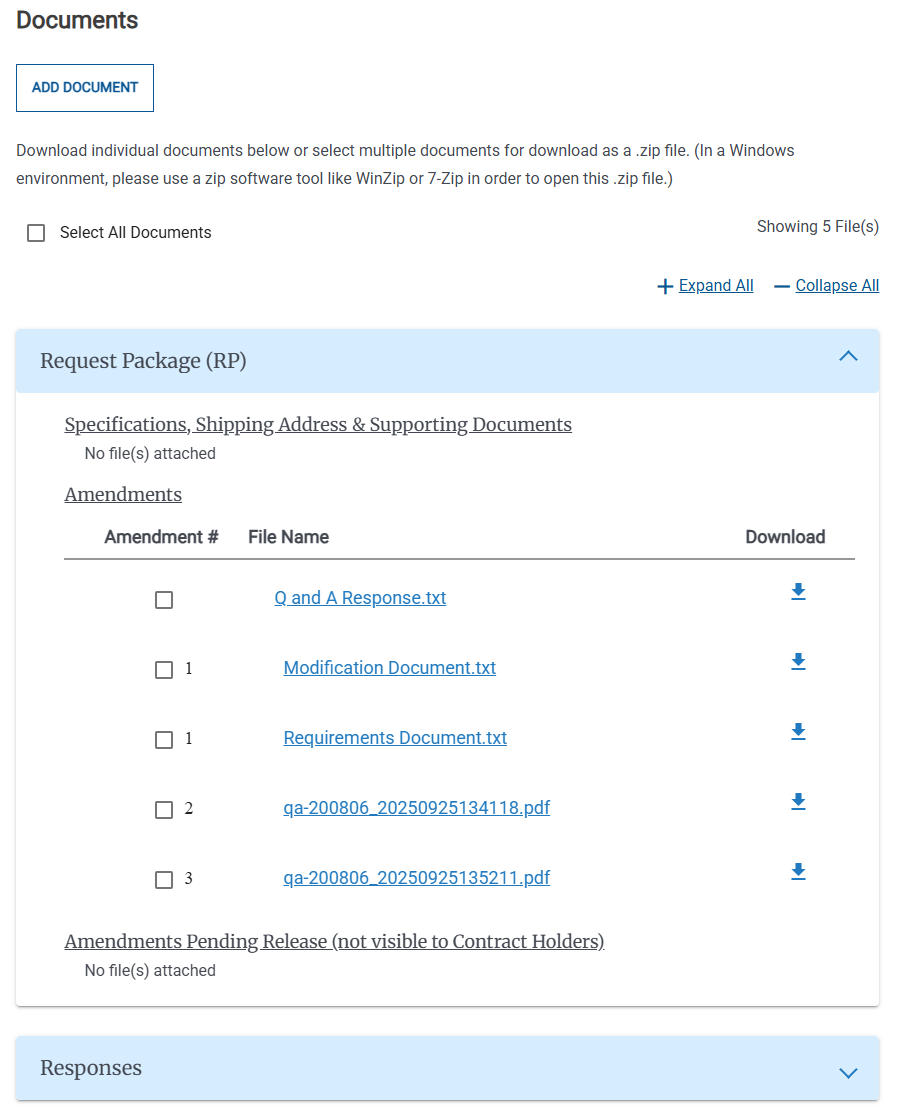
The Request Package includes all files associated with the questions and answers. Do one of the following:
To download a single file, click the file's Download
button.
To download multiple files, select the checkbox for each file that you want to download, then click Download .ZIP File.
To Answer Questions
in e‑GOS, do one of the following:
Locate the Activity in Actions.
Click Actions in the Left Rail.
Tip
The number in the Actions button is the number of unread alerts.
The Actions page lists items that require your attention. An Activity that needs attention appears as <Activity Type> <ID> Has Questions,
Tip
<Activity Type> and <ID> change, based on your activity.
In the list, locate the Activity that you want to revise, then click one of the following:
Order ID in the ID column
Action needed in the Action column
Open Details
Search for an Activity.
In the Dashboard, enter on of the following into the Search for Previously Created/Released Activities field:
The Activity ID.
Text from the Activity title.
Text from the Activity description.
The name or email address of the person who created the Activity or one of the points of contact.
Do one of the following:
Press Enter
Click Search
In the list, locate the Activity that you need to revise, then click one of the following:
Order ID in the ID column
Open Details
Review the questions and create answers if needed:
In the Question and Answer page, view the questions submitted by the contract holders.
Tip
If one of the Points of Contact have responded to a question, the responses appear in the Question and Answer page.
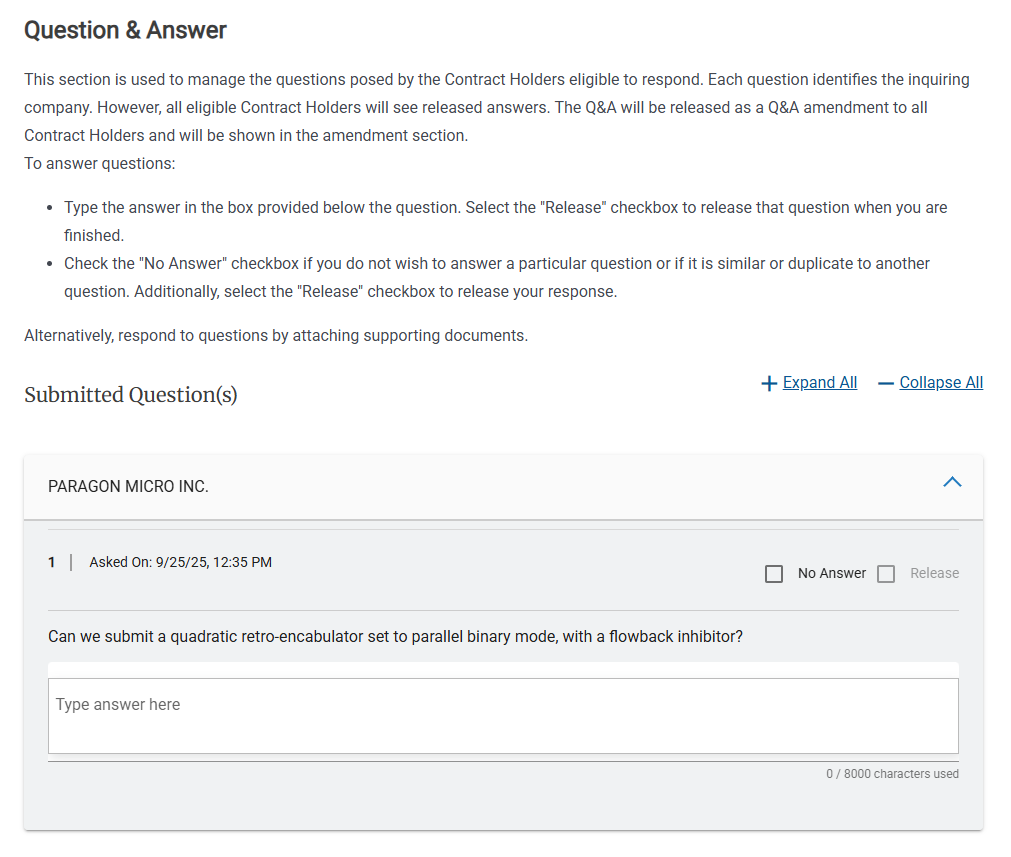
For each question, do one of the following:
Enter an answer for the question in the Type Answer Here field, then select Release.
Note
All Contract Holders can see any answers that you enter, as well as the associated questions. Do not include any information in answers that would identify the Contract Holder.
Select No Answer to decline to answer the question. Questions with no answer do not appear for Contract Holders.
To view the Questions and Answers in a single document, click Generate Document. The document automatically downloads to your computer.
If needed, you can upload additional files.
Note
Any files that you upload in response to questions will be visible to all Contract Holders.
In Upload Documents, you can attach any needed documents. Do one of the following for each file that you need to attach:
In your file browser (for example, Windows Explorer or the Macintosh Finder), locate the file to upload and drag-and-drop the file to the Drag and Drop File Here area.
Click Select File to Upload, then locate the file to upload, and select it.
The uploaded documents appear in the Uploaded File(s) list.
For each file in the list, verify the document title and any other optional settings.
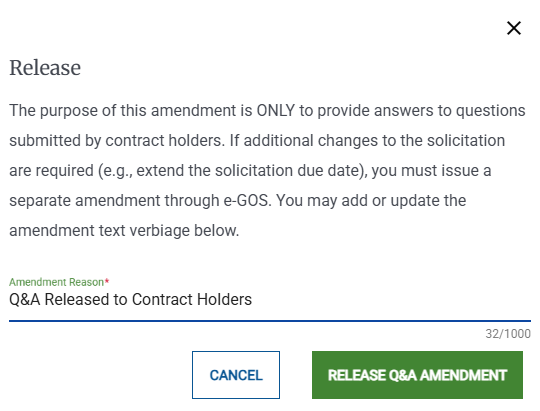
Click Release Q&A Amendment.
In the Release pop-up, click Release Q&A Amendment.