The Left Rail
The Left Rail always appears on the left side of the e‑GOS page.
The Left Rail helps you to navigate in e‑GOS and to choose the kind of information that you want to see. The items that appear in the Left Rail vary, depending on your role in e‑GOS and what task you're performing.
When you are viewing a Dashboard, the Left Rail lets you choose which of the Dashboards available to you that appears.
When you are creating, reviewing, or modifying an Activity, the Left Rail lists the steps in the task. A completed step has a vertical bar at the left edge. You can jump between the steps by clicking the step in the Left Rail.
The Left Rail in Dashboards
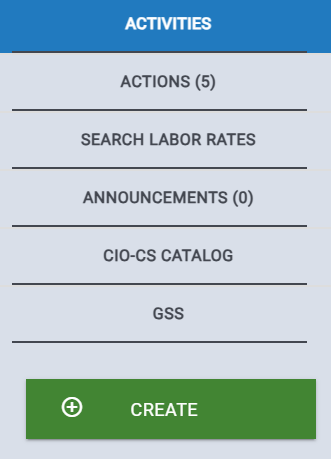
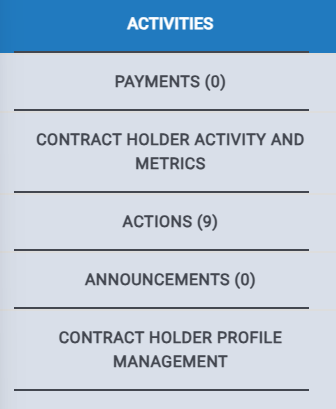
When you're viewing a Dashboard, the Left Rail lists each Dashboard that you can view. The Dashboards that are available vary, depending on your role in e‑GOS. if you have more than one role assigned, the contents of the Left Rail depend on which Role you're using at any given time.
You can click any item to view that dashboard.
Tip
The items in the Left Rail depend on the role that you're assigned to. The items in the image below are typical, but you may see a different list, depending on your role.
The Left Rail in an Activity
When you work on an Activity, the Left Rail lists each step that you need to perform to compete the task.
Tip
The items that appear in the Left Rail in an Activity differ, depending on what you're doing in the Activity. The items in the image below are examples. You will see a different list, depending on the Activity you're working on.
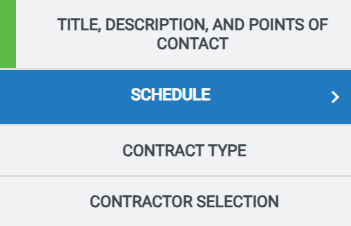
This example shows what the Left Rail looks like when you're performing a task.
The current step is highlighted. The step is a darker color than the other steps.
The prior step is completed. It has a green highlight at the left end of the step.
The last two steps have different backgrounds. the first is a darker shade, the last has a plain white background. Normally you should perform steps in the suggested order.
Frequently, your choices on one step affect choices in later steps. If you choose, you can click a step with a darker background to skip to it.
You cannot skip to a step with a plain white background. The steps with plain white backgrounds depend on earlier steps. You must complete the earlier steps before you can begin the steps with plain white backgrounds.