Clarify/Discuss
When the response period has ended, the Federal Customer evaluates the proposals.
During these evaluations, the Federal Customer might have questions or require clarification regarding a proposal.
Note
The Federal Customer may provide a deadline and instructions for the Clarify/Discuss period.
The Federal Customer has the option to make these discussions available to all Contract Holders who submitted proposals, or the discussions may be one-on-one.
When the Federal Customer sets a Clarify/Discuss period, the following happens:
Clarify/Discuss is enabled on the Left Rail in the Activity.
Affected Contract Holders can submit an updated response.
The e‑GOS system sends an email notification to the Contract Holder’s GWAC email address to let them know that the Clarify/Discuss period has been opened.
To Extend a Clarify/Discuss Deadline
If needed, you can extend a Clarify/Discuss deadline that has not passed. You extend the deadline for each Contract Holder separately. If the deadline has passed, you cannot extend it. Instead, you must create a new Clarify/Discuss message.
In e‑GOS, in the Activities Dashboard, locate the Activity and click the Activity ID.
In the Activity Details, click Compete.
In the Left Rail, click Clarify/Discuss.
In the Clarify/Discuss page, locate the Contract Holder whose deadline you want to extend, then click the Pencil icon (
 ) in the Action column in the table.
Tip
If the icon is dimmed, the deadline has passed and you cannot extend it.
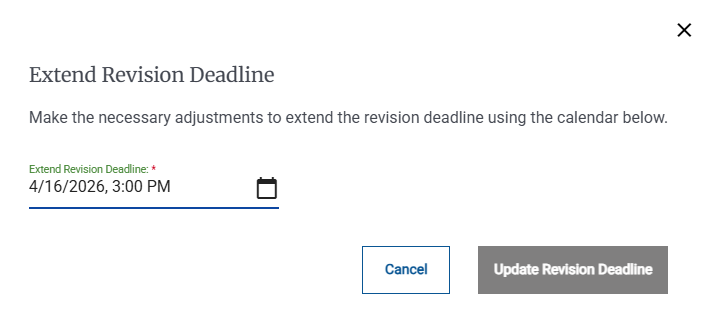
Make any needed changes to the deadline, then click Update Revision Deadline.
To Create a Clarify/Discuss Message
After the response deadline but before creating an award, a Federal Customer or a NITAAC User can send a message to one or more Contract Holders who have responded to an Activity to ask for more information. When you send a Clarify/Discuss message, you select the applicable Contract Holders and set the deadline for revisions. Contract Holders respond to the message with a revised response.
When you create a Clarify/Discuss Message, each Contract Holder that you include receives a unique message and attachments. You can set a single deadline for all Contract Holders or a unique deadline for each Contract Holder.
Tip
You can only send a Clarify/Discuss message to Contract Holders who have responded to an Activity.
In e‑GOS, in the Activities Dashboard, locate the Activity and click the Activity ID.
In the Activity Details, click Compete.
In the Left Rail, click Clarify/Discuss.
In the Clarify/Discuss page, click Create Request Revision.
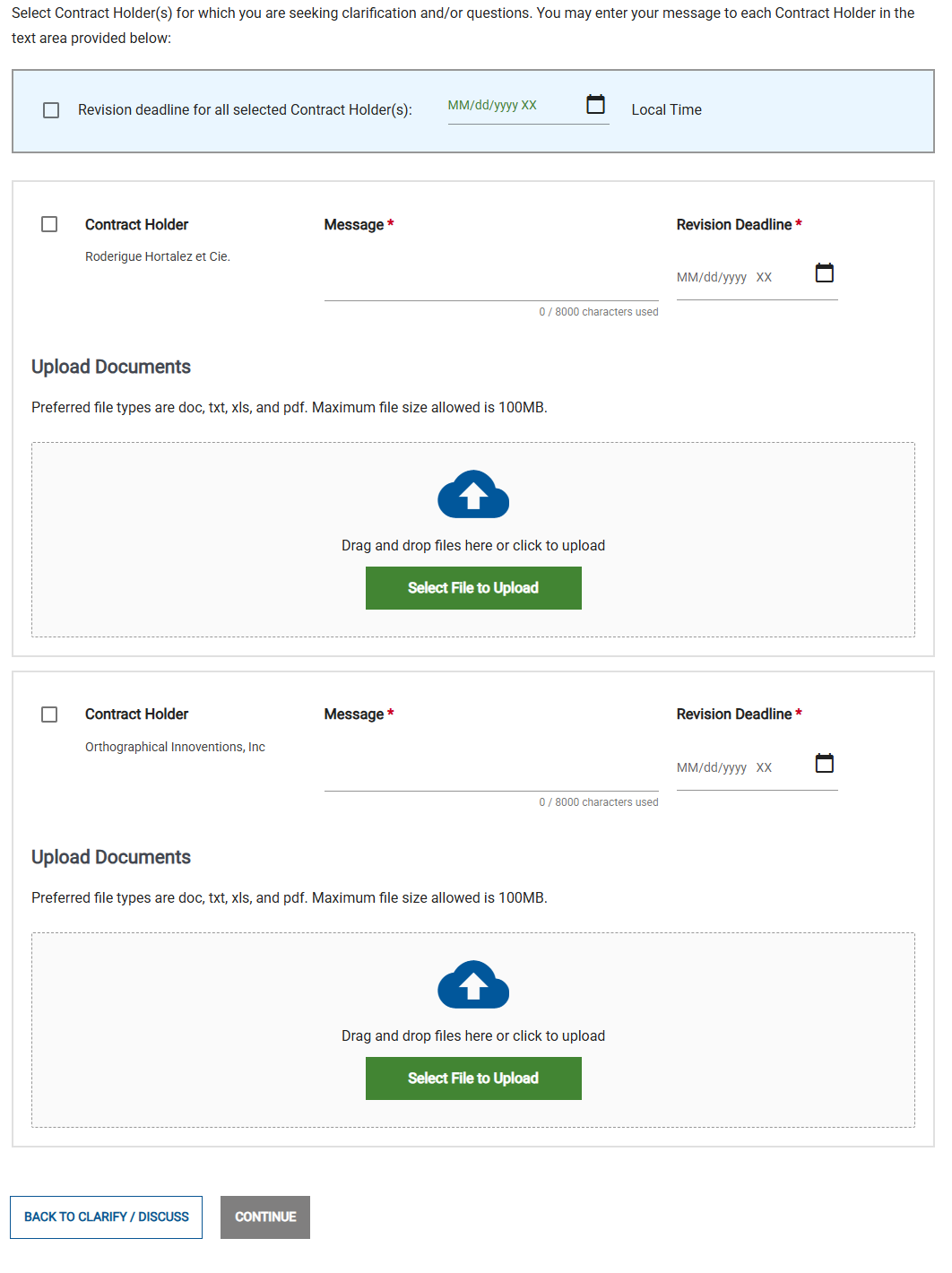
In the Create Request Revision page, do the following:
To set the same deadline for all Contract Holders, select the Revision deadline for all selected Contract Holder(s) checkbox, then set the deadline.
For each Contract Holder that you want to include, do the following:
Select the checkbox beside the Contract Holder's name.
Enter a message to the Contract Holder.
If you did not specify a global revision deadline, specify a unique revision deadline for the Contract Holder.
Optionally upload one or more files to send to the Contract Holder.
Click Continue.
In the Confirm Clarification/Discussion pop-up, click Submit.
To View Clarify/Discuss Messages
On the Activities dashboard click the ID of the order.
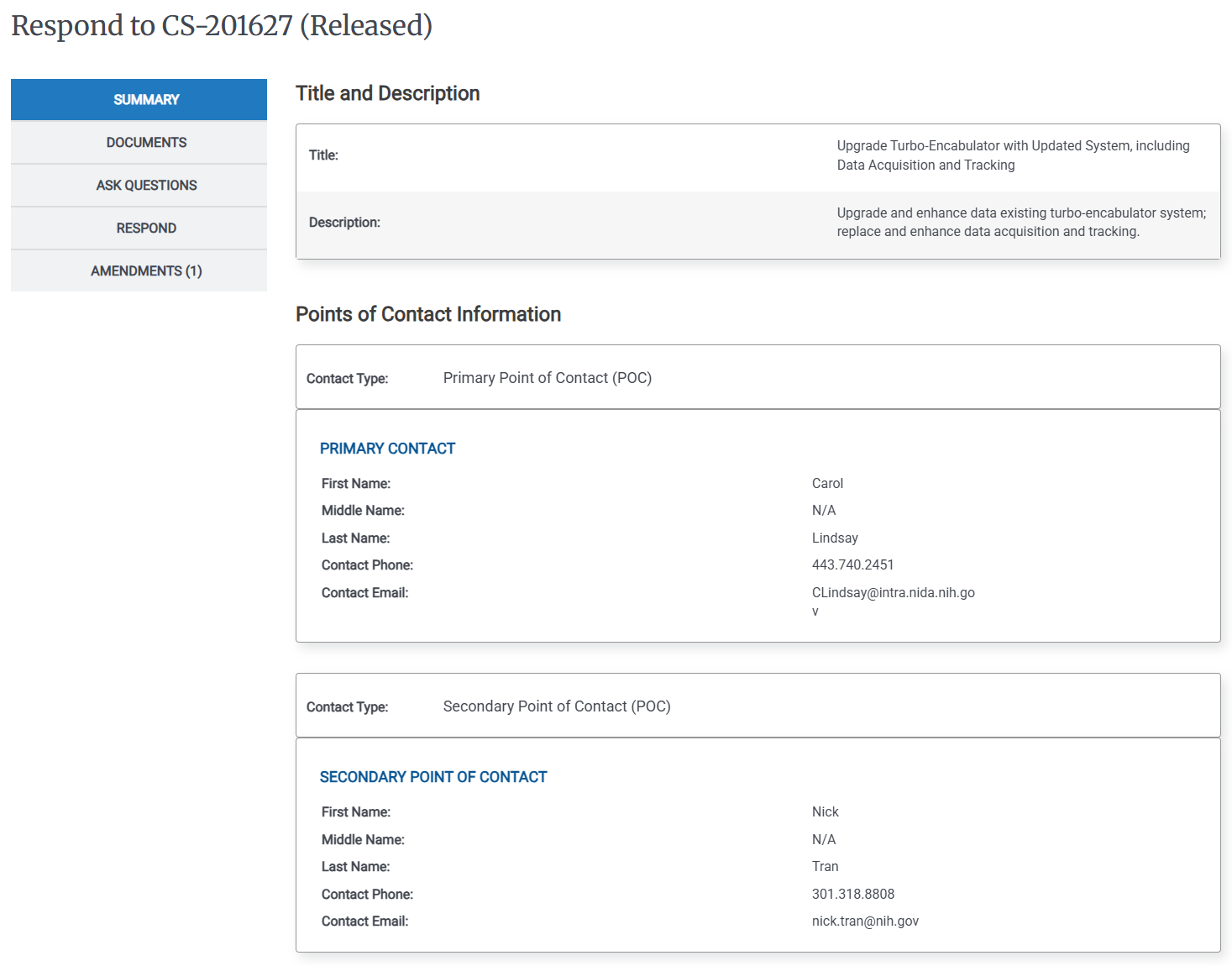
Click Clarify/Discuss(*) on the Left Rail. The clarify/discuss history page appears.
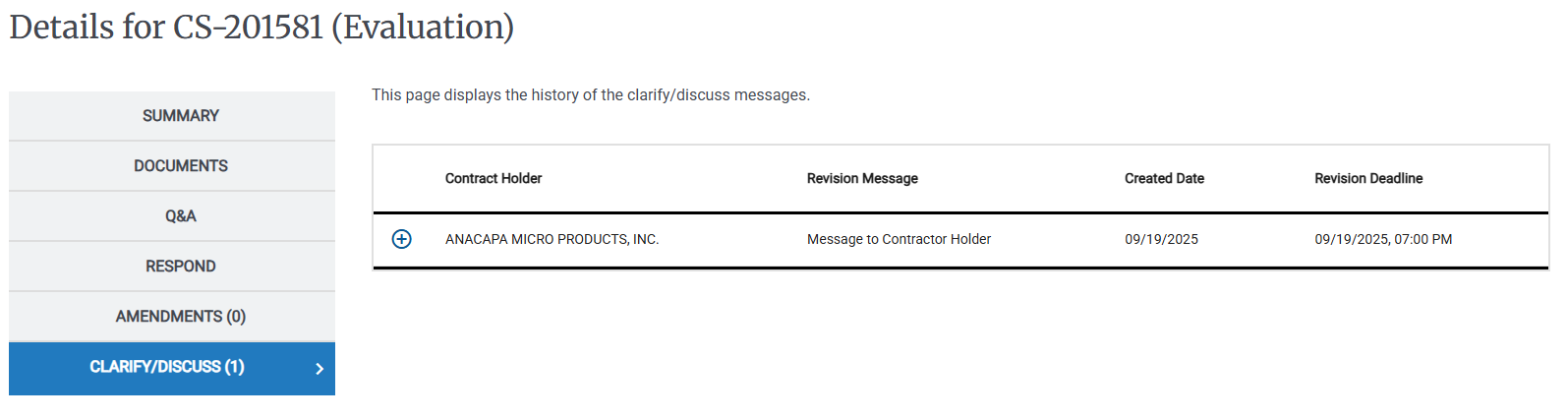
Click the Expand Details (
 ) icon to view attachments and details for a particular message.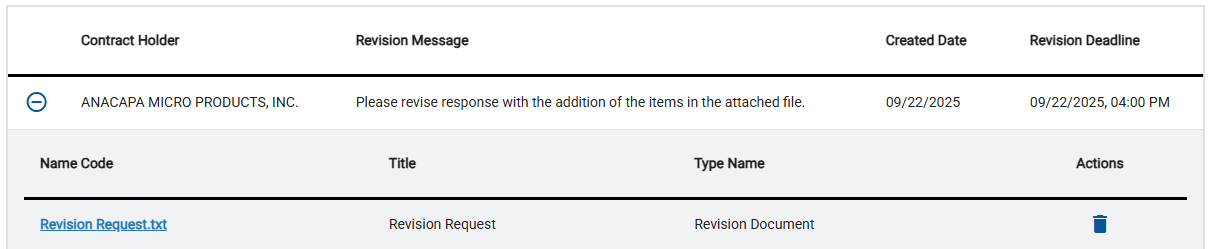
Tip
You can click the name of any attachment in the File Name column to download it to your computer.
You can click Update your response to respond to the update request.
If the Clarify/Discuss period has not ended, the Federal Customer can delete attached documents. After the Clarify/Discuss period has ended, documents cannot be deleted.
To Respond to Clarify/Discuss
To respond to Clarify/Discuss you submit an updated bid.
For more information, see: To Respond to CIO-SP3 or CIO-SP3 Small Business Activity with Documents Only.