Change your Password or your Secret Question
If you use a username and password to access e‑GOS, you can change your password and secret question while you are logged in.
In addition, if your password expires, the next time that you log in, the e‑GOS system prompts you to set a new password.
Note
Some users do not have a password and a secret question. These users use their Personal Identity Verification (PIV) card and PIN to access e‑GOS. If you use your PIV card and PIN, you do not have a password and a secret question, and the items do not appear when you are logged in.
To Change your Password
Note
You must be logged in to change your password. If you have forgotten your password, you must reset your password.
For more information, see To Reset Your Forgotten Password.
If you use a Personal Identity Verification (PIV) Card to access e‑GOS, you do not have a password, and the Password page does not appear.
In e‑GOS, click Account > Profile & Preferences.
In the Left Rail, click Security.
In the Security page, in the Password area, click Edit.
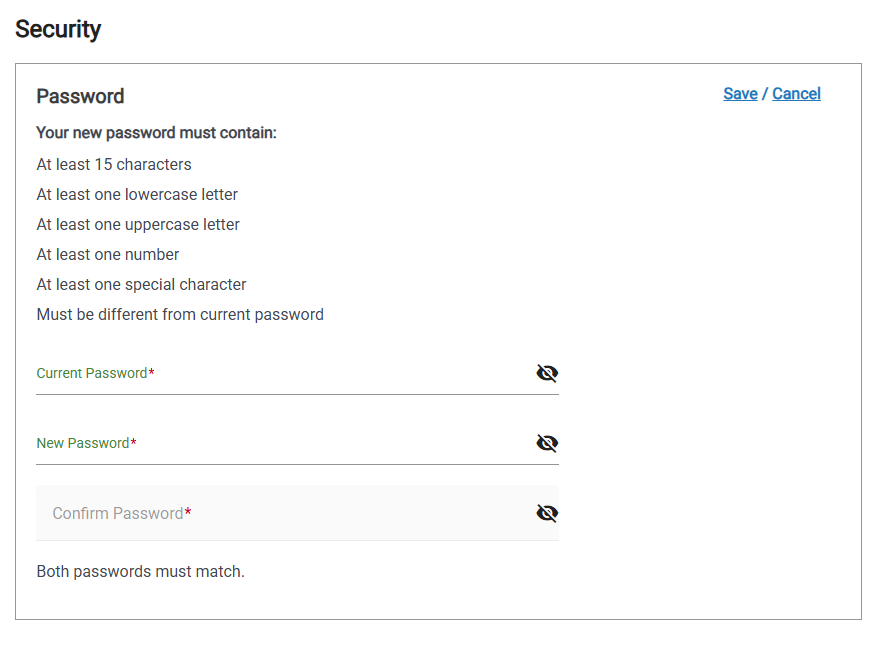
In the Password page, do the following:
Enter your Current Password
Enter your New Password
Confirm your New Password
Click Save.
Note
Your New Password must meet the Password Requirements before you can confirm it.
To Reset Your Forgotten Password
If you use a username and password to log in to e‑GOS, you can reset your password if you forget it.
Tip
If you are an NIH staff member and use your PIV card to log in, you cannot change your PIN from e‑GOS. Contact the NIH Help Desk for assistance in changing your PIV card PIN.
At the e‑GOS Login page, click Forgot your password?
In the Forgot Password page, enter your email address or username, then click Send Link.
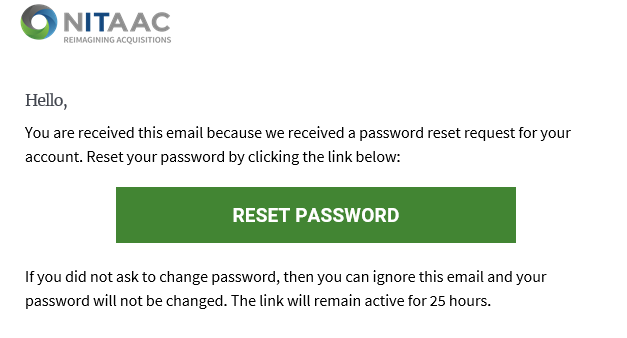
If you're a registered user, the e‑GOS system will send an email with a link you can use to reset your password. Click Reset Password in the email.
In the Answer Secret Question page, enter the answer that you entered when you registered for e‑GOS, then click Verify Answer.
Note
If you do not remember your secret question, the NITAAC Support Desk must reset your account. Please contact the NITAAC Support Desk using one of the following options:
(888) 773-6542
In the Create New Password page, enter the new password, then re-enter it and click Reset Password.
In the Password Reset page, click Login, then log in with your new password.
To Change your Secret Question
Note
You must be logged in to change your Secret Question.
If you use a Personal Identity Verification (PIV) Card to access e‑GOS, you do not have a Secret Question, and the Secret Question page does not appear.
In e‑GOS, click Account > Profile Preferences.
In the Left Rail, click Security.
In the Security page, in the Password area, click Edit.
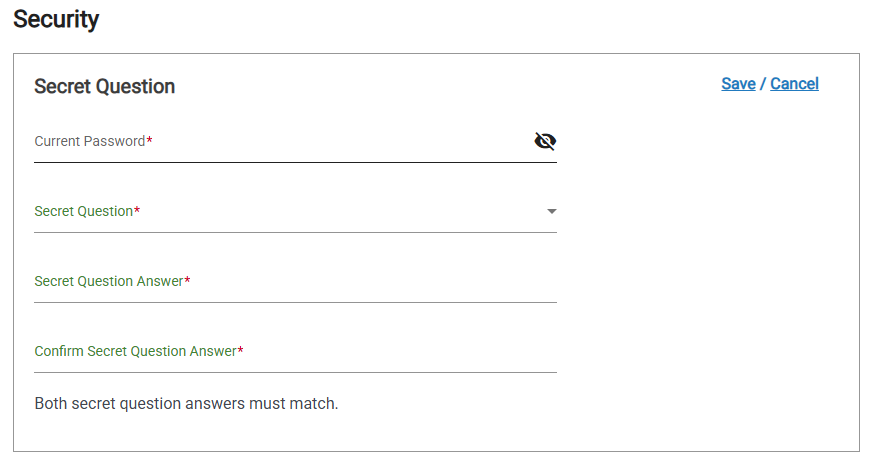
In the Secret Question page, do the following:
Enter your current password
Select your new secret question from the Secret Question drop-down list
Enter the Secret Question Answer
Confirm the Secret Question Answer
Click Save