To Review a TRP
In the TRP module click Review TRP.

Locate the TRP to review on the list.
Tip
You can access a specific Contract Holder in the drop-down list.
Tip
You can search in the Search field.
In the NITAAC TRP ID column, click the TRP that you want to review.
Click Lock to review. A confirmation popup appears.
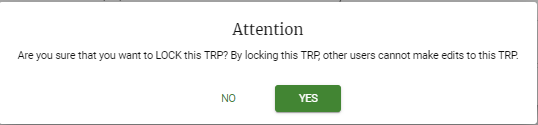
In the confirmation window, click Yes.
Click
 to view the details for the CLIN.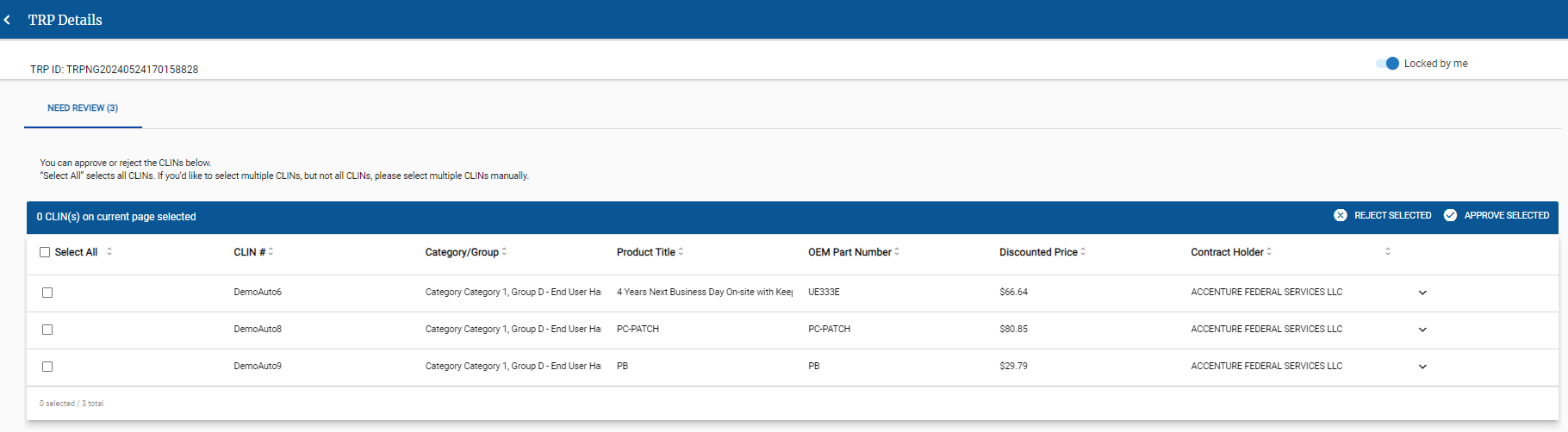
Do one of the following for each CLIN on the TRP:
Approve a single CLIN
Approve Multiple CLINs
Click the checkbox to select all the CLINs to approve for the same reason.
In the top right corner of the CLIN list, click Approve Selected.
On the Reason for Decision tab, click the reason.
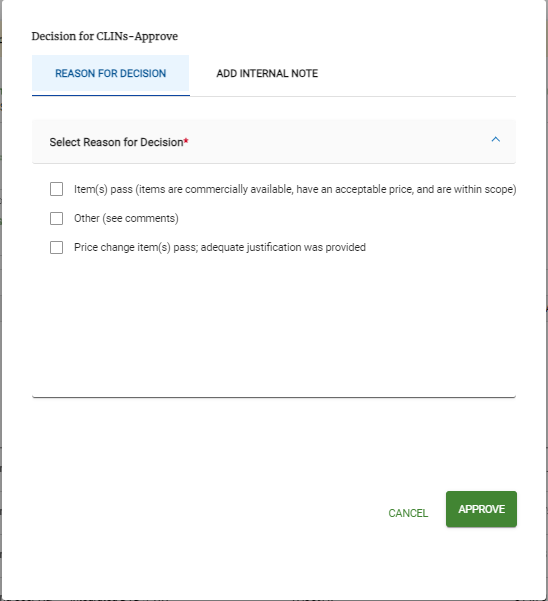
Click the checkbox for Select Reason for Decision (Visible to Contract Holder).
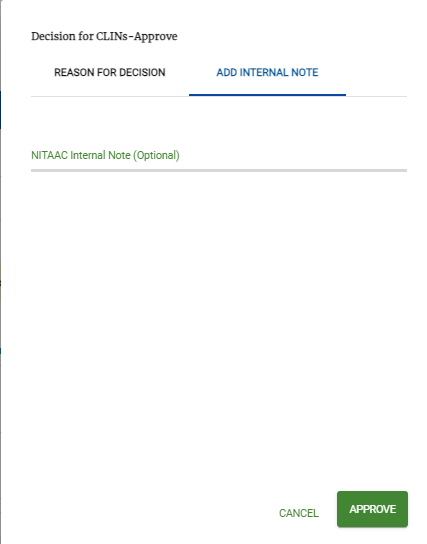
You can add an internal note, visible to NITAAC only.
Click Approve.
Reject a single CLIN
Click Reject CLIN.
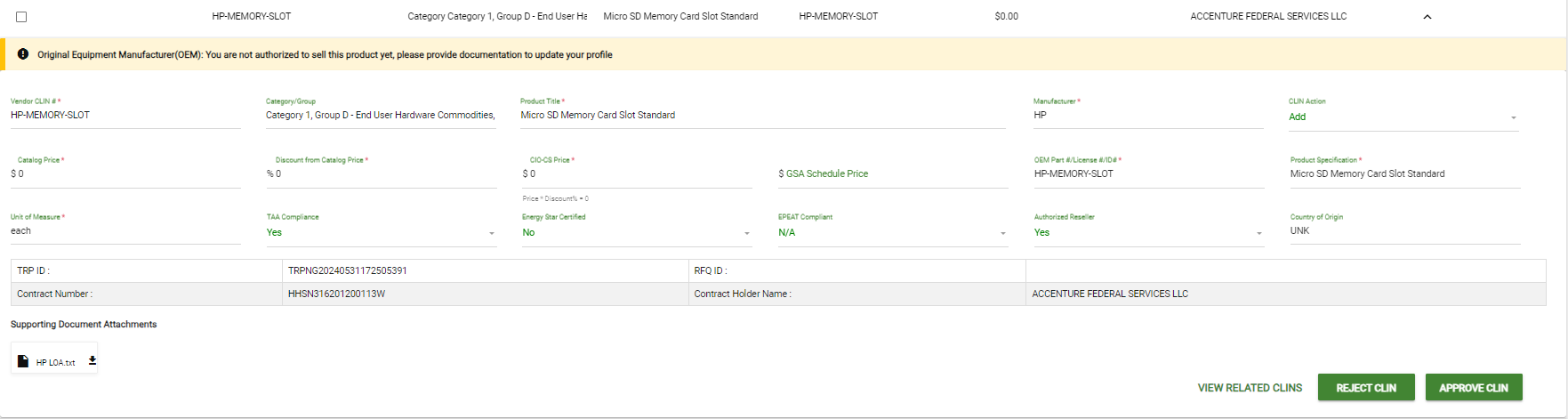
Complete the fields for the Reason for Decision:
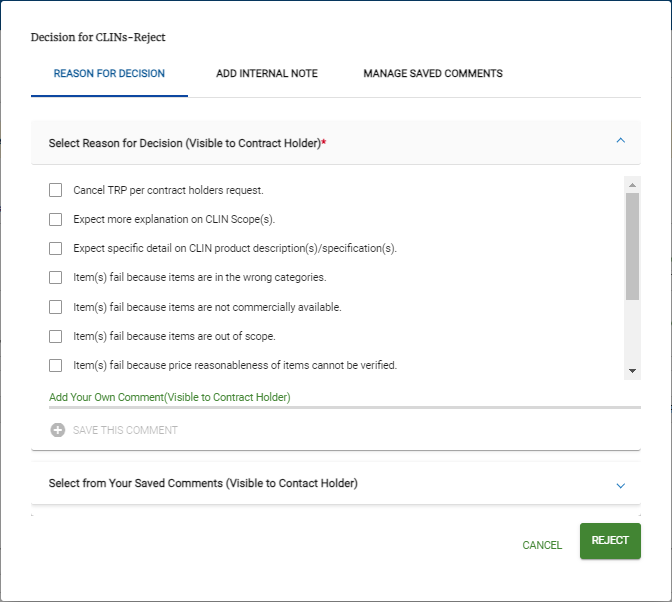
Click the checkbox for Select Reason for Decision (Visible to Contract Holder).
Note
If you select Item(s) fail because items are in the wrong categories e‑GOS prompts you to select the correct category.
Click the correct category to select it.
You can do one or more of the following:
Add a new comment for the contract holder.
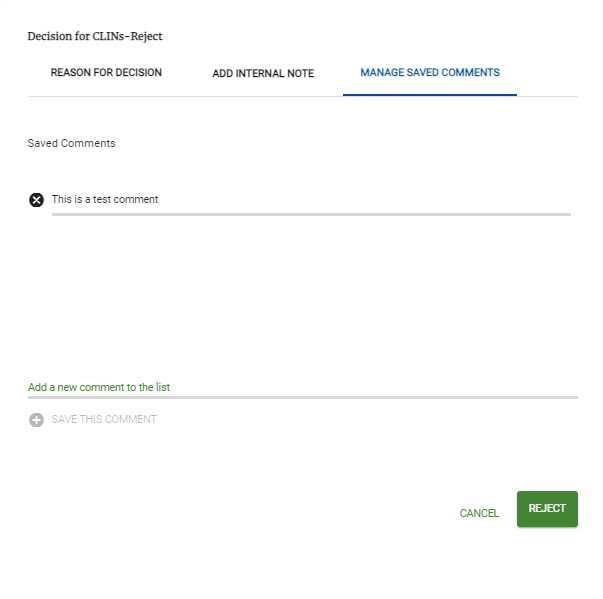
Add a comment for the contract holder from your saved comments.
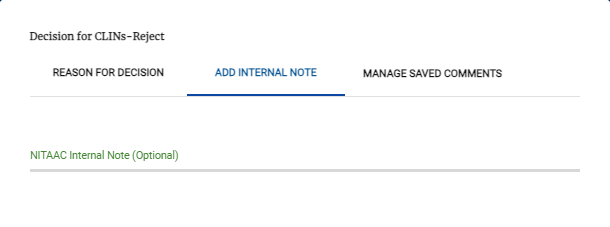
Add an internal note for NITAAC users only.
Manage saved comments.
Click Reject.
Reject Multiple CLINS
Click the checkbox to select all the CLINs to reject for the same reason.
In the top right of the CLIN list header, click Reject Selected.
Complete the fields for the Reason for Decision:
Click the checkbox for Select Reason for Decision (Visible to Contract Holder).
Note
If you select Item(s) fail because items are in the wrong categories e‑GOS prompts you to select the correct category.
Click the correct category to select it.
You can do one or more of the following:
Add a new comment for the contract holder.
Add a comment for the contract holder from your saved comments.
Add an internal note for NITAAC users only.
Manage saved comments.
Click Reject.
Repeat as needed for additional CLINs.