To Perform the First Review of an Activity
The first reviewer ensures that the request is complete and meets NITAAC standards.
Locate the item to review.
In the e‑GOS Dashboard, click Activity Alerts in the Left Rail.
Tip
The number in the Activity Alerts button is the number of unread alerts.
In the Activity Alerts page, click one of the categories to display only those alerts.
Tip
You can click any column heading to sort the list by that column.
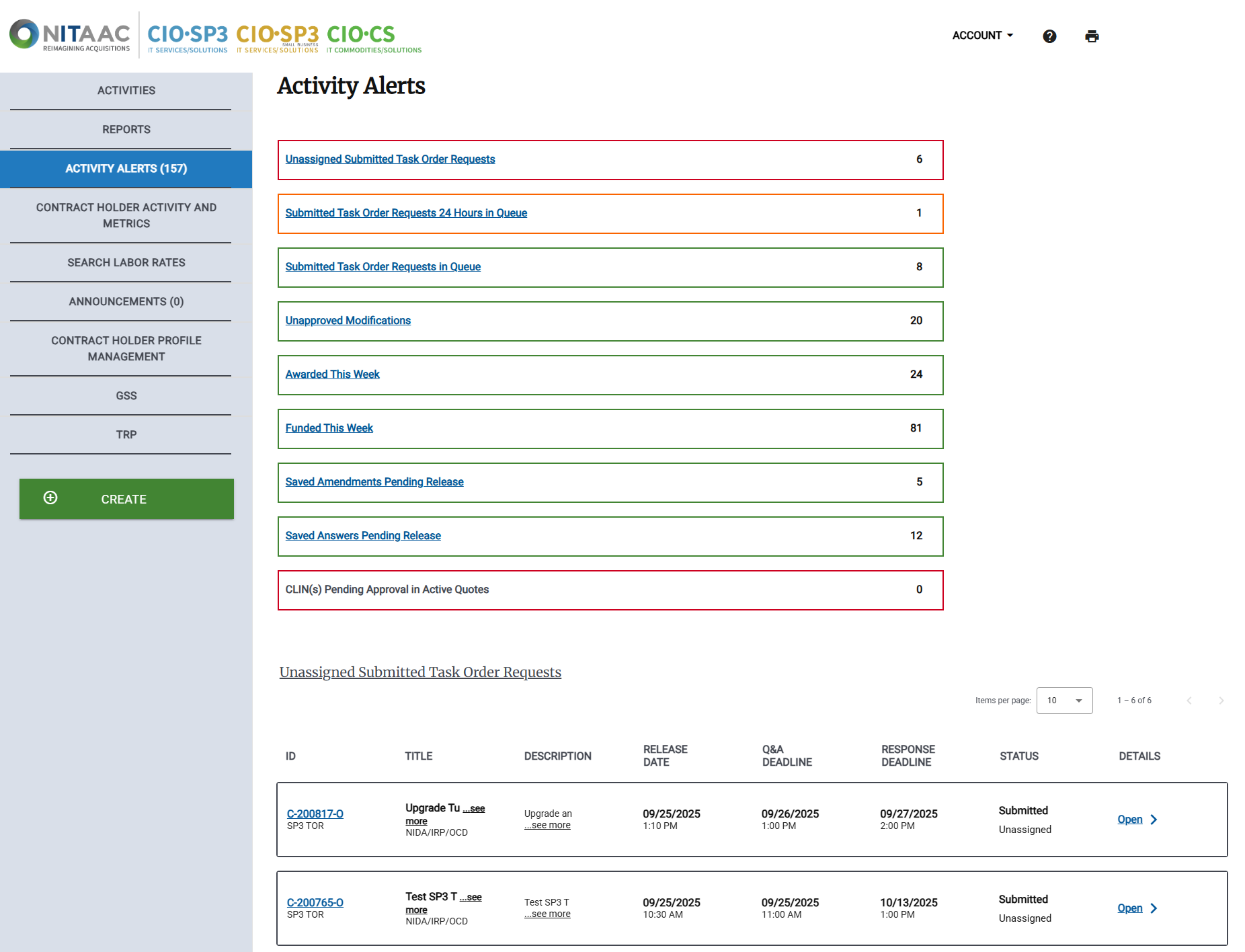
In the list, locate the request to review, then click the Order ID.
View the item's summary.
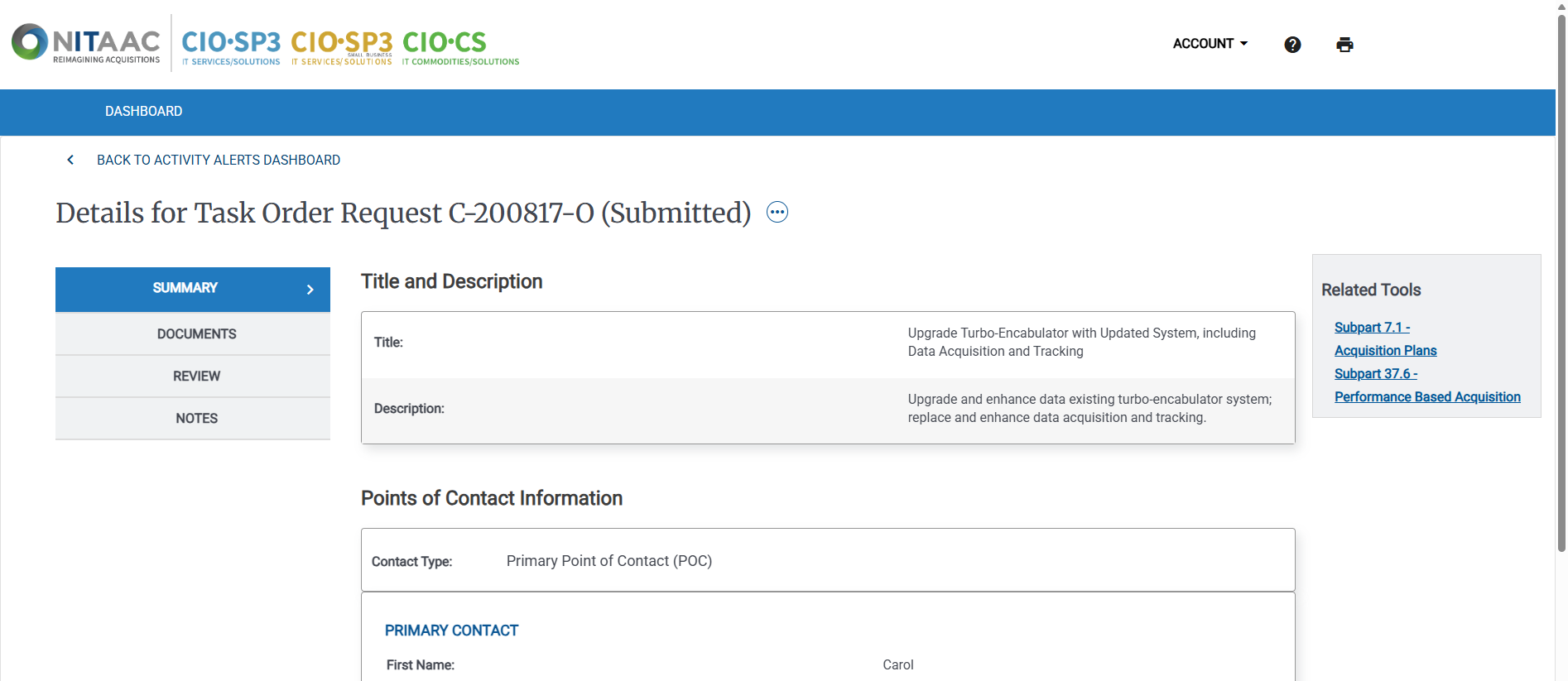
In the Details page, review the details of the Activity.
Tip
Some items, including the list of contractors and attachments are links. You can click the links to view the items.
In the Left Rail, click Documents.
Review the attached documents.
In the Documents page, review the documents associated with the Activity.
Tip
In the Documents page, documents are grouped by type.
Click the down arrow (
 ) to show the documents in a group. Click Expand All to expand all groups.
Click the up arrow (
 ) to close the group and hide the documents. Click Collapse All to close all groups.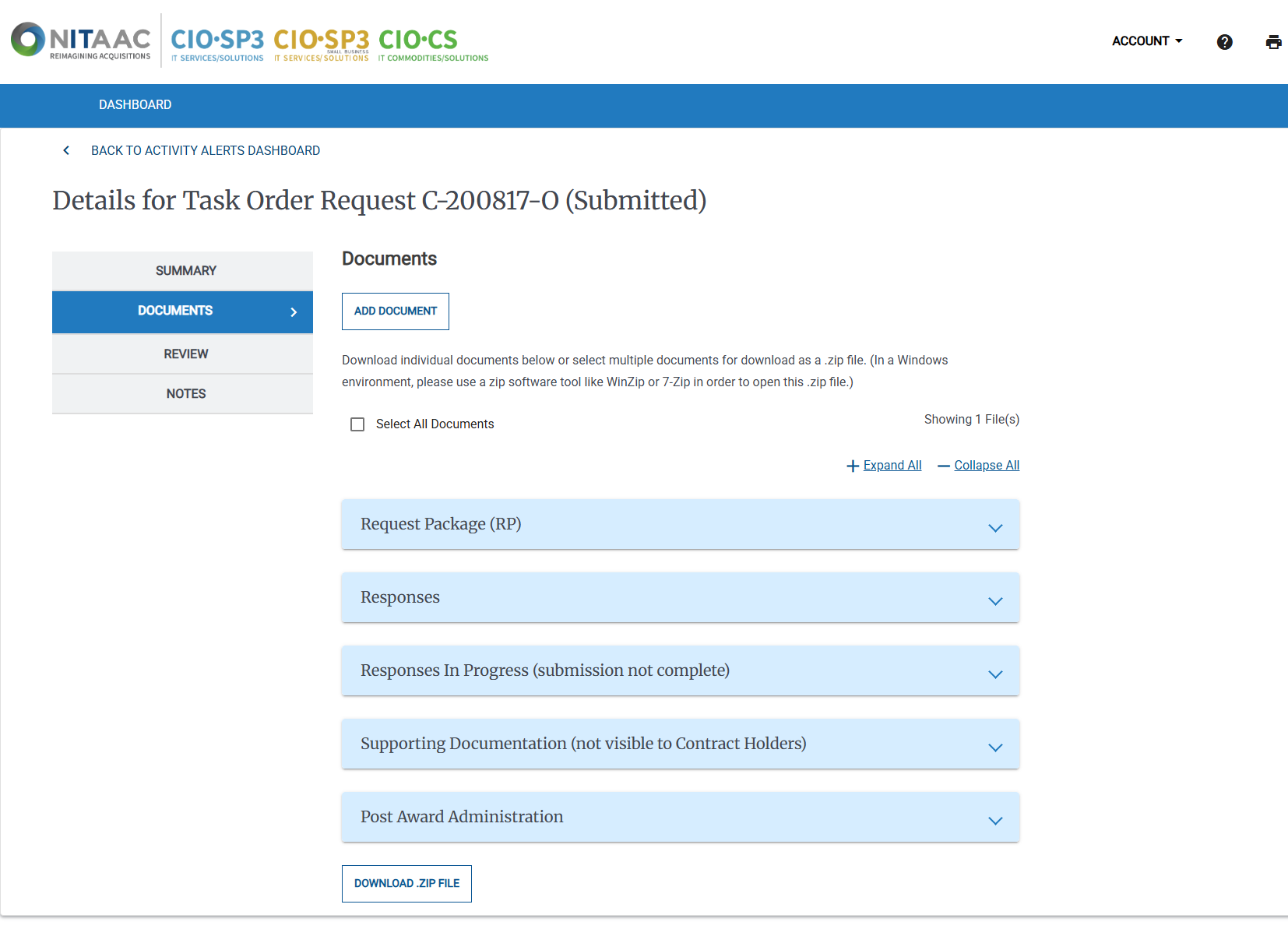
To view the attached documents, do the following:
Select one or more documents to download or click Select All Documents.
Click Download Zip File to download the documents.
Review the files on your computer.
To add additional documents, do the following:
Click Add Document.
to add additional documents, then use the Add Documents page to upload additional documents.
Use the Add Documents page to upload additional documents.
In the Left Rail, click Review to continue.
Complete the review.
In the Review page, do the following:
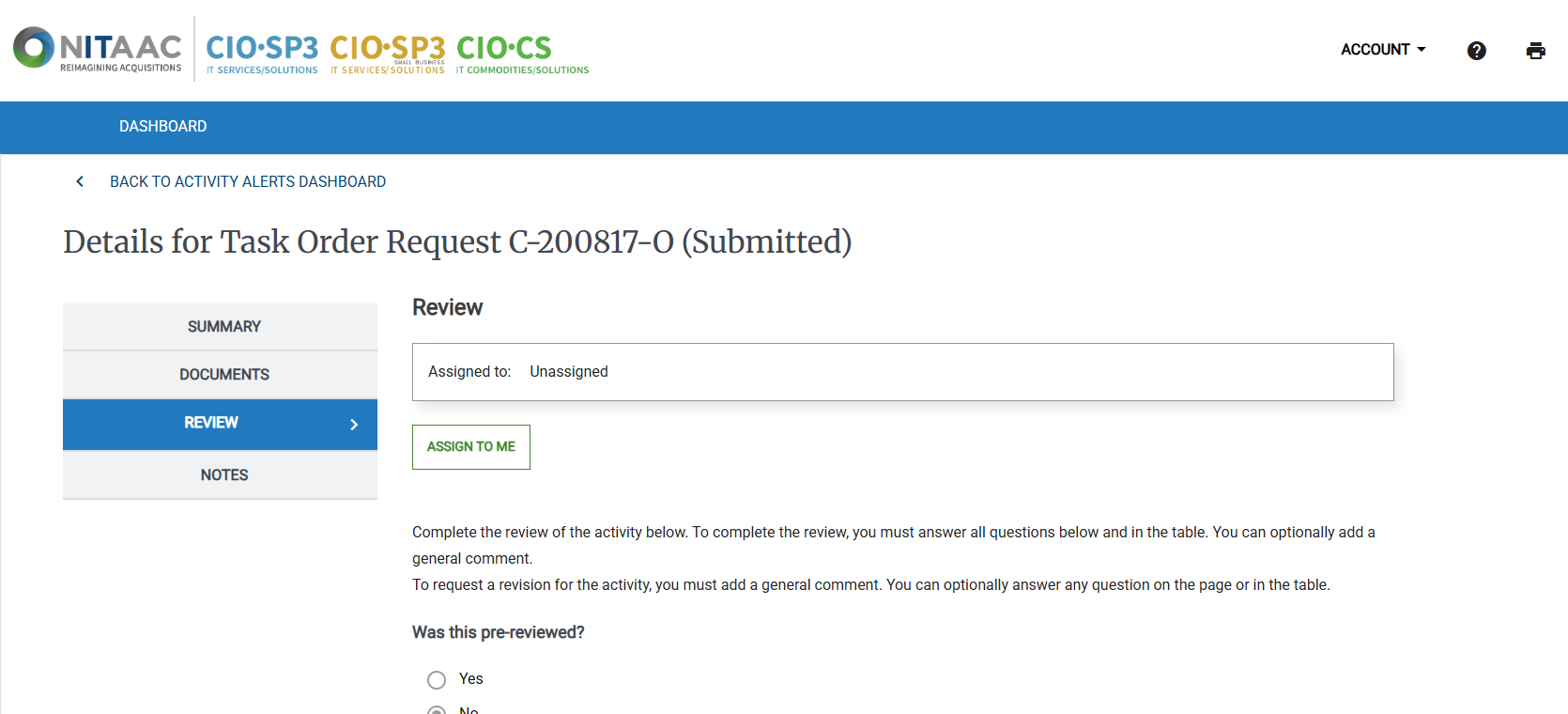
Click Assign To Me to assign the review to you.
In the Was this pre-reviewed? area, click Yes or No.
In the Is this an assisted acquisition? area, click Yes or No.
For each of the Review Questions, do the following:
Read the question.
Click Yes or Revise.
Enter any needed comments.
Note
If you request a revision, you should indicate the needed changes in the comments.
In the General Comments field, enter any needed comments for the Activity.
Note
If you request a revision, you must enter a comment.
Do one of the following:
To request a revision:
Click REQUEST REVISION.
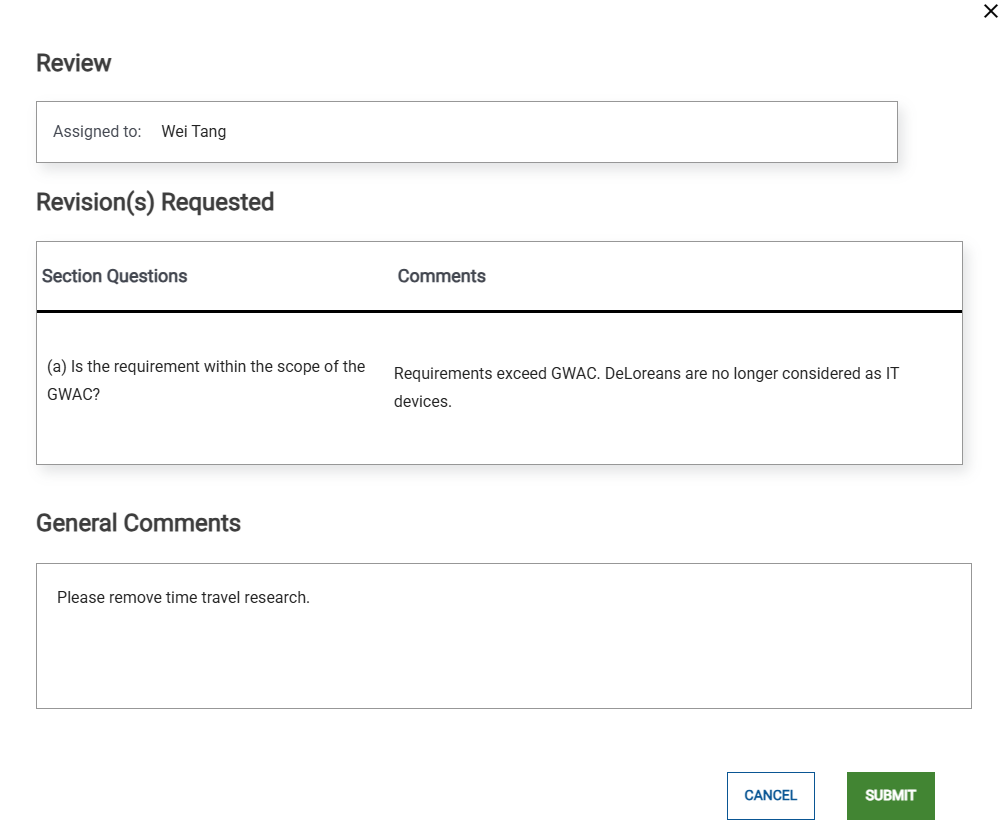
In the Review panel, review the requested revisions.
Click Submit to send the Activity to the points of contact with the requests.
If the Activity is satisfactory, click Review Complete.