Evaluate/Award
When an Activity's response period finishes, you can evaluate the responses and award an Activity to a Contract Holder.
To Report an Award
Locate the Activity that you want to report an award for. Do one of the following to locate the Activity:
In the Left Rail, click Activities.
In the Left Rail, click Actions.
Do one of the following to open the Activity Details:
In the Activities page or the Actions page, click the Activity ID.
In the Activities page, click Open.
In the Actions page, click Open Details.
In the Activity Details, in the Left Rail, click Compete.
In the Left Rail, click Report Award.
In the Award Decision page, enter the Award date.
In the Contract Holder Awardee(s) area, do the following for each awardee:
Click the View Award Delivery (
 ) icon.
In the Contract Holder Awardee page, enter the following:
Order Number
Delivery Type
Total Amount Including NCAF
Date
Drag-and-drop or click Select File to Upload to attach the Award Document and select the Award Document Document Type from the drop-down list. You can also attach one or more Support Documents if needed.
Click Save.
In the Award Decision page, select the checkbox for one or more Contract Holder Awardees, then click Continue.
In the Contract Holder Awardees dialog, review the information and click Submit.
Tip
If you want to send notification emails to unsuccessful Contract Holders, select the Unsuccessful Contract Holder(s) checkbox.
To Adjust an Award
If necessary, the e‑GOS Support Team can make changes to an Approved but not yet Funded award.
Note
Only users assigned to the e‑GOS Program Support role can adjust an award. Only Activities in the Awarded status can be adjusted.
In the Activities Dashboard, locate the Activity whose award you want to adjust and do one of the following:
Click the Activity ID.
Click Open.
Tip
You can use the Advanced Search to locate Activities whose status is Awarded.
In the Left Rail in the Activity Details page, click Administration.
In the Administration page, select View Original Award or Make Award Adjustments from the Contract Holder drop-down list.
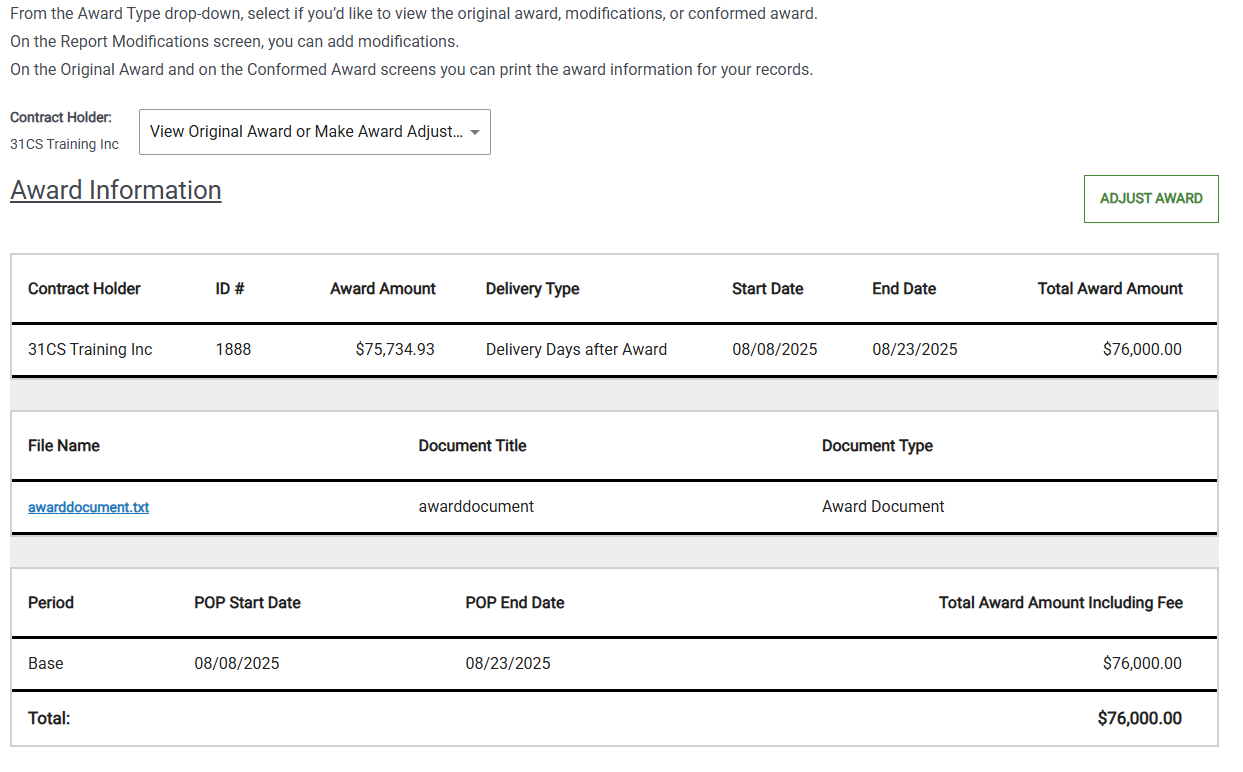
Click Adjust Award.
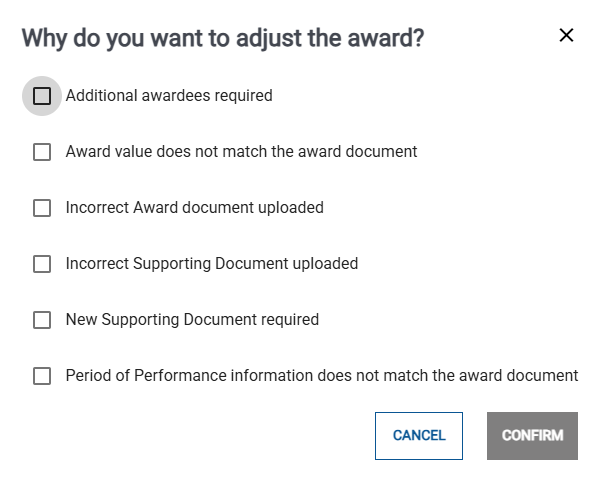
Select one or more reasons why you need to adjust the award, then click Confirm.
In the Award Information page, do one or more of the following for each Contract Holder who responded to the Activity:
Select the checkbox for a Contract Holder to add them to the Awardees.
Unselect the checkbox for a Contract Holder to remove them from the Awardees.
Click the drop-down arrow (
 ) to view details for the award for a Contract Holder.
In the Award Information, for each Awardee that you want to edit, click the Edit (
) icon to open the Contract Holder Awardee dialog and make changes to the award.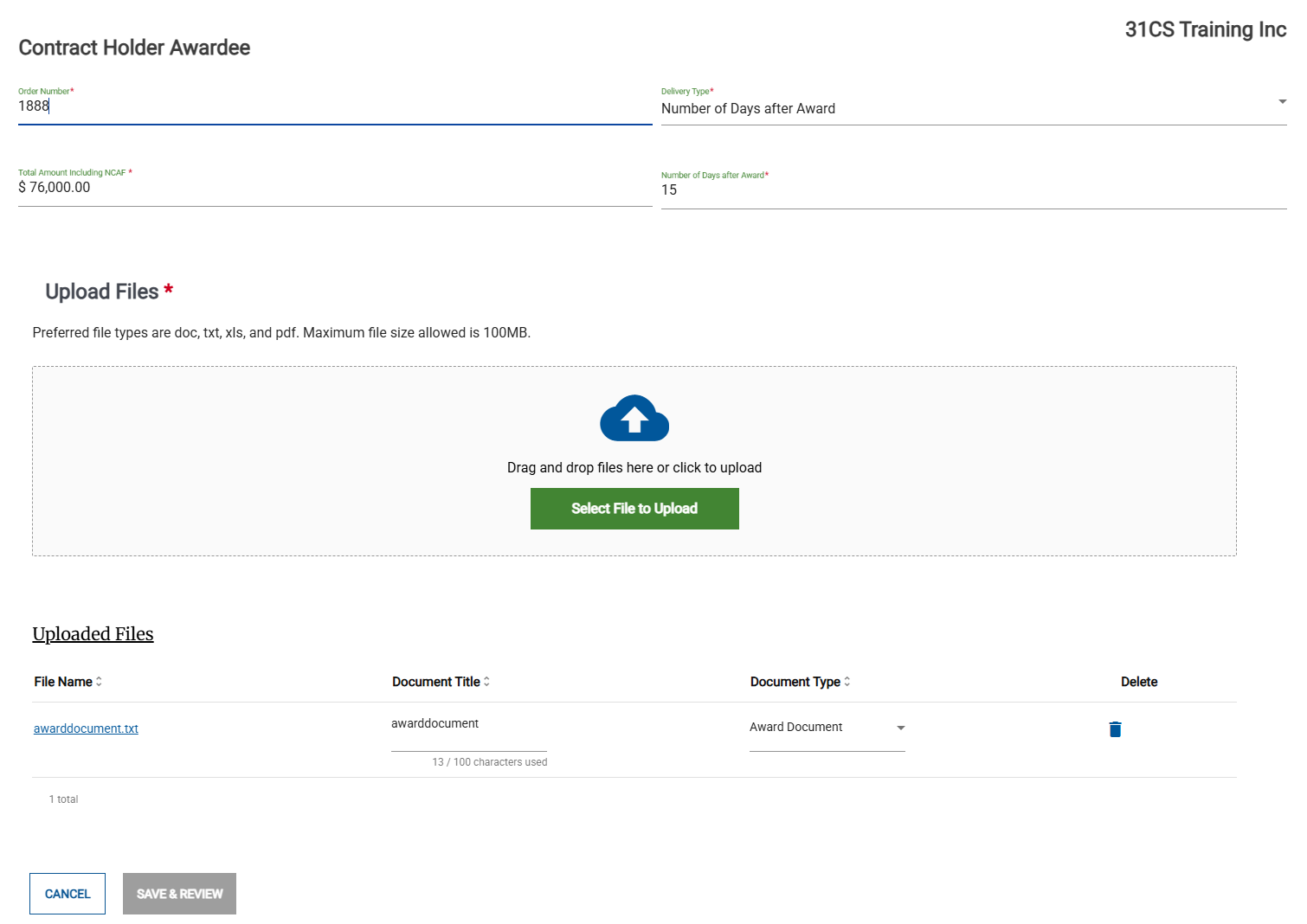
In the Contract Holder Awardee dialog box, make any needed changes, then click Save & Review.
When you have made all needed changes, in the Award Information page, click Submit Adjustment.