Report Award
When the Federal Customer has selected an awardee for an Activity, a NITAAC Contracting Officer must report the award. Reporting the Award releases the information about the Award to the Contract Holder.
To Report an Award
On the Activities dashboard click the ID of the order.
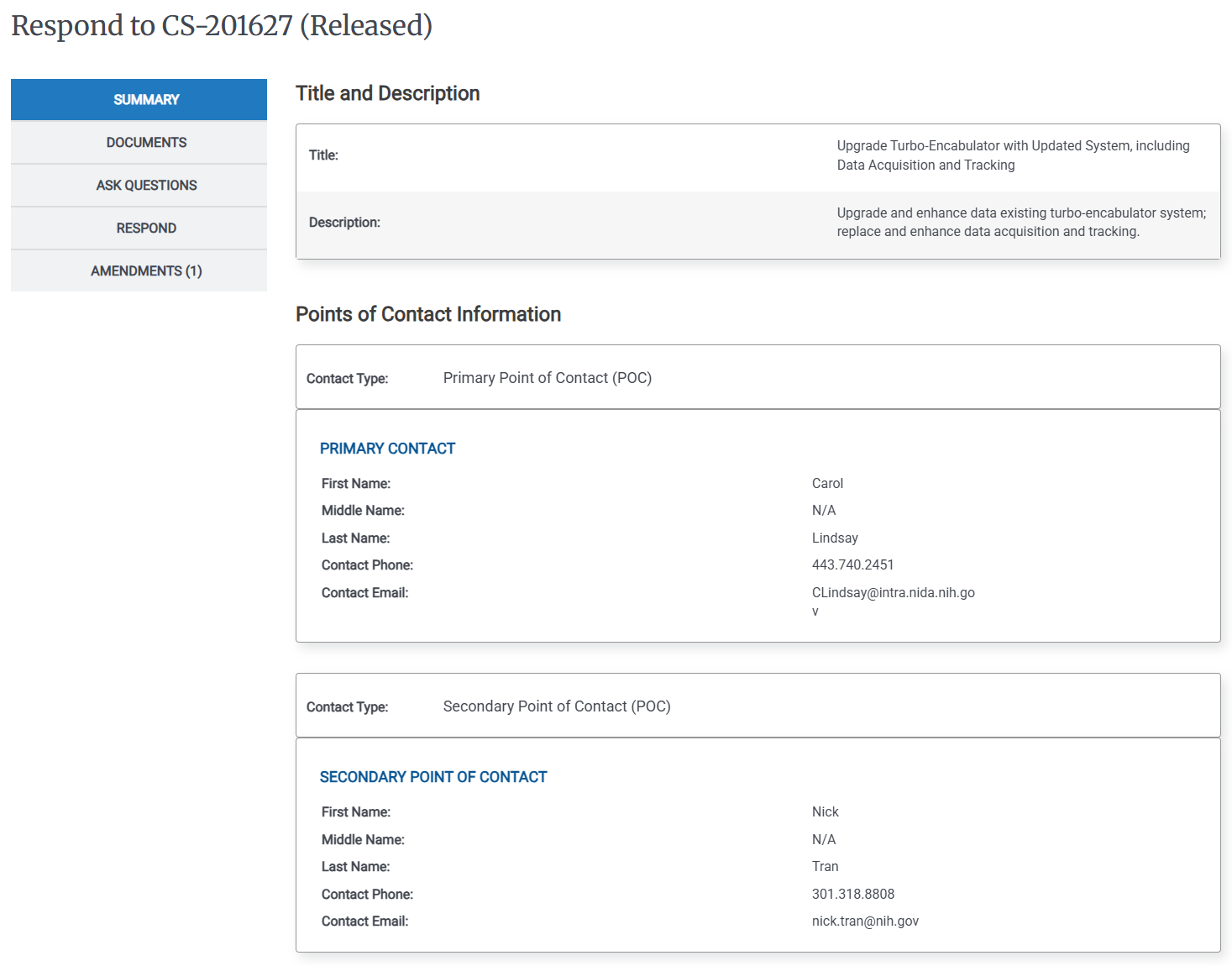
In the Left Rail, click Compete.
In the Left Rail, click Report Award. The Award Decision page appears.
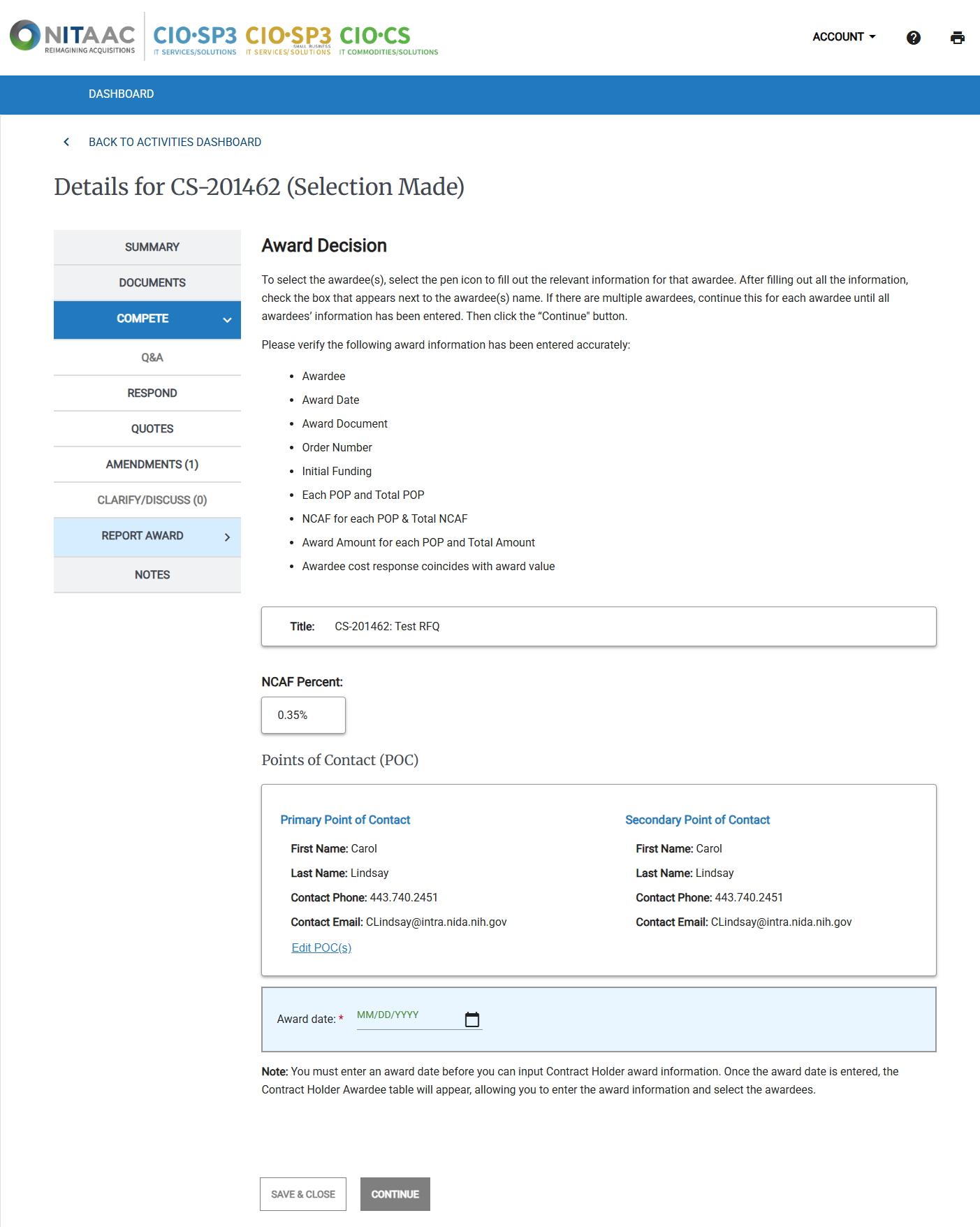
Enter the date of the Award in the Award Date field.
The Contract Holder Awardees area lists all of the Contract Holders who responded to the Activity with a quote. For each Contract Holder Awardee, do the following:
Click the Pencil (
 ) icon. The Contract Holder Awardee pop-up appears.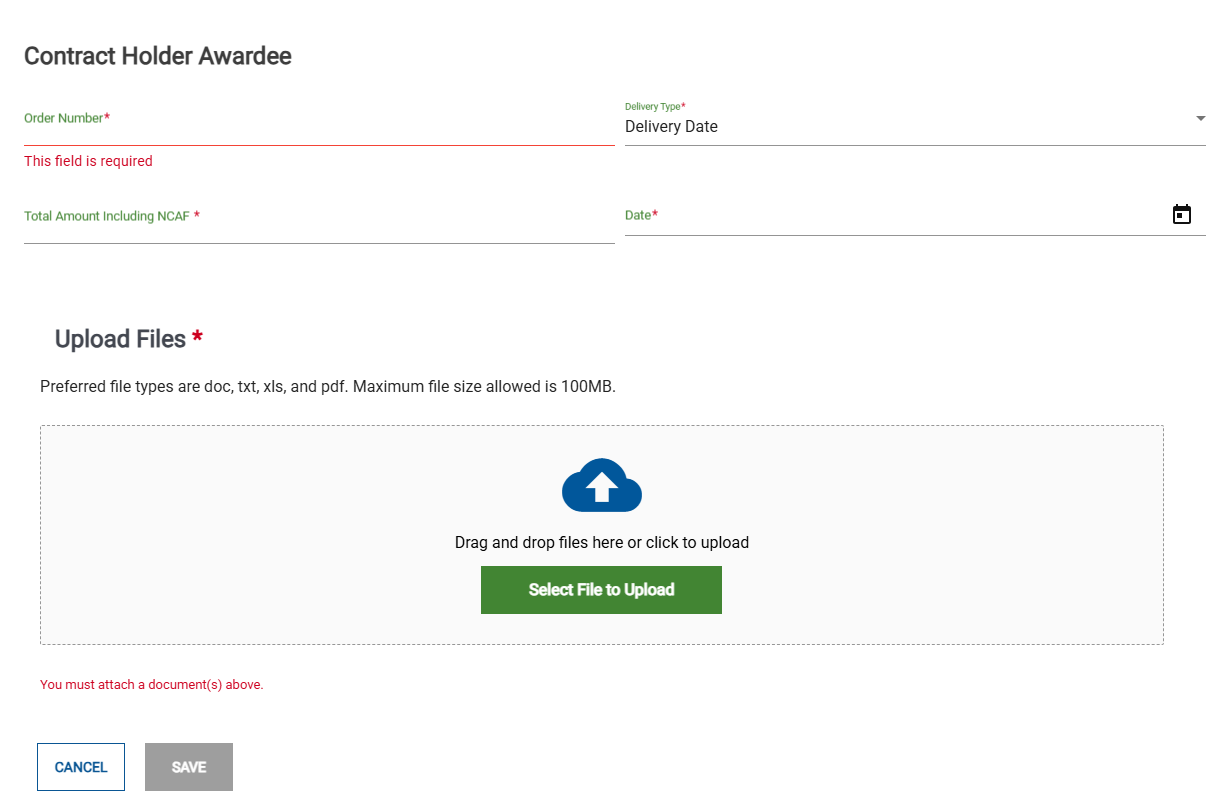
Enter the following information:
Order Number
Delivery Type
Total Amount including NCAF
Date
Click Save.
When you have entered data for all of the Awardees, in the Contract Holder Awardees list, select the checkbox for each Awardee, then click Continue. The Contract Holder Awardees pop-up appears.
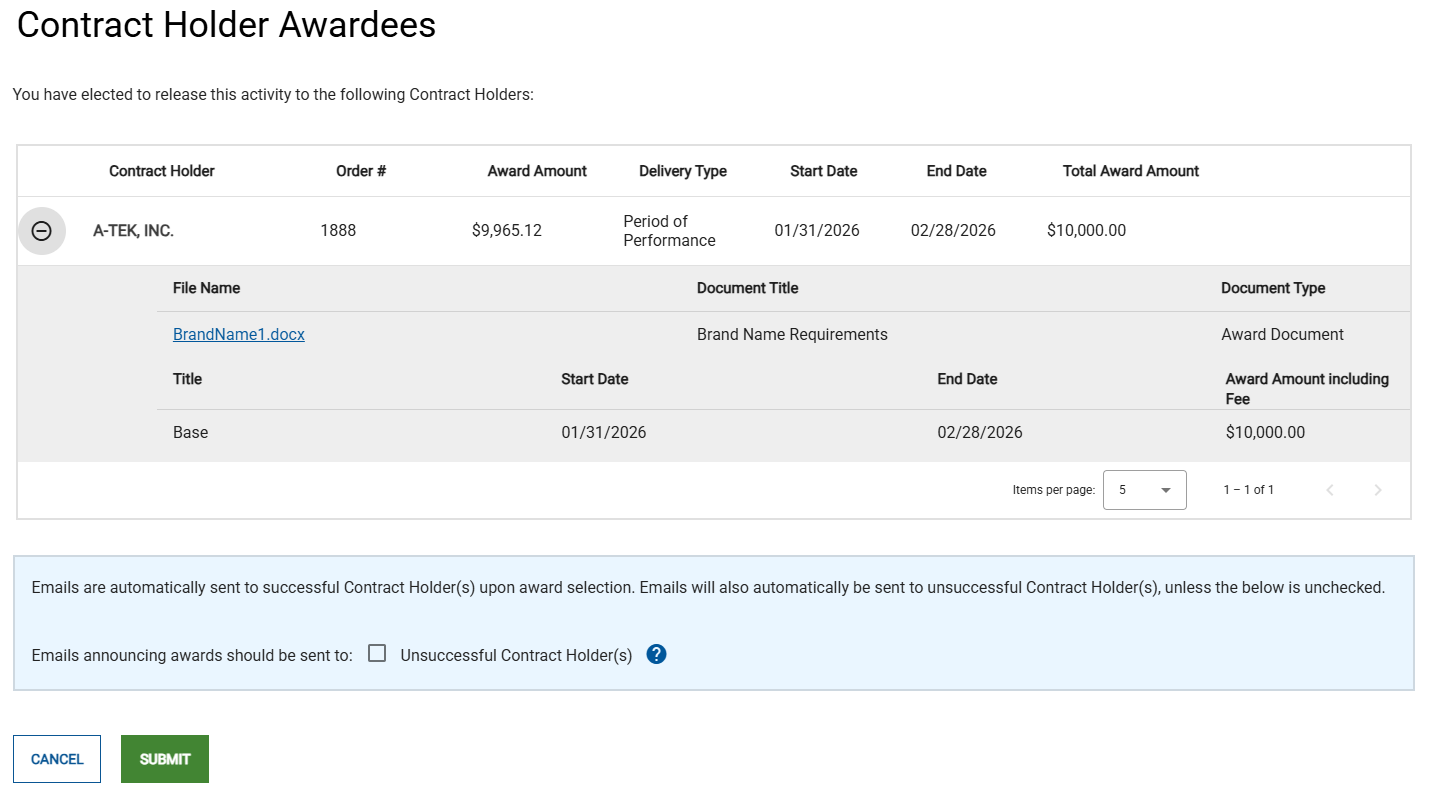
Verify the information for each Contract Holder Awardee in the pop-up, then click Submit to submit the Activity to the NITAAC for final review. NITAAC will review the award and release it to the Contract Holder.
Note
When the Activity was created, the user who defined it specified if an email announcing the award should be sent to unsuccessful Contract Holders. If they did, then the Emails announcing awards... checkbox will be selected. You can make changes to the checkbox if needed.
To View Award Details After Release
On the Activities dashboard click the ID of the order.
In the Left Rail, click Administration, The Details page appears.
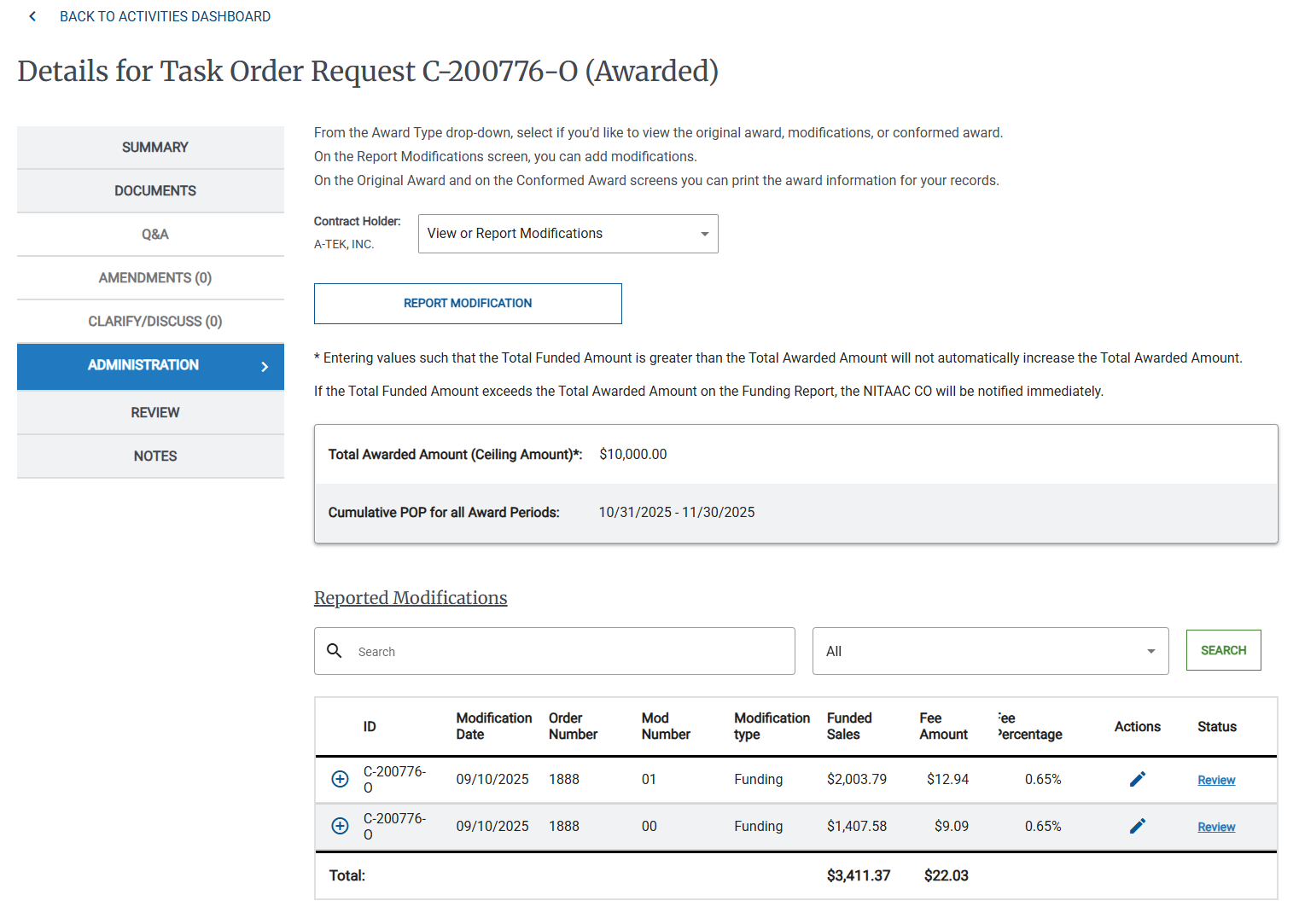
In the drop-down list, select one of the following:
View Original Award
View Conformed Award
The selected award information appears.
To Report Modifications (MODs) as a NITAAC User
On the Activities dashboard click the ID of the order.
In the Left Rail, click Administration, The Details page appears.
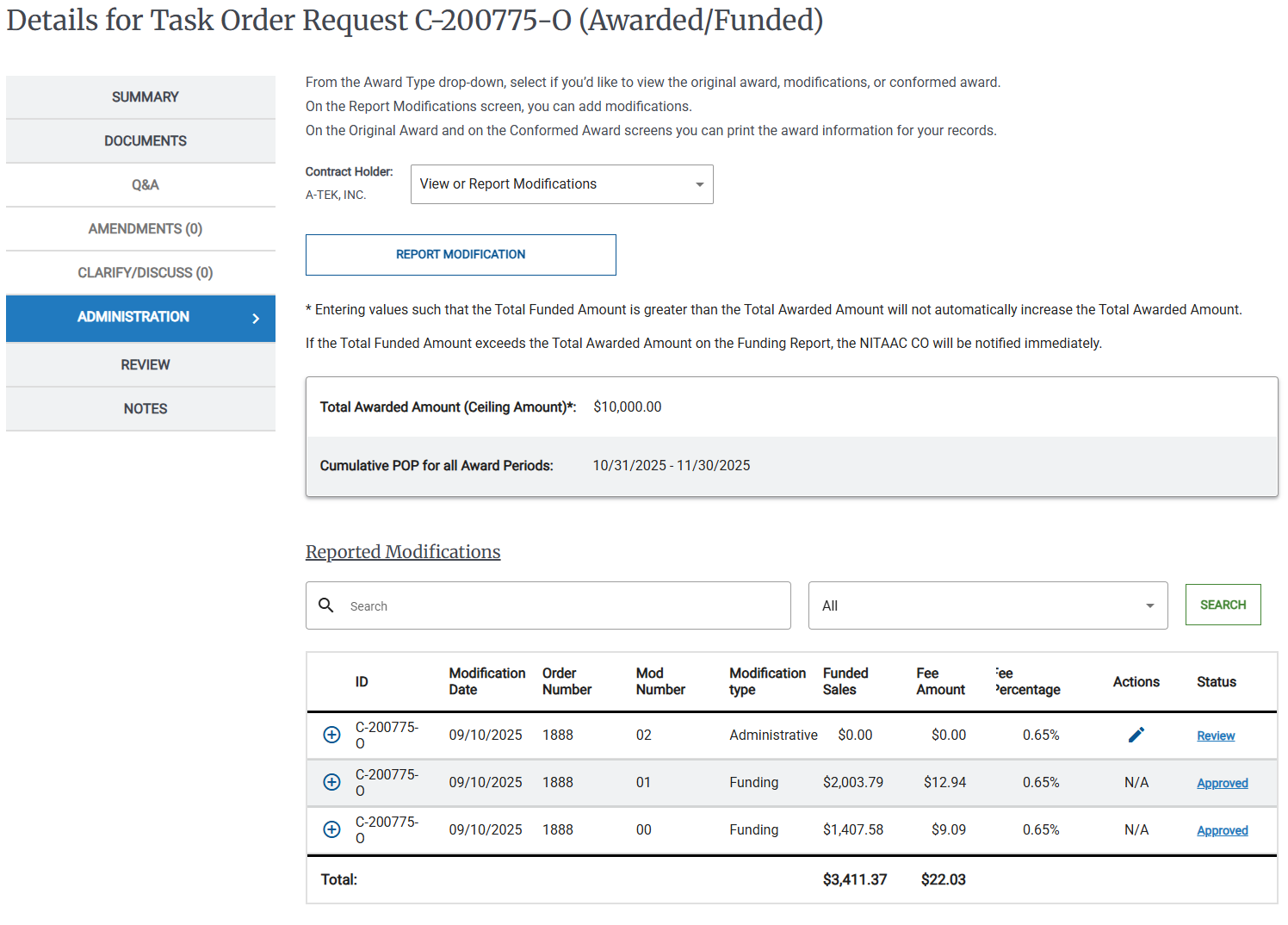
Click Report Modification.
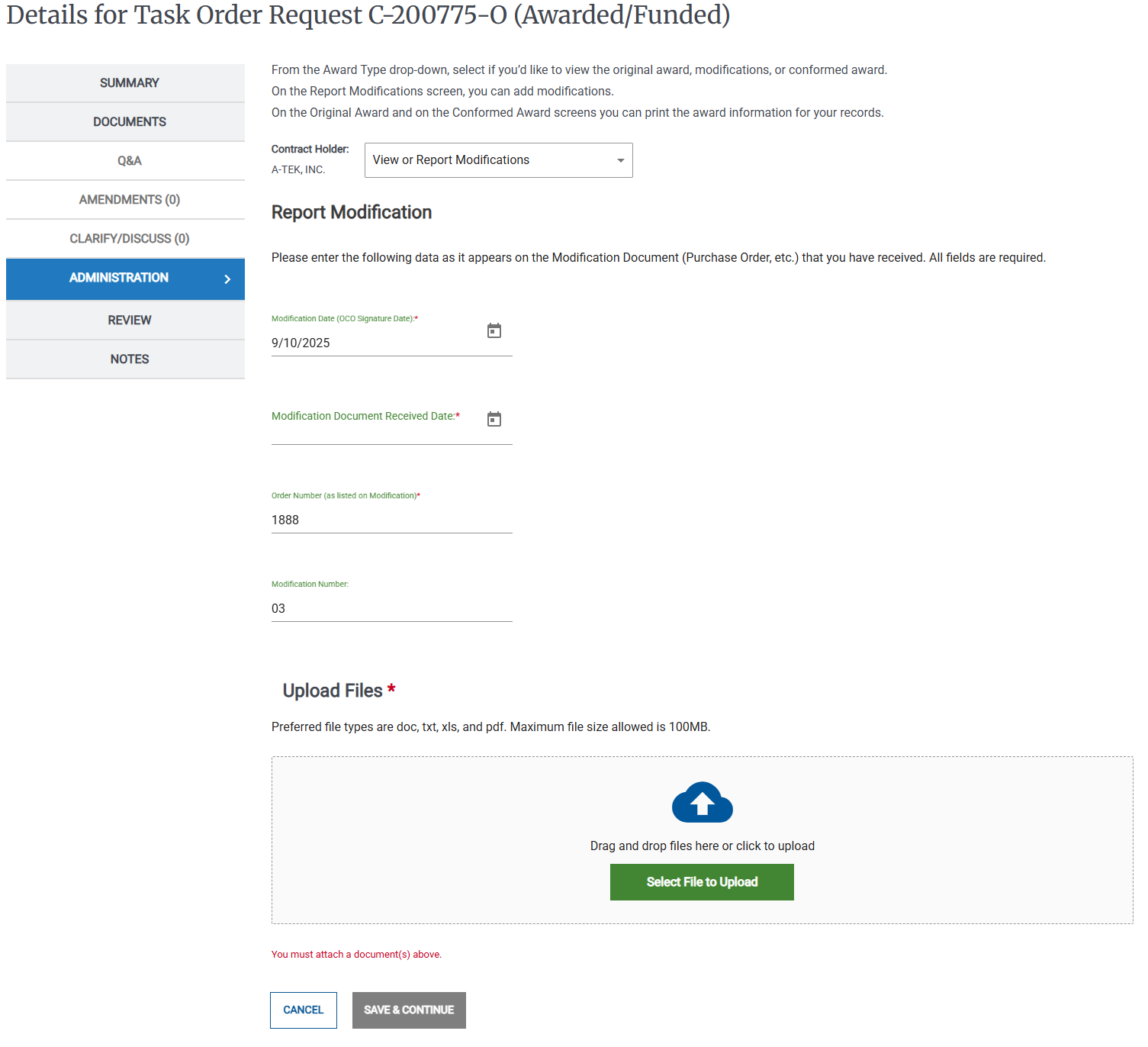
In the Report Modification page, complete the following fields:
Modification Date (OCO Signature Date):
Modification Document Received Date:
Order Number (as listed on Modification)
Modification Number
In the Modification Data page, your selections change the options available in the Period of Performance table. Select an option for each of the following:
Does this modification change Funding?
The initial award MOD is always Yes.
Enter the Modification Funding Amount in the Period of Performance table.
Does this modification exercise an Option Period(s)?
Select the checkbox
 in the Exercise Option Period column for the applicable Option Period in the Period of Performance table.
Does this Modification change any Award Amounts or Period of Performance?
For each Period, specify the Start Date, End Date, and Change in Awarded Amount.
Does this modification add any new Options Period(s)?
If you select Yes, then select the number of option periods to add from the drop-down list.
For each new Option Period, specify the Start Date, End Date, and Change in Awarded Amount.
Click
 next to a new Option Period to remove it.
Does this modification delete any Option Period(s)?
Click
next to an Option Period to remove it.Click Save & Continue.
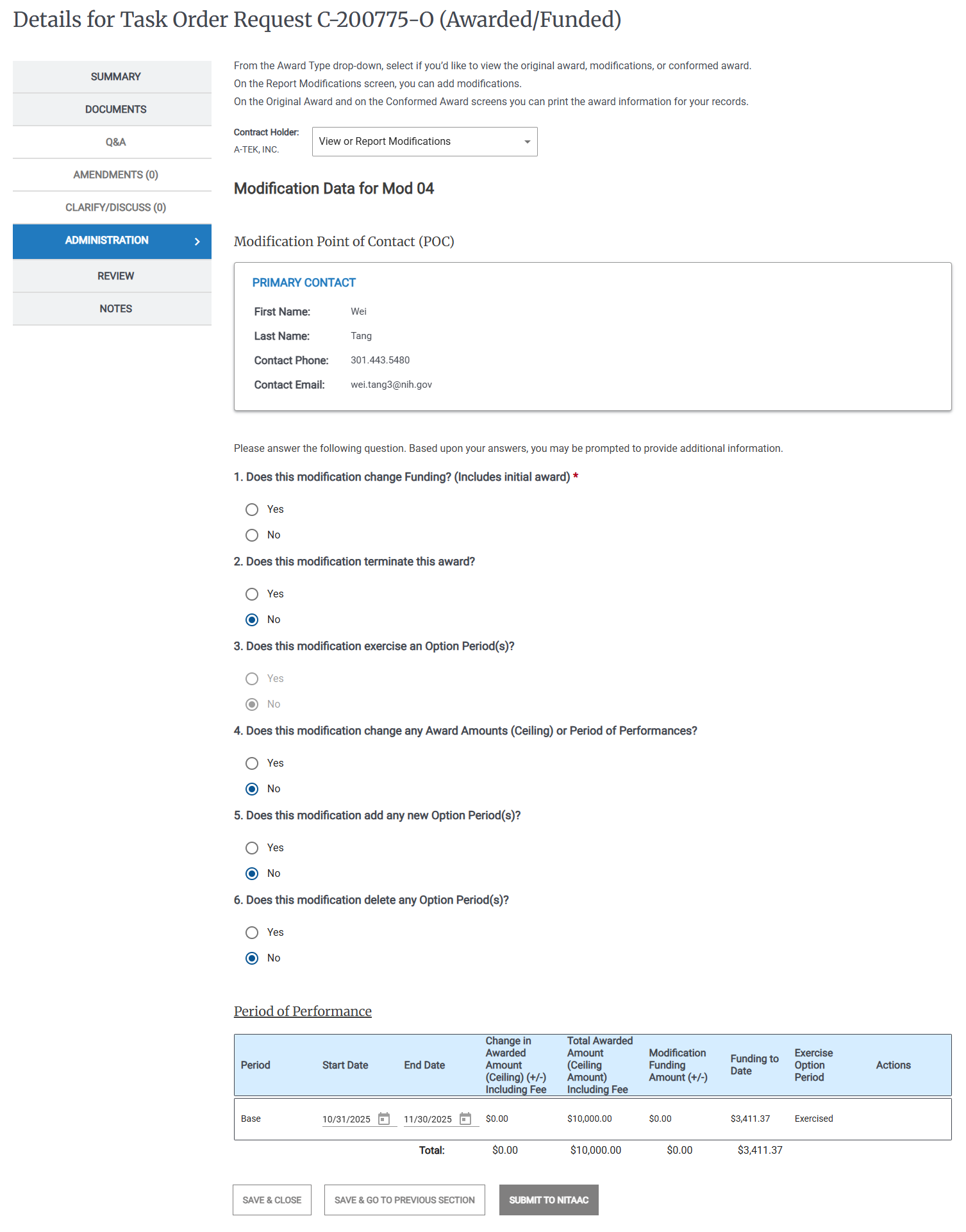
Review all entries, and click Submit to NITAAC. A confirmation message and the Details page appears.
To Report a Modification
On the Activities dashboard click the ID of the order.
In the Left Rail, click Administration, The Details page appears.
In the drop-down list, select View or Report Modifications.
The Reported Modification information appears.
Click Report Modification, then enter the following information:
Modification Date
Modification Document Received Date
Order Number
Modification Number (Except for Modification 00)
Click Save & Continue.
In the Modification Data page, your selections change the options available in the Period of Performance table. Select an option for each of the following:
Does this modification change Funding?
The initial award MOD is always Yes.
Enter the Modification Funding Amount in the Period of Performance table.
Does this modification exercise an Option Period(s)?
Select the checkbox
in the Exercise Option Period column for the applicable Option Period in the Period of Performance table.Does this Modification change any Award Amounts or Period of Performance?
For each Period, specify the Start Date, End Date, and Change in Awarded Amount.
Does this modification add any new Options Period(s)?
If you select Yes, then select the number of option periods to add from the drop-down list.
For each new Option Period, specify the Start Date, End Date, and Change in Awarded Amount.
Click
next to a new Option Period to remove it.Does this modification delete any Option Period(s)?
Click
next to an Option Period to remove it.Click Submit to NITAAC.
To Approve Modifications (MODs)
On the Activities dashboard click the ID of the order.
In the Left Rail, click Administration, The Details page appears.
In the Reported Modifications area, locate the MOD that you want to approve, then click the pencil (
) icon or click Review.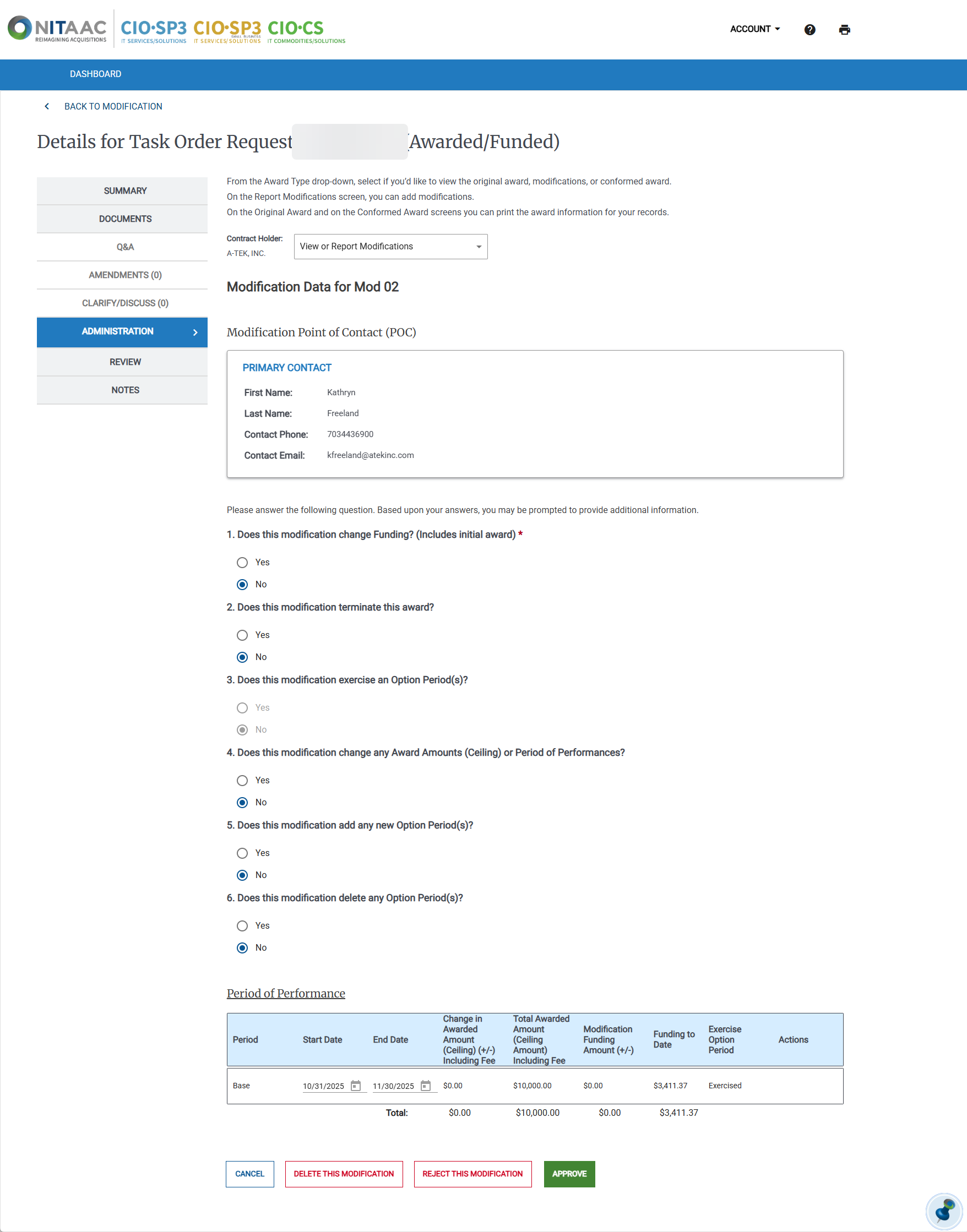
In the Details page, review the modification information that was submitted and make any needed changes, then click one of the following:
Delete This Modification
Deletes the modification and notifies the Contract Holder in email and in e‑GOS that the MOD was deleted. The Contract Holder can submit a new MOD
Reject This Modification
Rejects the modification and notifies the Contract Holder in email and in e‑GOS that the MOD was rejected. The Contract Holder can make changes to the MOD and resubmit.
Approve
Resubmit
The MOD is approved and e‑GOS notifies the Contract Holder. If you make a change, you resubmit the Mod.