To Add Payment
Start on the Contract Holder Details page.
Tip
Click the checkbox
 next to the order.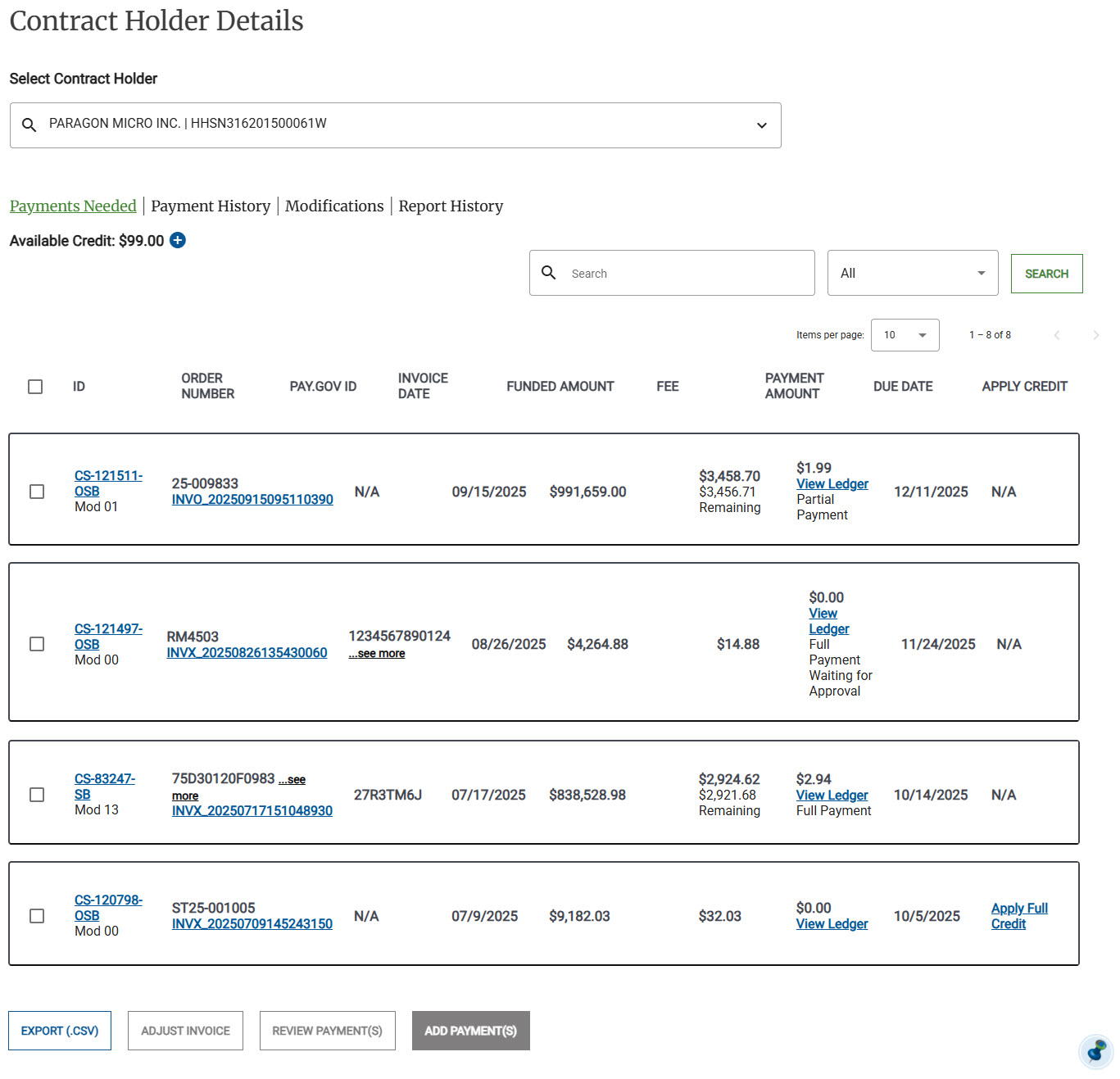
Click Add Payment(s), the Add Payment(s) for Contract Holder appears.
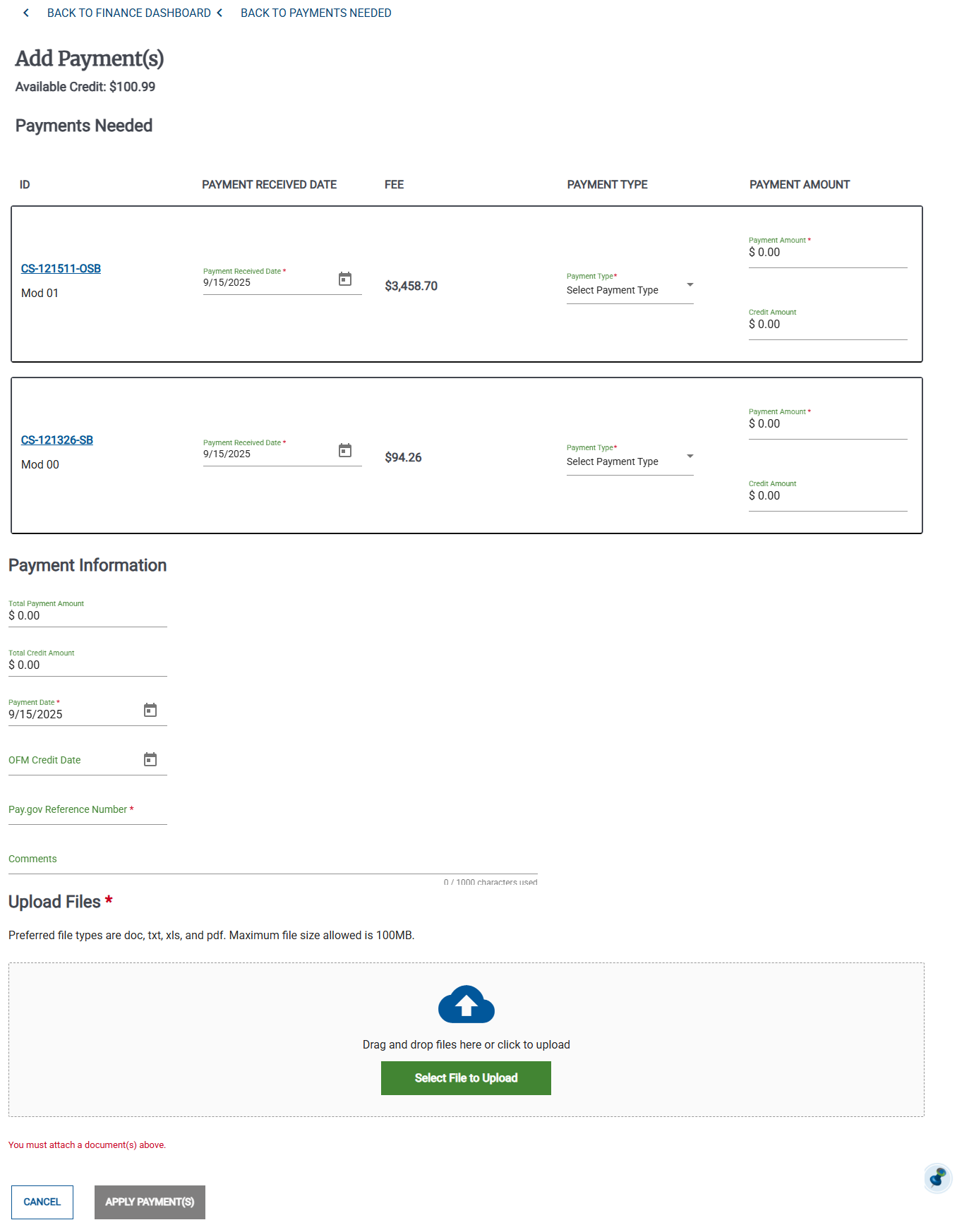
Select the Payment Received Date.
Select Partial Payment or Full Payment
Note
If you select Full Payment , the Payment Amount fills automatically.
If you select Partial Payment, you must manually enter the amount of the payment in the Payment Amount.
Enter the following information:
Payment Date
OFM Credit Date
Pay.gov Reference Number
Comments
Review the payment details, then click Save. The payment moves to the Payment History.
