To Approve Payments
Start on the Contract Holder Details page.
Tip
Click the checkbox
 next to each order that includes payments that you want to approve.
Tip
The Payment Amount field for the payment must include "Waiting for Approval."
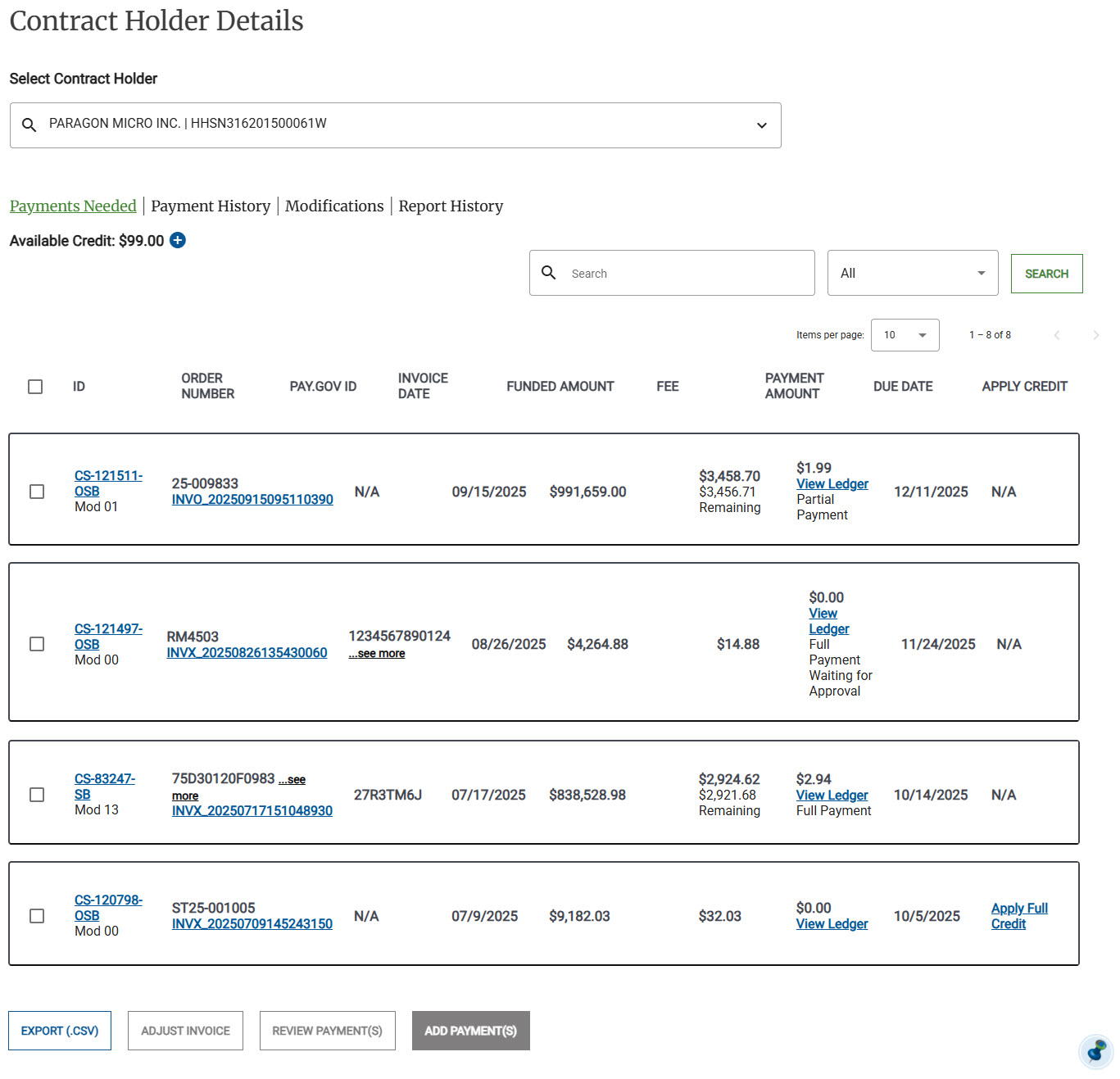
Click Review Payment(s).
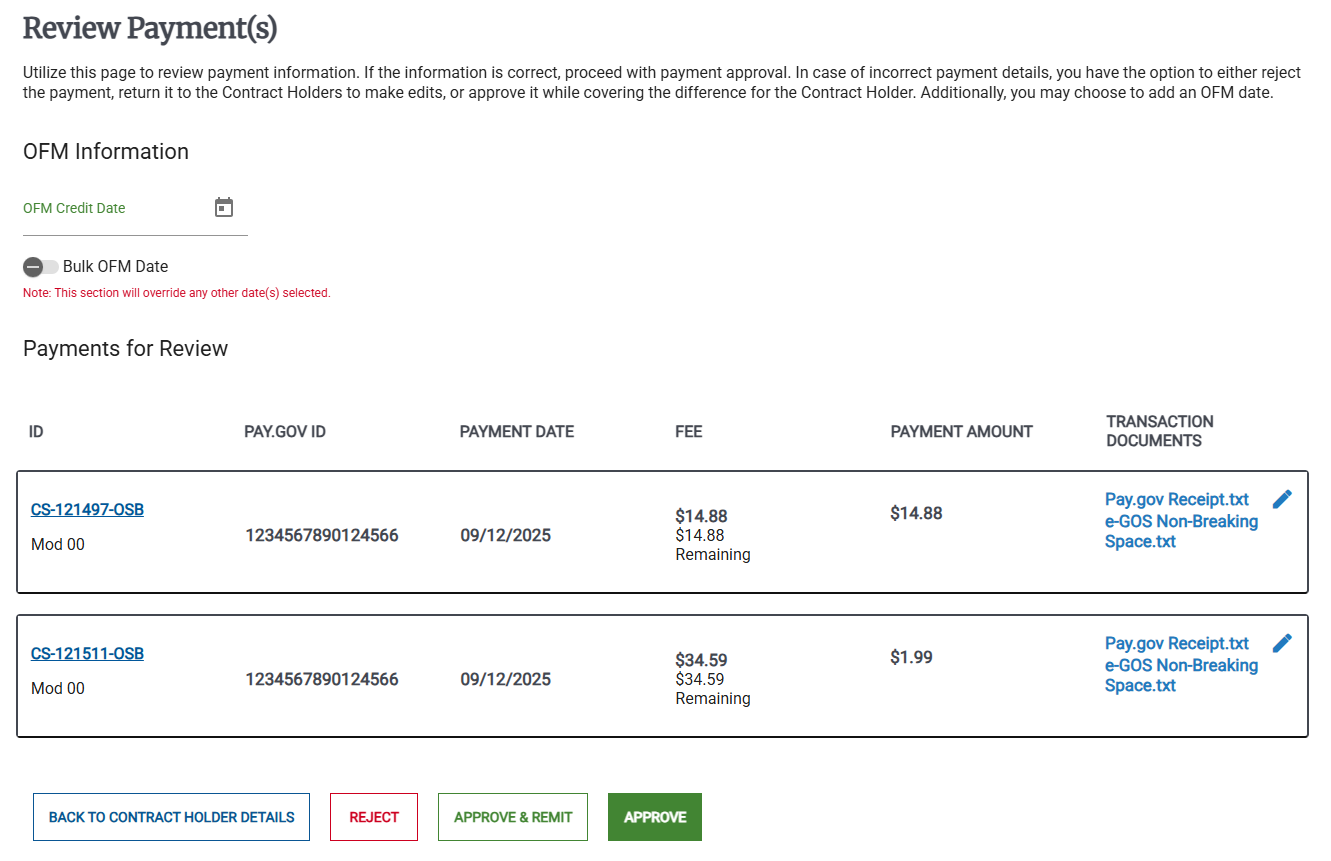
Do one of the following:
If you are reviewing a single payment, select the OFM Credit Date.
If you are reviewing multiple payments, do one of the following:
To set individual OFM Credit Dates, in the OFM Information area, click Bulk OFM Date. The label Individual OFM Date appears. Set each order's OFM Date.
To set the same OFM Credit dates for every order, click Individual OFM Date, The label Bulk OFM Date appears. Set the OFM Credit Date for all the orders.
Review the payment details, including the Transaction Documents, then do one of the following:
Click Reject to reject the payments. The Contract Holder is informed and can make changes.
Click Approve & Remit .
Click Approve.
