To Apply Full Credit to Payment
Start on the Contract Holder Details page.
Tip
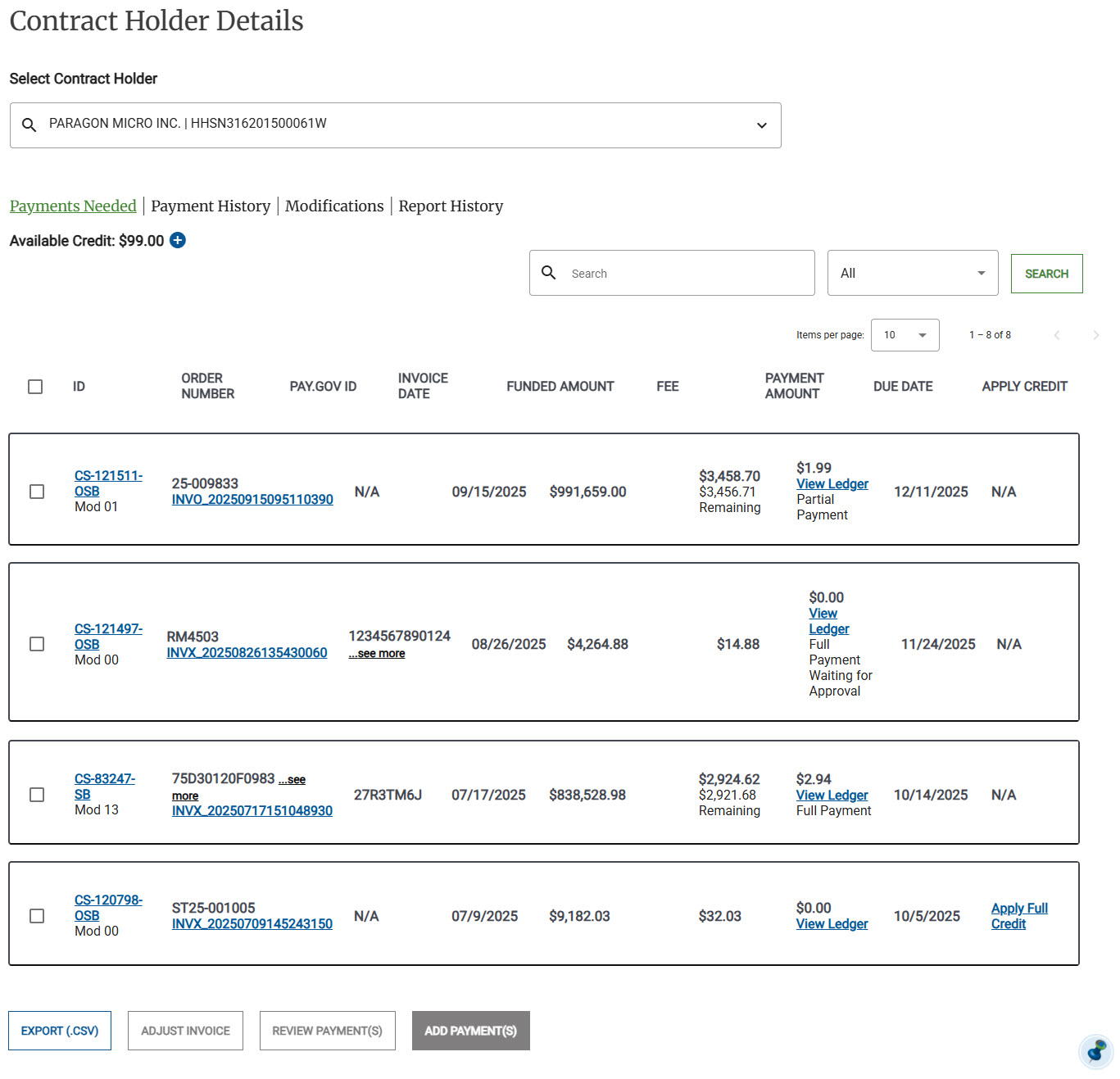
Click Payments Needed. The payments needed order list appears.
Note
Available credit must be greater than $0
Applicable payments have a Apply Full Credit link
Click Apply Full Credit for an applicable payment. The Confirm pop up appears.
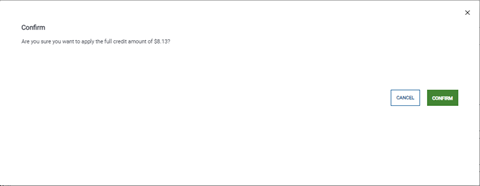
Click Confirm
Note
The payment is moved to Payment History.
The Available Credit balance is adjusted.
Repeat with additional applicable payments.
