To Adjust Payment
Start on the Contract Holder Details page.
Tip
Click the checkbox
 next to the order.
Click Adjust Payment, the Adjust Payment for Order XX, MOD XX appears.
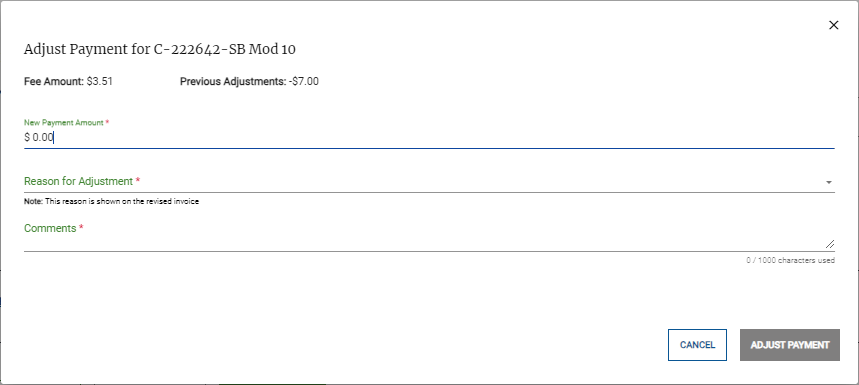
Enter the following information:
New Payment Amount
Reason for Adjustment
Comments
Review the payment details, then click Adjust Payment. The Payment Needed page appears with the new Payment Amount.
