To Create an RFQ (Outside the System)
When you create and RFQ for orders placed outside of e‑GOS, you enter information about the award. The e‑GOS system uses this information to help make sure that you do not enter a duplicate order.
In the Left Rail in the e‑GOS dashboard, click Create RFQ (Outside the System).
In the Enter Key Award Information to Begin the RFQ Process page, enter the following information, then click Continue:
Order Number
Award Date
Total Amount Including NCAF
In the Title and Description page, do the following:
Enter the following information:
Title
Description
Select the Customer's Department from the Select Department drop-down list.
Select the Customer's agency from the Select Agency drop-down list.
In the Primary Point of Contact area, click Other then enter the name of the Primary Point of Contact. Click Search, then select the contact.
Tip
Points of contact must be active in the e‑GOS system. You can send an invitation to users who do not have an e‑GOS. Until the user registers for e‑GOS, you cannot add them as a Point of Contact. You can wait for the user to register or select a different point of contact for the RFQ.
In the Secondary Point of Contact area, select a secondary point of contact.
Tip
The primary and secondary points of contact should be different users.
Click Save & Continue.
In the Determine Your Contractor Selection page, verify the Contract Holder and Award Designation, then click Save & Continue.
In the Independent Government Cost Estimate (IGCE) page, enter the total value of the IGCE, then click Save & Continue.
In the Assisted Acquisition page, in the Is this an assisted acquisition? area, select Yes or No. If you select Yes, select the Assisting Agency and Requiring Agency from the drop-down lists. Click, Save & Continue.
In the Attach CLIN(s) page, do one of the following for each CLIN that you need to attach:
Attach Existing CLIN(s)
Click Search & Attach CLIN(s) In Catalog.
Enter the item to search for in the Search for Approved CLIN(s) field.
Tip
You can search by name, description, or ID. To narrow your search, select a filter from the drop-down list.
Click Search.
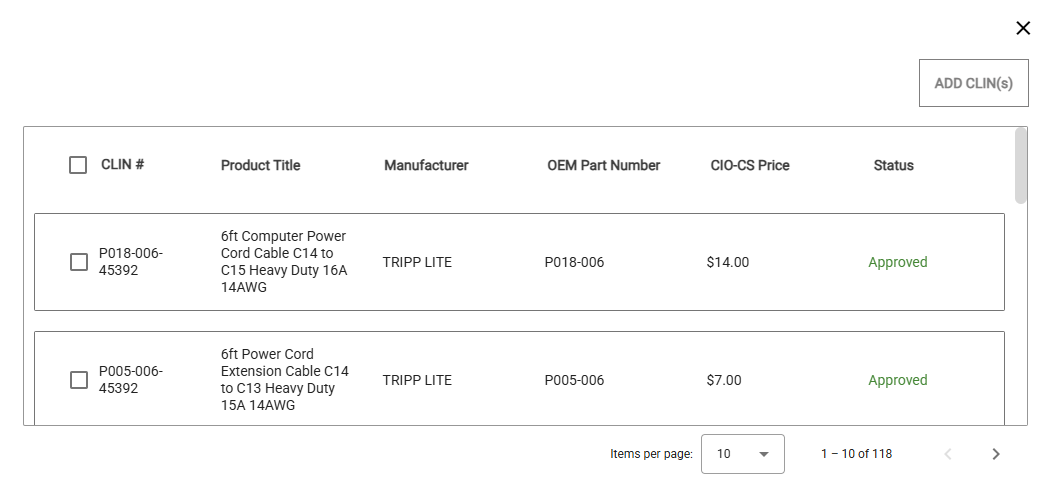
In the Search Results dialog, select one or more CLINs to add, then click Add CLIN(s).
Tip
You can click the Items per page drop-down list to control how many items appear in the list. By default, 10 items appear at a time.
You can click < to view the previous page of items or > to view the next page.
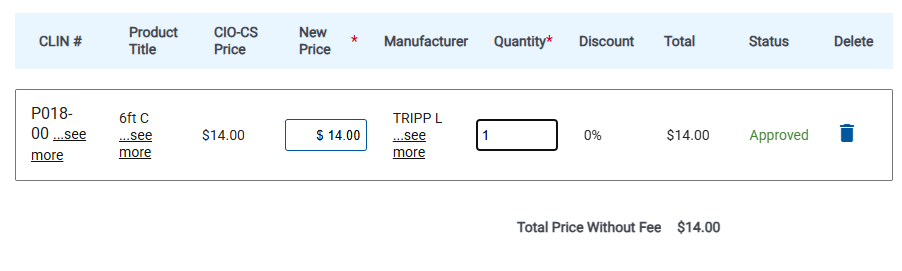
In the Attach CLIN(s) page, enter the price per item in the New Price field, then enter the Quantity.
Tip
If needed, you can add the same CLIN to the quote multiple times, with different quantities and prices each time. Search for the item again, then select the CLIN, add it and set the unique quantity and price per item.
Submit New CLIN(s)
Click Submit New CLIN(s) Via TRP.
In the Navigate to TRP Portal pop-up, click Confirm. A new tab opens with the e‑GOS Enter TRP Information page.
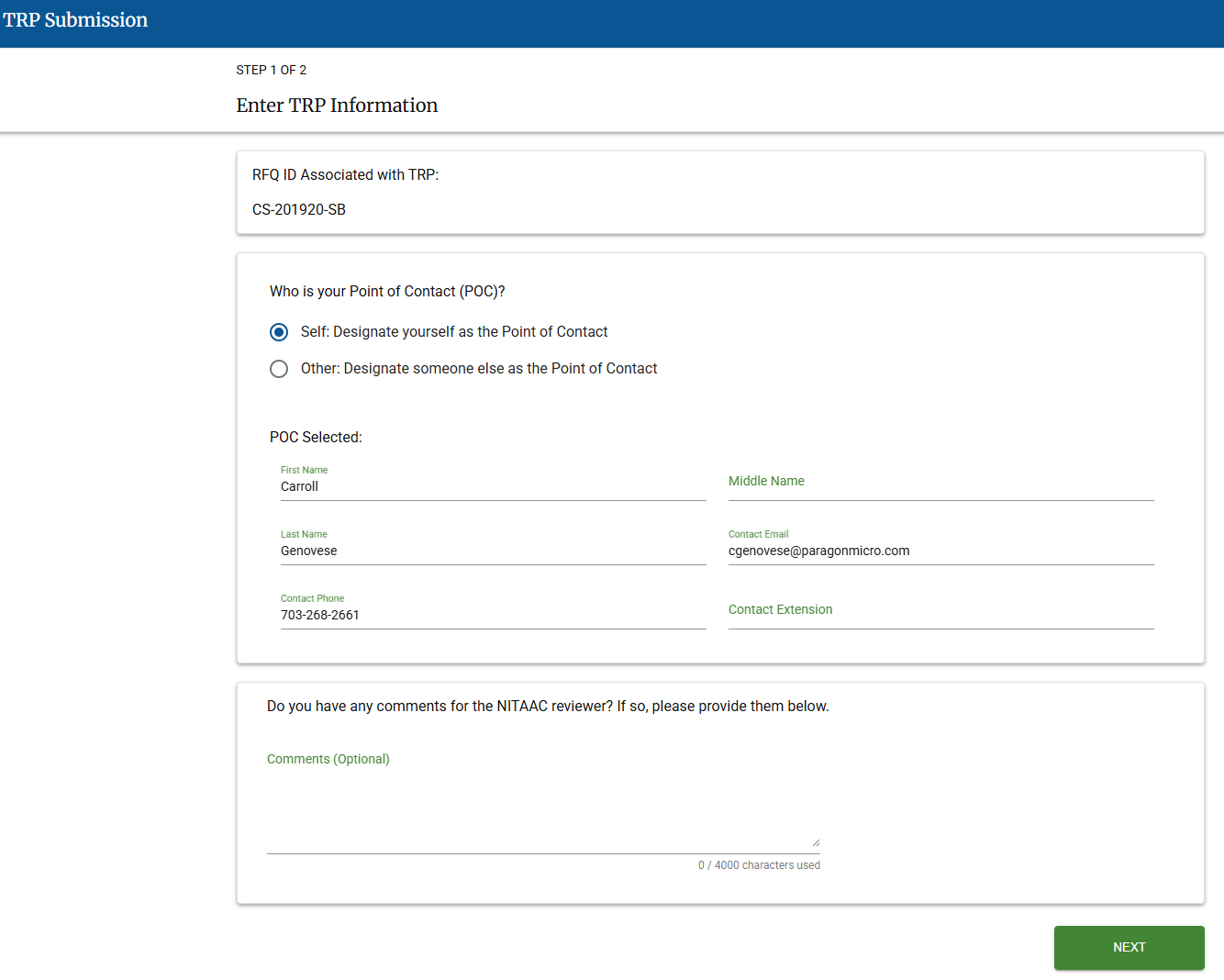
Enter the Point of Contact (POC), then enter any notes for the NITAAC reviewer.
Click Next. The TRP Submission page Step 2 Of 2 appears.
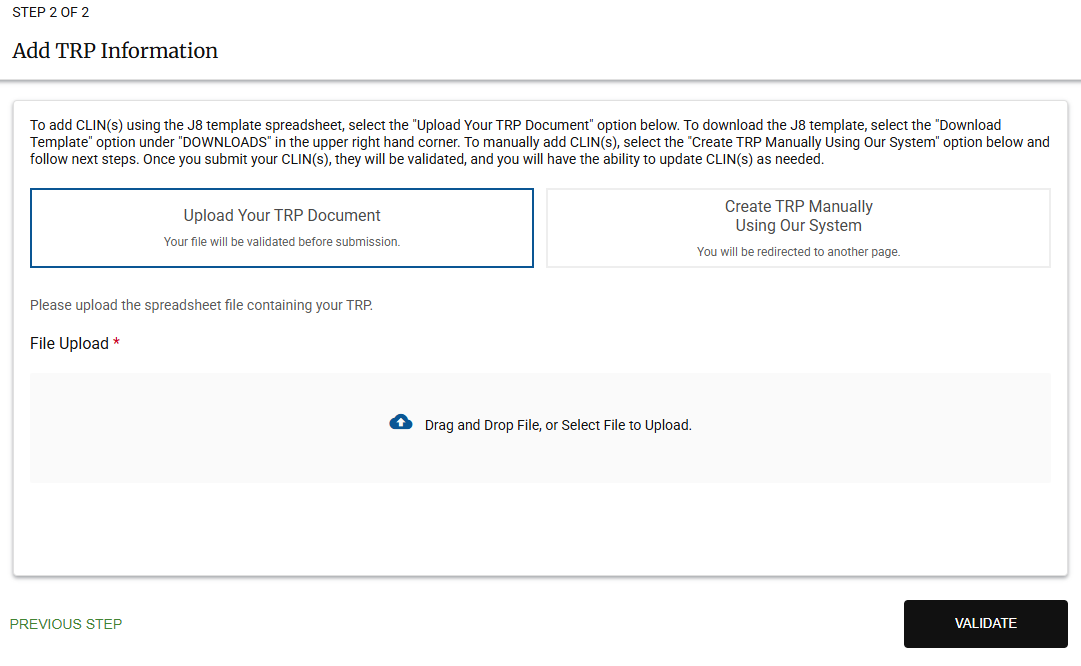
Use one of the following methods to add the TRP:
Bulk upload using the J8 template.
Tip
The J8 template includes instructions to help you complete and use it correctly.
Click Upload Your TRP Document.
Use the Drag and Drop File, or Select File to Upload to add a J8 file to upload.
Note
A message appears that the file is being validated.
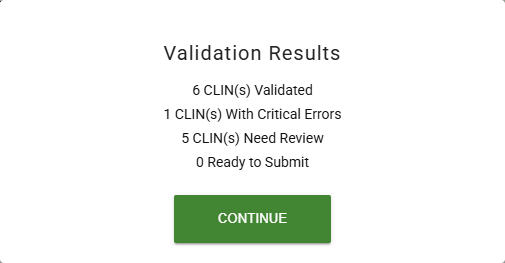
Click Validate. The Validation Results pop-up appears.
Note
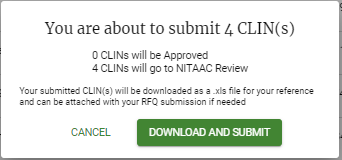
The Validation Results pop-up includes the number of CLINs in each status.
Click Continue.
Manual creation of a single CLIN
Tip
Manual creation can be used to add a CLIN to an in-process bulk upload.
Click Create TRP Manually Using Our System.
Enter data for all required fields on the Add New CLINs screen.
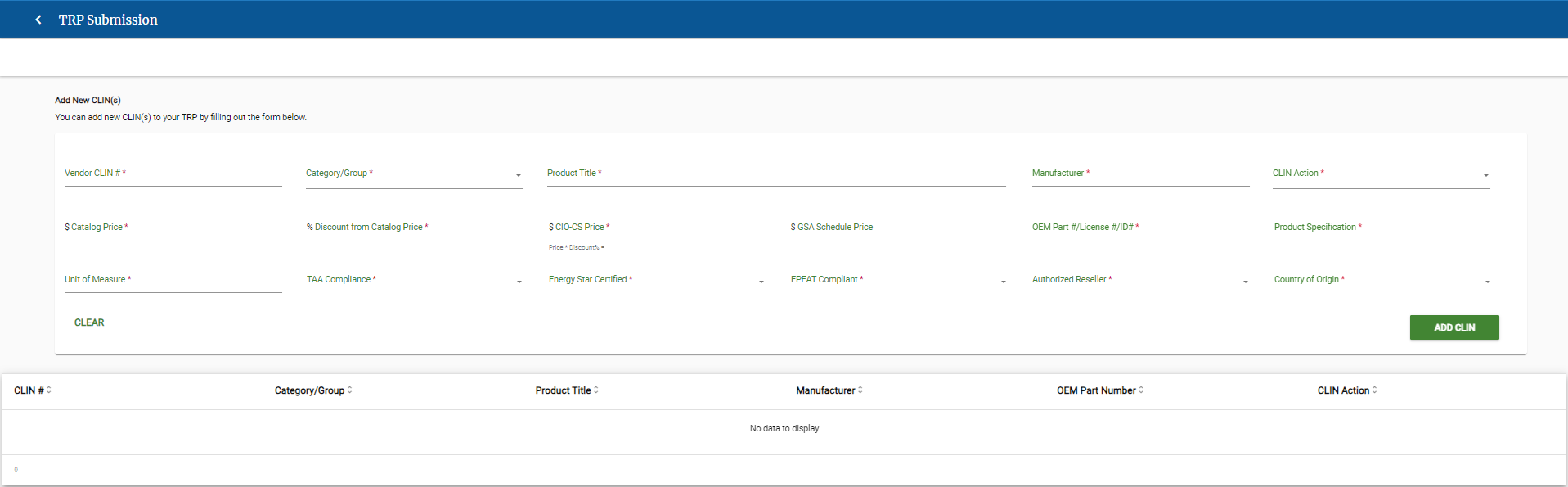
Note
Required fields are marked with an *.
Click Add CLIN.
Note
The CLIN is added to the list of CLINs for submission.
Perform the following actions for each CLIN as needed.

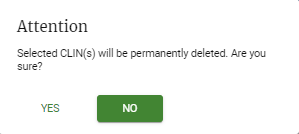
Delete CLINs
Attach Files
Click
 for a CLIN.
Click Attach Documents. Use the File Upload pop-up to upload any needed files.
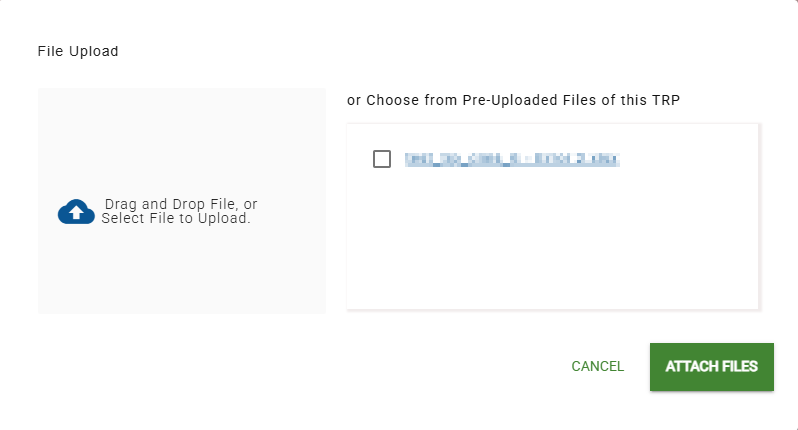
In the File Upload page, do one of the following:
Drag and drop one or more files to upload to the Drag and Drop File area.
Click Drag and Drop File, or Select File to Upload and select one or more files to upload.
In the Choose from Pre-Uploaded Files of this TRP area, select the checkbox for any file that you want to attach.
Tip
When you upload a file, it appears in the Pre-Uploaded files area, with its checkbox selected.
Click Attach Files.
Verify that the file(s) are in the Supporting Documents Attachments for the CLIN.
Click Save Changes.
Tip
You can click Cancel Changes to remove your changes.
For each CLIN, do the following:
Click Validate. The Validation Results pop-up appears.
Note
The Validation Results pop-up includes the number of CLINs in each status.
Click Continue.
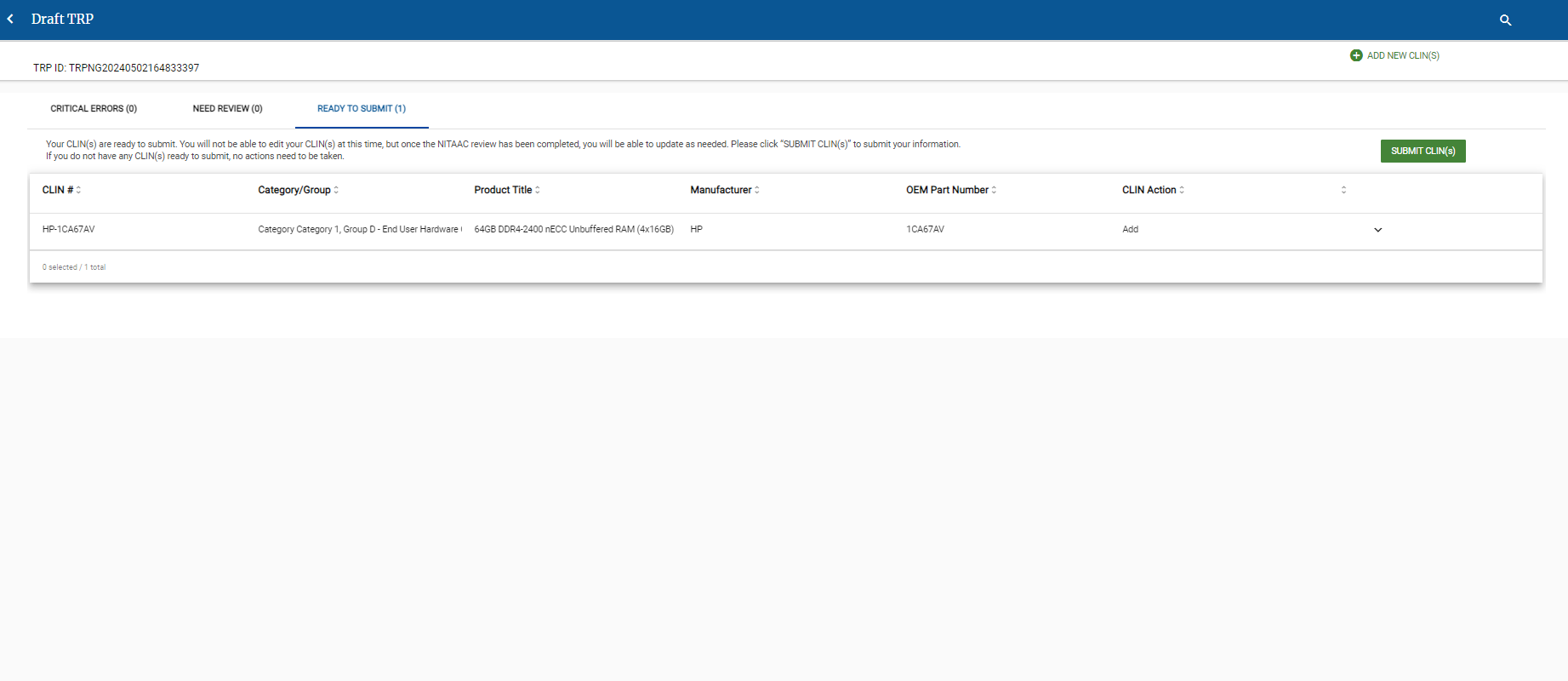
When you've uploaded or created the TRP, the Draft TRP page appears.
A Draft TRP displays CLINs in different validation statuses.
Important
You can only submit a CLIN if the status is Ready to Submit,
Review the following for instructions for each status to get each CLIN to Ready To Submit status.
Critical Errors: CLIN(s) received errors. You must correct the errors before they can be moved to Need Review.
On the Critical Errors tab, click
to view the details for the CLIN.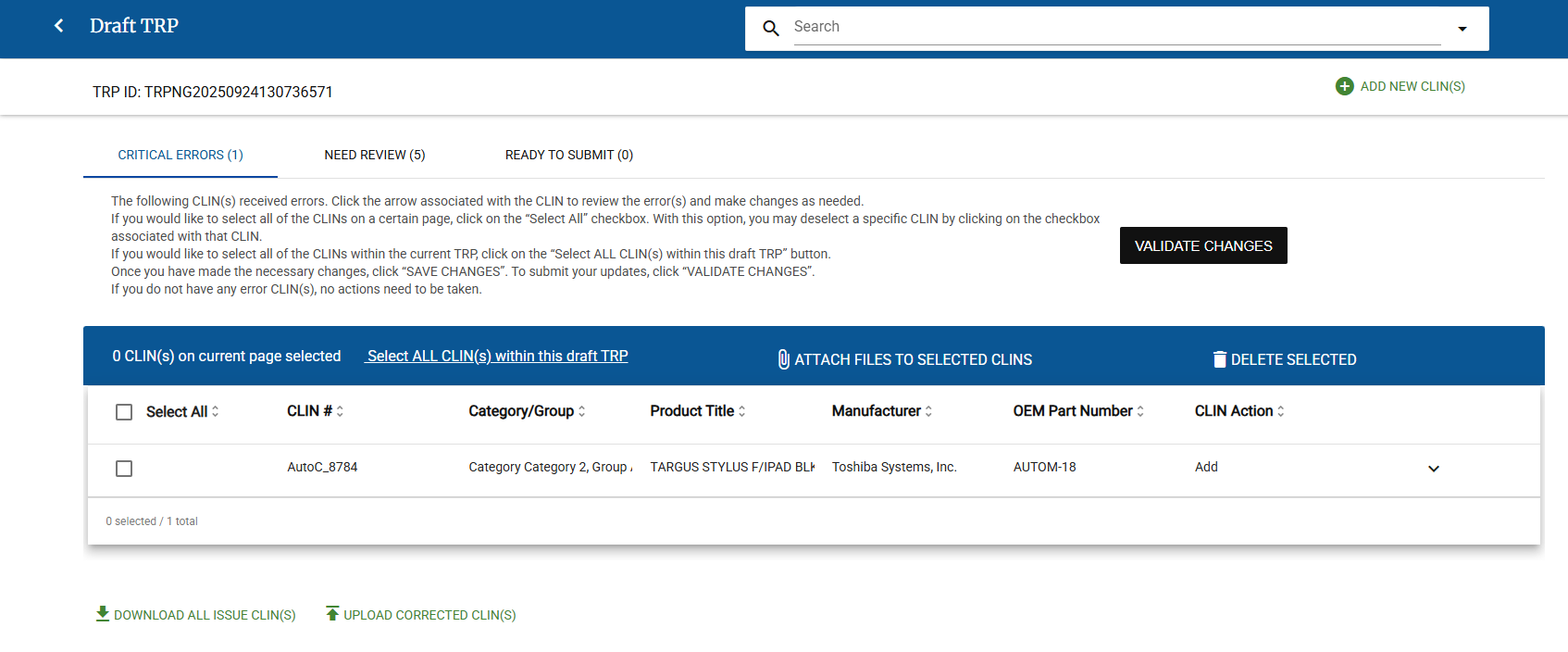
Review messages for the CLIN
Note
Example Message: In this example, the CLIN already exists, and is under review. Updates cannot be made to a CLIN that is under review.

Make necessary corrections for fields in the CLIN, if applicable. Depending on the CLIN issue, you may need to do one or more of the following for each CLIN:
Tip
Click Read more for any item below to see complete instructions for that process.
Edit CLIN Data
Click
to view the details for the CLIN.Review messages for the CLIN.
Note
Sample Message: In this sample, documentation is needed for submission.

Make necessary corrections for fields in the CLIN, if applicable.
Click Save Changes. A green bar appears next to the details drop-down (
) for the CLIN and the Validate Changes button is now available.
Correct CLINs Using Excel
Attach Files to a Single CLIN
Click
for a CLIN.Click Attach Documents. Use the File Upload pop-up to upload any needed files.
In the File Upload page, do one of the following:
Drag and drop one or more files to upload to the Drag and Drop File area.
Click Drag and Drop File, or Select File to Upload and select one or more files to upload.
In the Choose from Pre-Uploaded Files of this TRP area, select the checkbox for any file that you want to attach.
Tip
When you upload a file, it appears in the Pre-Uploaded files area, with its checkbox selected.
Click Attach Files.
Verify that the file(s) are in the Supporting Documents Attachments for the CLIN.
Click Save Changes.
Attach Files to Multiple CLINs
Select the checkbox (
 ) for all each CLIN you want to attach files.
Tip
If all the CLINs on the Draft TRP need the same attachments, click Select All.
Click Attach Files to Selected CLINs. Use the File Upload pop-up to upload any needed files.
In the File Upload page, do one of the following:
Drag and drop one or more files to upload to the Drag and Drop File area.
Click Drag and Drop File, or Select File to Upload and select one or more files to upload.
In the Choose from Pre-Uploaded Files of this TRP area, select the checkbox for any file that you want to attach.
Tip
When you upload a file, it appears in the Pre-Uploaded files area, with its checkbox selected.
Click Attach Files.
Verify that the file(s) are in the Supporting Documents Attachments for the CLINs.
Delete CLINs
Repeat as needed for each CLIN.
Click Validate. The Validation Results pop-up appears.
Note
The Validation Results pop-up includes the number of CLINs in each status.
Click Continue.
Need Review: One or more CLIN(s) need a final review before they can move to Ready to Submit.
On the Need Review tab, click
to view the details for the CLIN.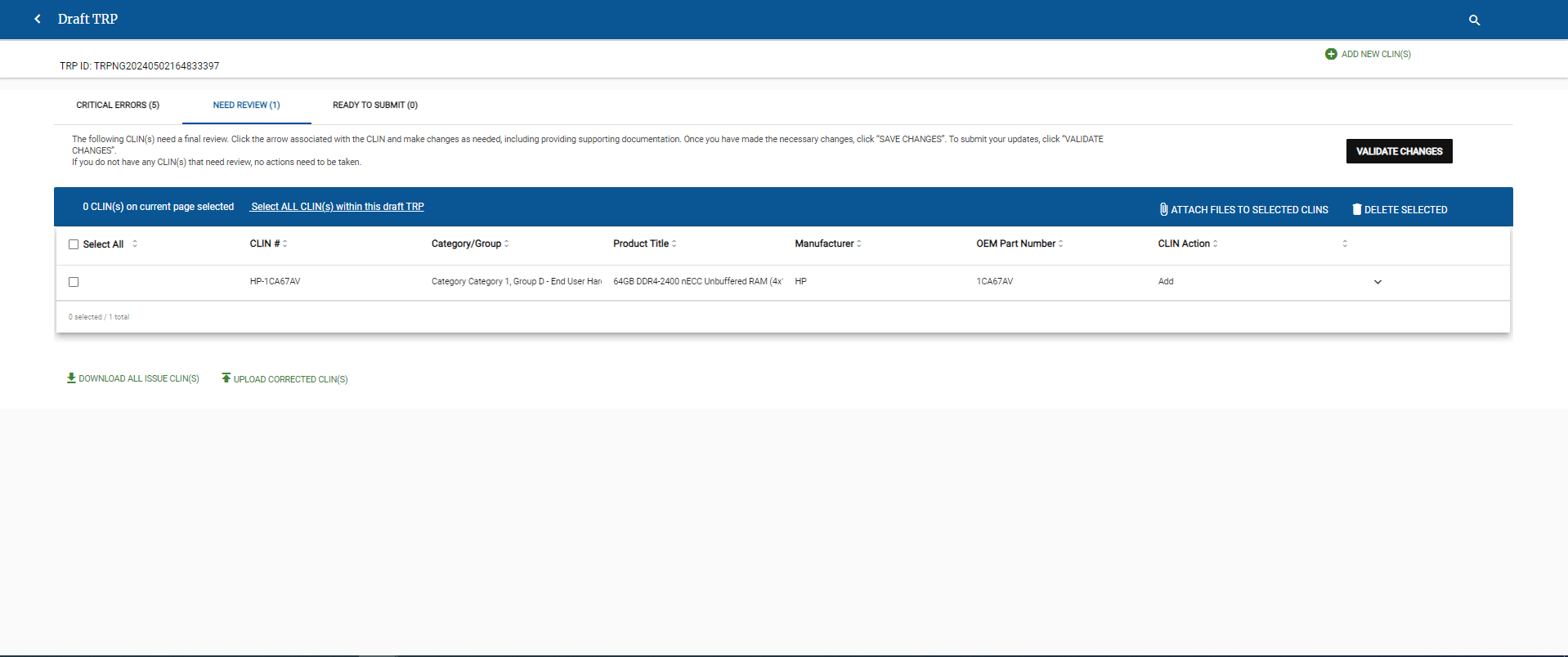
Review messages for the CLIN
Note
Sample Message: In this sample, documentation is needed for submission.
Make necessary corrections for fields in the CLIN, if applicable. Depending on the CLIN issue, you may need to do one or more of the following for each CLIN:
Tip
Click Read more for any item below to see complete instructions for that process.
Edit CLIN Data
Click
to view the details for the CLIN.Review messages for the CLIN.
Note
Sample Message: In this sample, documentation is needed for submission.
Make necessary corrections for fields in the CLIN, if applicable.
Click Save Changes. A green bar appears next to the details drop-down (
) for the CLIN and the Validate Changes button is now available.
Correct CLINs Using Excel
Attach Files to a Single CLIN
Click
for a CLIN.Click Attach Documents. Use the File Upload pop-up to upload any needed files.
In the File Upload page, do one of the following:
Drag and drop one or more files to upload to the Drag and Drop File area.
Click Drag and Drop File, or Select File to Upload and select one or more files to upload.
In the Choose from Pre-Uploaded Files of this TRP area, select the checkbox for any file that you want to attach.
Tip
When you upload a file, it appears in the Pre-Uploaded files area, with its checkbox selected.
Click Attach Files.
Verify that the file(s) are in the Supporting Documents Attachments for the CLIN.
Click Save Changes.
Attach Files to Multiple CLINs
Select the checkbox (
) for all each CLIN you want to attach files.Tip
If all the CLINs on the Draft TRP need the same attachments, click Select All.
Click Attach Files to Selected CLINs. Use the File Upload pop-up to upload any needed files.
In the File Upload page, do one of the following:
Drag and drop one or more files to upload to the Drag and Drop File area.
Click Drag and Drop File, or Select File to Upload and select one or more files to upload.
In the Choose from Pre-Uploaded Files of this TRP area, select the checkbox for any file that you want to attach.
Tip
When you upload a file, it appears in the Pre-Uploaded files area, with its checkbox selected.
Click Attach Files.
Verify that the file(s) are in the Supporting Documents Attachments for the CLINs.
Delete CLINs
Repeat as needed for each CLIN.
Click Validate. The Validation Results pop-up appears.
Note
The Validation Results pop-up includes the number of CLINs in each status.
Click Continue.
Ready to Submit: The CLIN(s) are ready to submit.
Click Bulk Upload CLIN Template
Click Bulk Upload CLIN Template.
Add the CLINs, quantities, and prices that you want to include in the response to a CLIN Template file.
For more information about adding items to the CLIN Template, see To Add Items to a CLIN Template to Upload in a Response.
Click Select File to Upload.
Locate the file, select it, and click Open.
The e‑GOS system verifies that the entries in the file are valid. If it detects any errors, a warning message appears. If one or more CLIN(s) were not found, if there are duplicate CLIN(s), or if there is an error in the upload file, your browser automatically downloads a file with the items that have errors. Close the pop-up window and the Respond page appears.
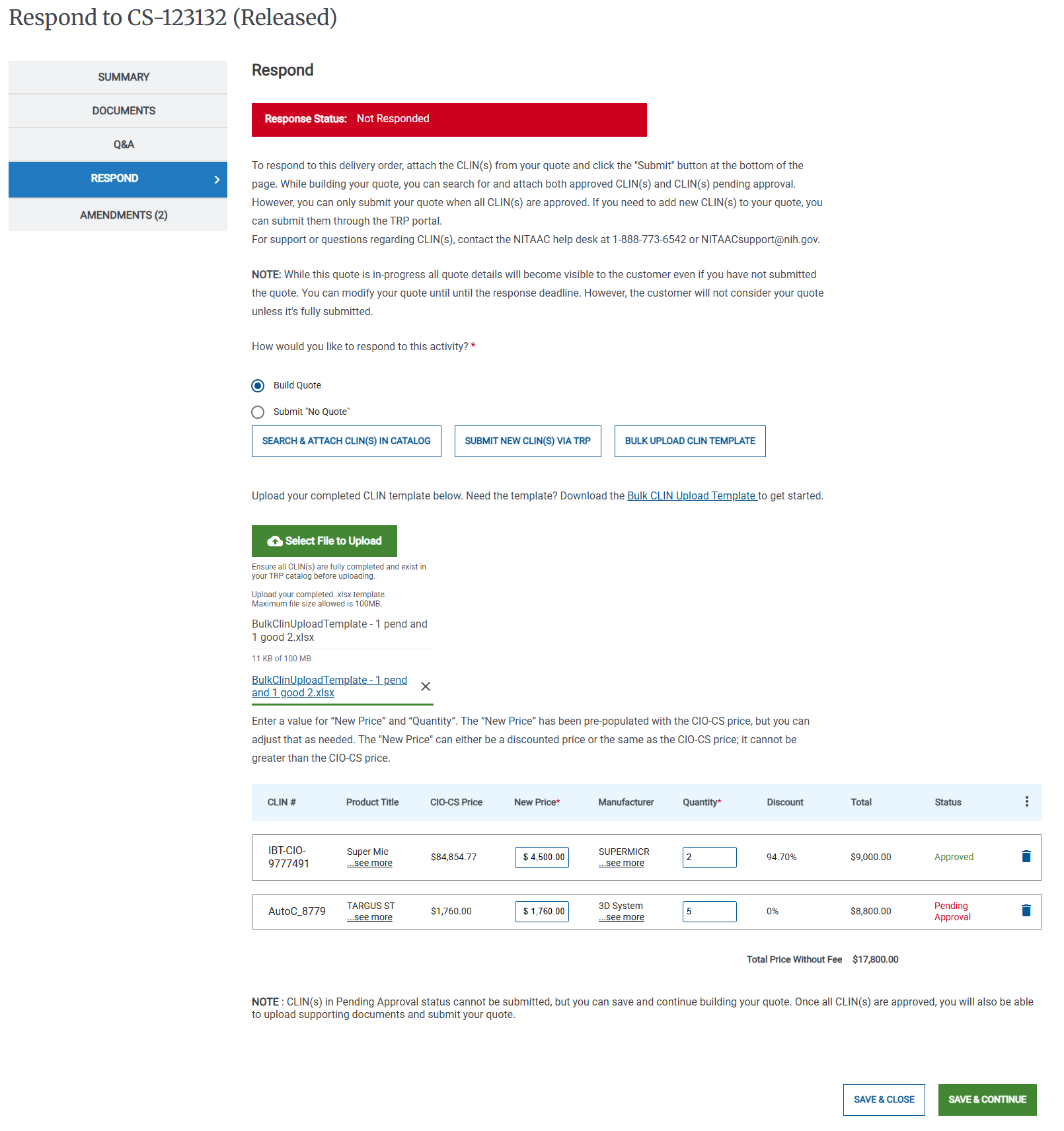
In the table, verify that the CLIN, the new price, and the quantity are correct for each item.
Note
If any items are Pending Approval, you cannot submit them. You can save the quote and continue to build it. When the items are approved, you can submit the response.
If you have CLINs in the Bulk Upload file that are not in your catalog, an error appears, and the e‑GOS automatically places an error file in your browser's Downloads folder. Column D in the error file describes the errror. You can correct the errors in the file, then upload the corrected file.
Click Save & Continue.
In the Enter Award Information page, do the following:
Verify the NCAF Percent.
If needed, add the Expedited Shipping Fee.
If needed, upload any supporting files.
in the Award Details area, do the following:
Click the pencil icon (
 ).
).in the Contract Holder Awardee page, do the following:
Verify the Order Number.
Select the delivery type from the Delivery Type drop-down list, then enter the delivery date information.
Verify the Total Amount Including NCAF.
Upload an Award Document. You may also upload one or more Support Documents if needed.
Click Save.
Click Save & Continue.
In the RFQ Processed Outside of e‑GOS page, do the following:
Review the information.
Select the I certify that all the information and values, to the best of my knowledge, match the award document and/or Contracting Officer's intent and authority checkbox.
Click Submit.
In the RFQ (Outside of the System) has been successfully created pop-up, click Close. The Activities dashboard appears.