The Account Profile
You can view your account profile from any page in the e‑GOS system.
At the top of any page, click Account > Profile and Preferences. The Profile and Preferences page appears.
To Manage Your Basic Data
On the top right of the screen, click Account.
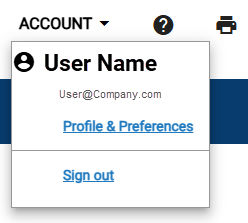
Click Profile & Preferences.
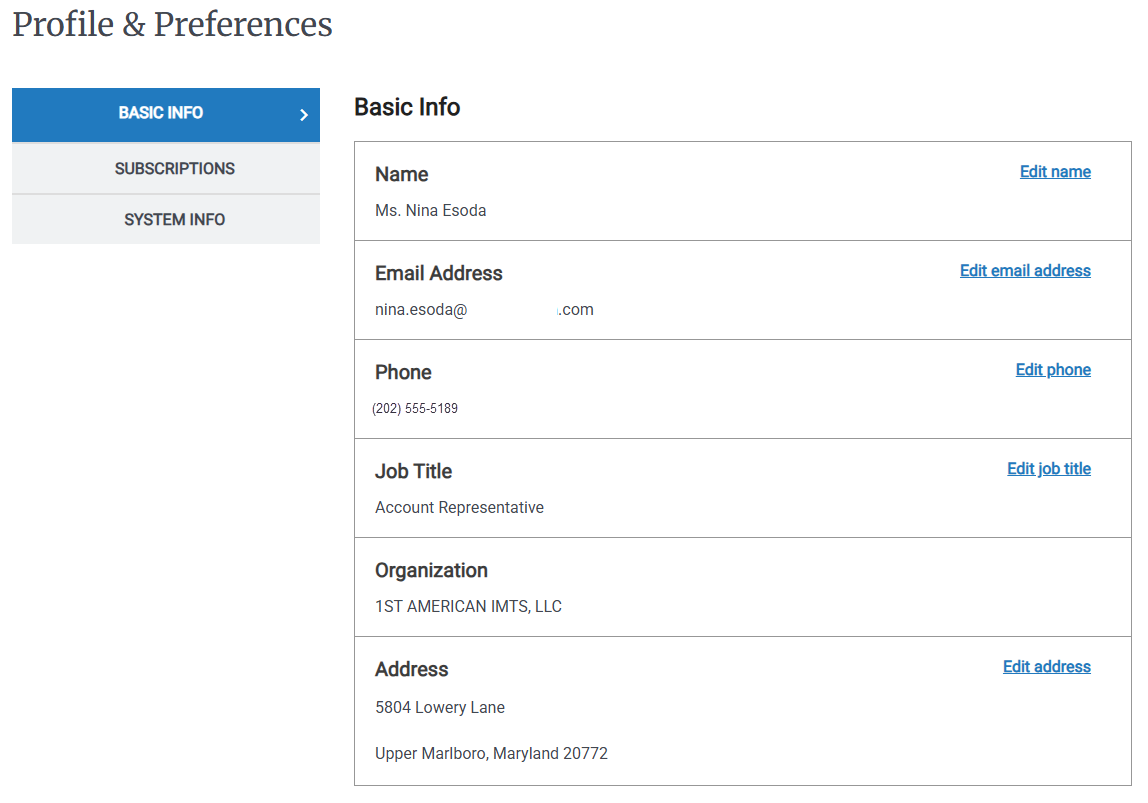
On the Left Rail click Basic Info.
Note
The Basic Info screen is the default screen in Profile & Preferences.
Click any Edit item to edit the corresponding data in the Basic Info table.
Enter new data.
Click Save.
To View Your Subscriptions
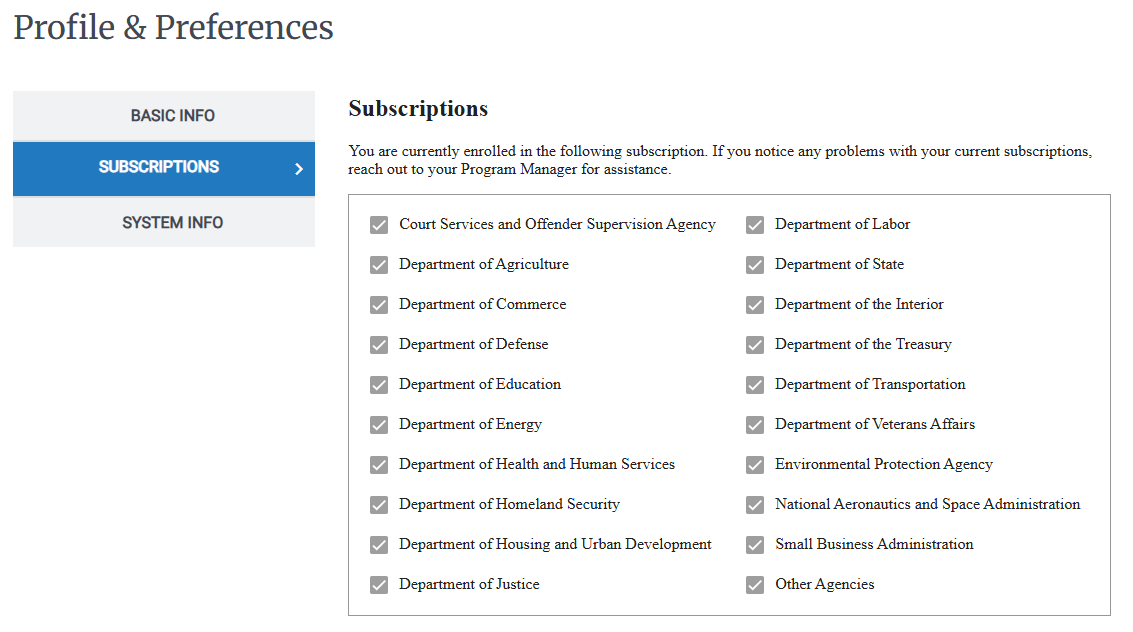
The e‑GOS system sends out notifications to subscribed Contract Holders about Departments. All Contract Holders can view their subscriptions. Contract Holder Program Managers can also change subscriptions for other users at their company.
On the top right of the screen, click Account.
Click Profile & Preferences.
On the Left Rail, click Subscriptions. Your subscriptions appear.
To View Your System Info
On the top right of the screen, click Account.
Click Profile & Preferences.
On the Left Rail, click System Info. Your system role(s) and permissions information appear.
Click a listed role to view the role permissions.