Amendments
Contract Holders can review amendments to an Activity.
To View Amendments
On the Activities dashboard click the ID of the order.
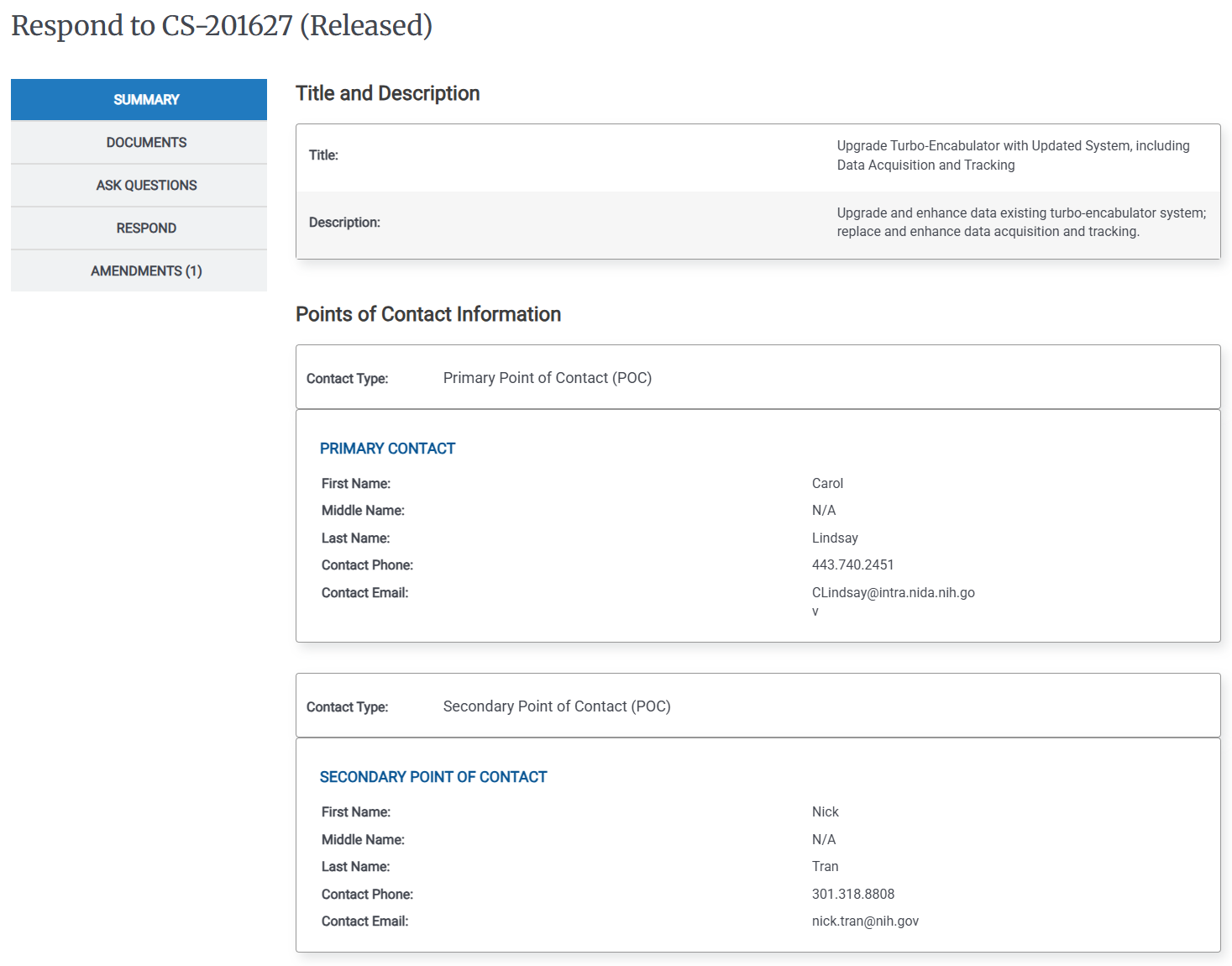
In the Left Rail, click Amendments.
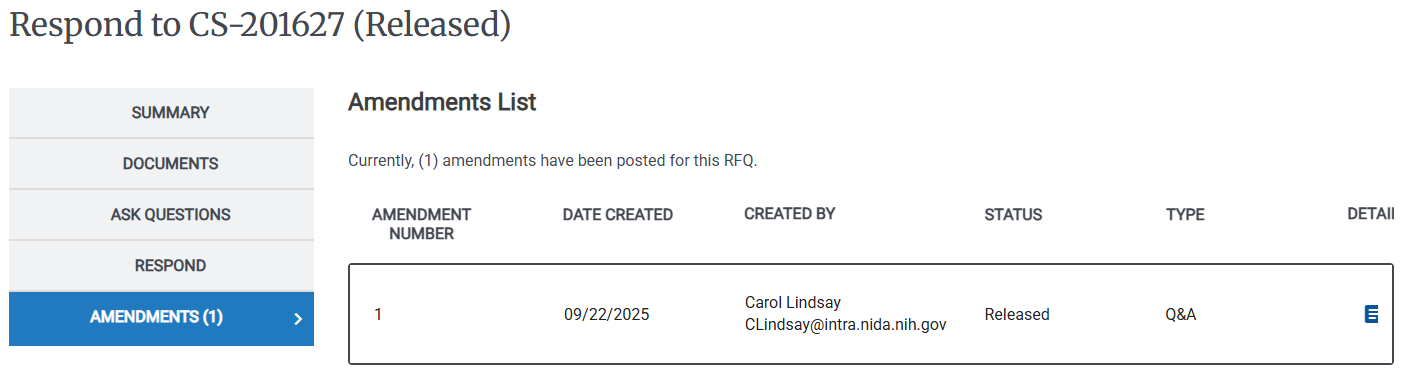
Click the Details Icon (
 ) to view the amendment's details. The Amendment - * screen appears.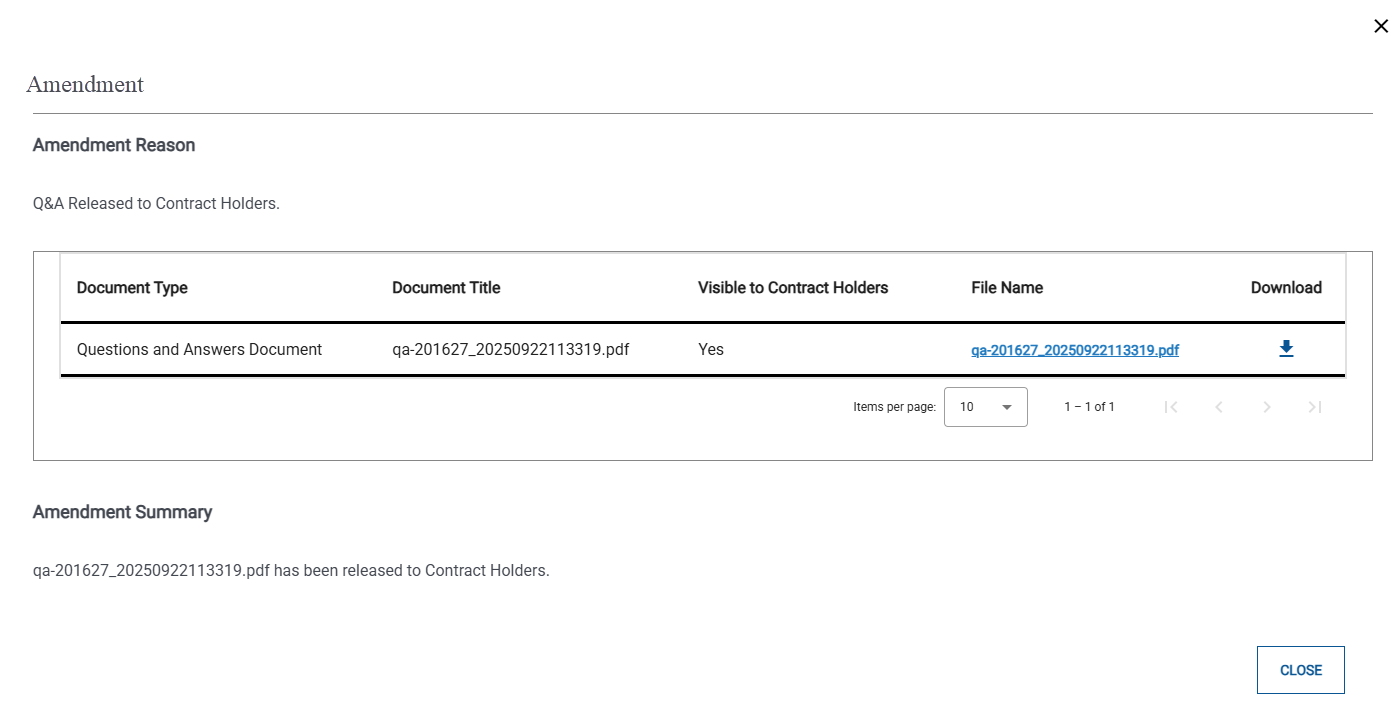
Click
 to download attachments for the Amendment. The attachments are downloaded.
Click Close.