About e‑GOS Search
The Search Field on a Dashboard lets you search for Activities or other relevant items. You can type the text to search for in the Search for Previously Created/Released Activities field and then click Search to search all fields.
For more information about searching for an Activity, see To Search for an Activity.
To Search for an Activity
When it appears in a dashboard, you can use the Search Field to search for an existing Activity. When you search, you can do one of the following:
Simple Search
Advanced Search
To Perform a Simple Search

Type the text you're searching for in the Search for Previously Created/Released Activities field.
Normally, Search looks in every field. If you wish, you can choose any field in the Search within… drop-down list to search in that field alone.
Click Search or press Enter.
The results of the search appear.
To Perform an Advanced Search
You can use the Advanced Search Options to search for one or more keywords, to group keyword searches, and to limit the scope of a search. Click Advanced Search Options to show the options.
When you perform an advanced search, you enter a keyword to search for, then optionally select the field to search. If needed, you can add one or more additional keywords to search for. If needed, you can use logical operators to group the keywords you're searching for. Finally, you can restrict search results to a particular GWAC or Status.
An advanced search can include multiple keyword searches. Keywords can be grouped together. You can use the AND, OR, and AND NOT logical connectors to connect keywords and groups.
This lets you create complex searches to locate a specific item from a long list.
When you generate a complex search, the complete search appears at the bottom of the Keyword area.
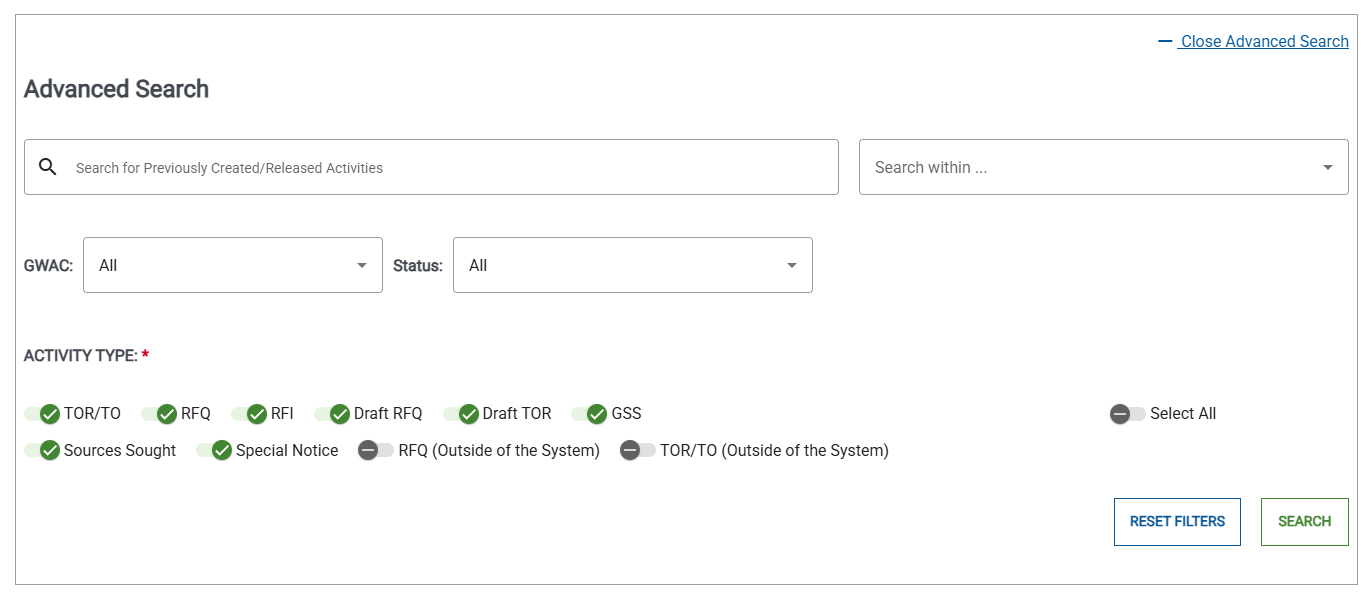
Type the keyword that you want to search for in the Search activity keywords field.
Tip
If you enter two or more terms in the field, Activities with any one of the terms appear in the results. That is, the search terms are joined with a logical OR.
If desired, select the field to search for the terms from the drop-down list.
If desired, you can add additional keywords or groups to the search. Do one of the following:
To add a keyword, click Add another keyword, then specify the keyword and field.
To add a group, click Add group, then specify the keyword searches that make up the group and how the individual searches are connected.
If you added one or more keywords or groups, specify how the terms connect to the original keyword.
If desired, select the GWAC to search from the GWAC drop-down list.
If desired, select the Status to search from the Status drop-down list.
If desired, select the Activity Type(s) to search.
Click Search.