To Add a Full or Partial Payment
You can add payments to one or more Activities in the Payments dashboard. When you add payments, you can add a full payment or a partial payment to any activity. The related payments that you make must have the same Pay.gov reference number and documentation. For a different Pay.gov reference number, you add a separate full or partial payment.
The Payments Needed page lists all Activities that need payments.
For information on using Pay.gov, please consult the Pay.gov documentation.
In the Left Rail, click Payments.
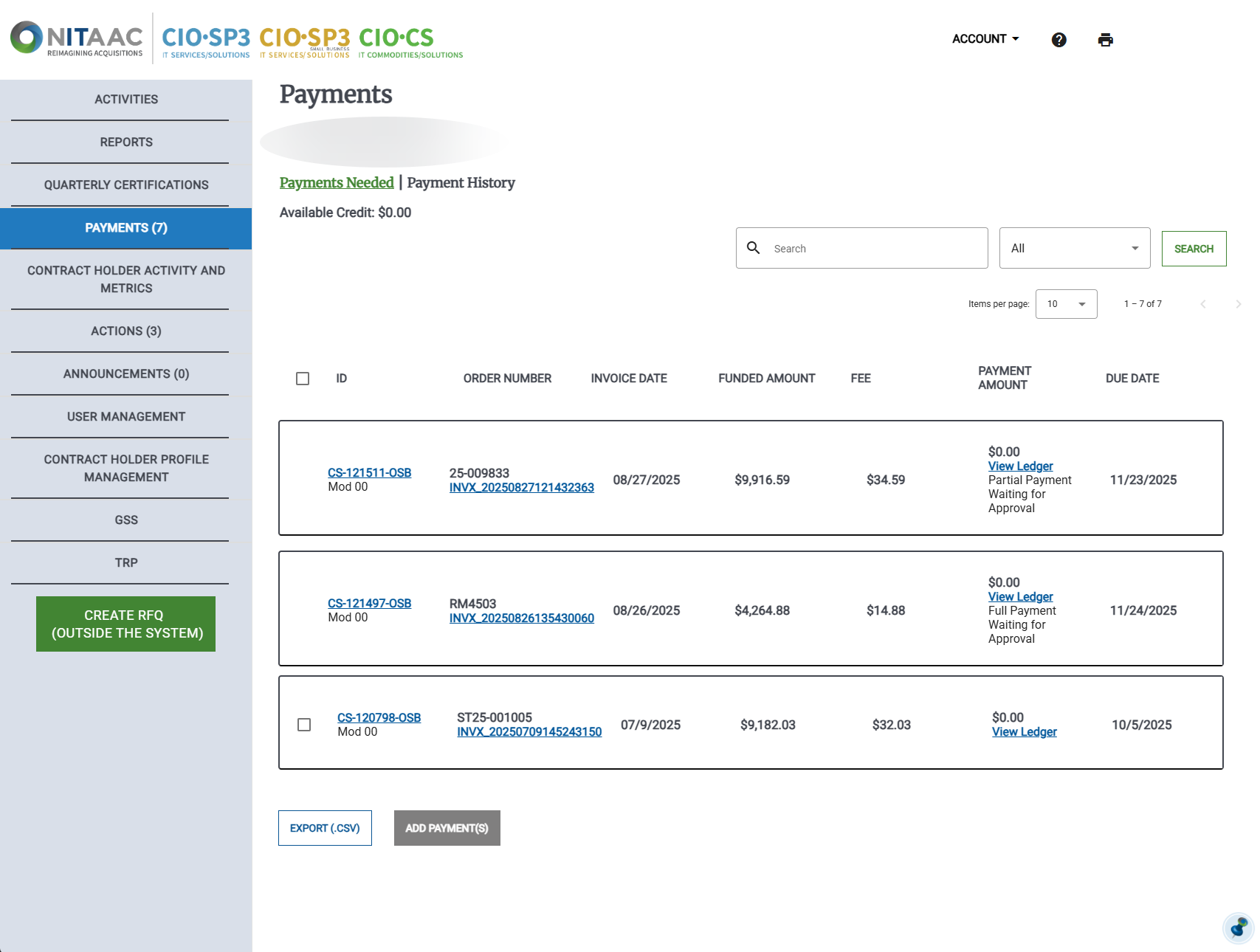
In the Payments dashboard select the checkbox for one or more Activities that you want to add a full or partial payment to, then click Add Payment(s). The Add Payment(s) page appears.
Tip
You can select the checkbox at the top of the table to select all visible Activities. You can sue Search to locate a specific activity.
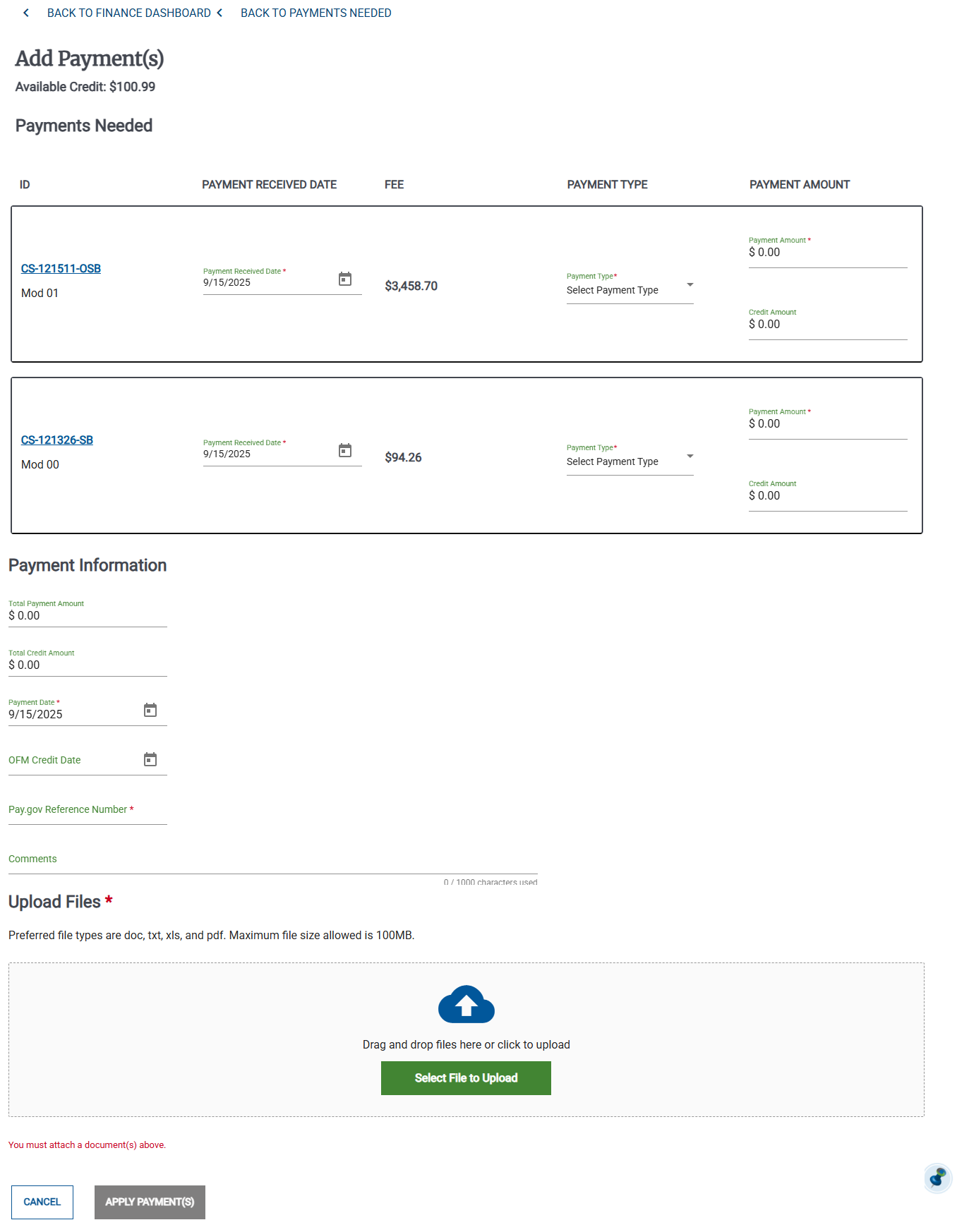
On the Add Payments page, do the following:
For each Activity you're adding a payment to, do the following:
Select the Payment Received Date
Select Partial Payment or Full Payment from the Payment Type drop-down list.
Enter the payment amount in the Payment Amount field.
In the Payment Information area, verify that the Total Payment Amount is correct.
Select the Payment Date.
Enter the Pay.gov Reference Number
Optionally add any comments.
Use the Upload Files area to attach the transaction documents.
Click Apply Payments. They Payments dashboard appears.