To Create A TRP
On the top menu, click Submit TRP. The TRP Submission page Step 1 Of 2 appears.

In the Is this TRP related to any RFQ submitted? If yes, add the RFQ ID number. area, select Yes or No.
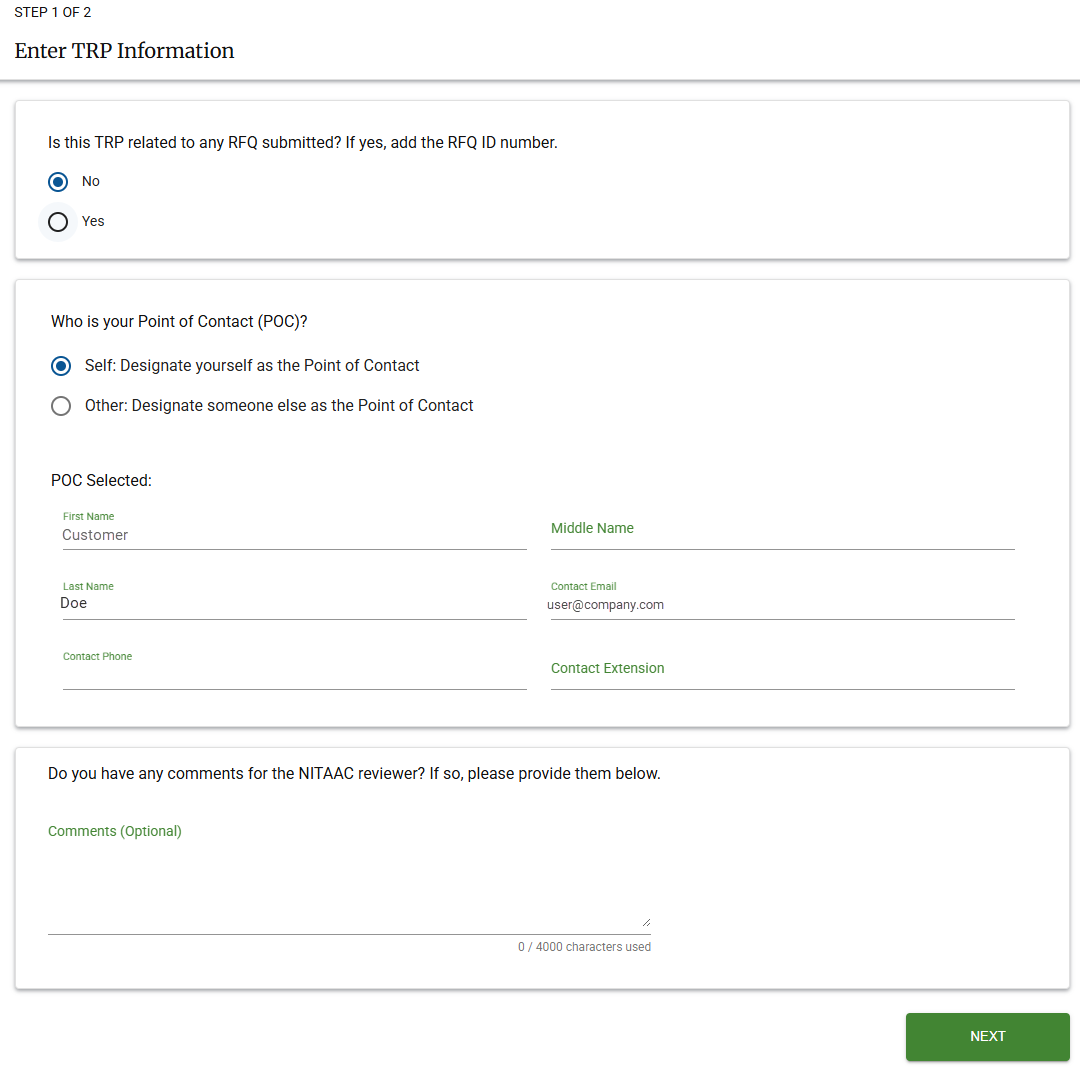
If you selected Yes, enter the RFQ ID.
Warning
If the TRP is related to a specific RFQ, you must select Yes and enter the RFQ ID. Failure to do so could prevent the RFQ from being awarded to you.
Enter the Point of Contact (POC), then enter any notes for the NITAAC reviewer.
Click Next. The TRP Submission page Step 2 Of 2 appears.
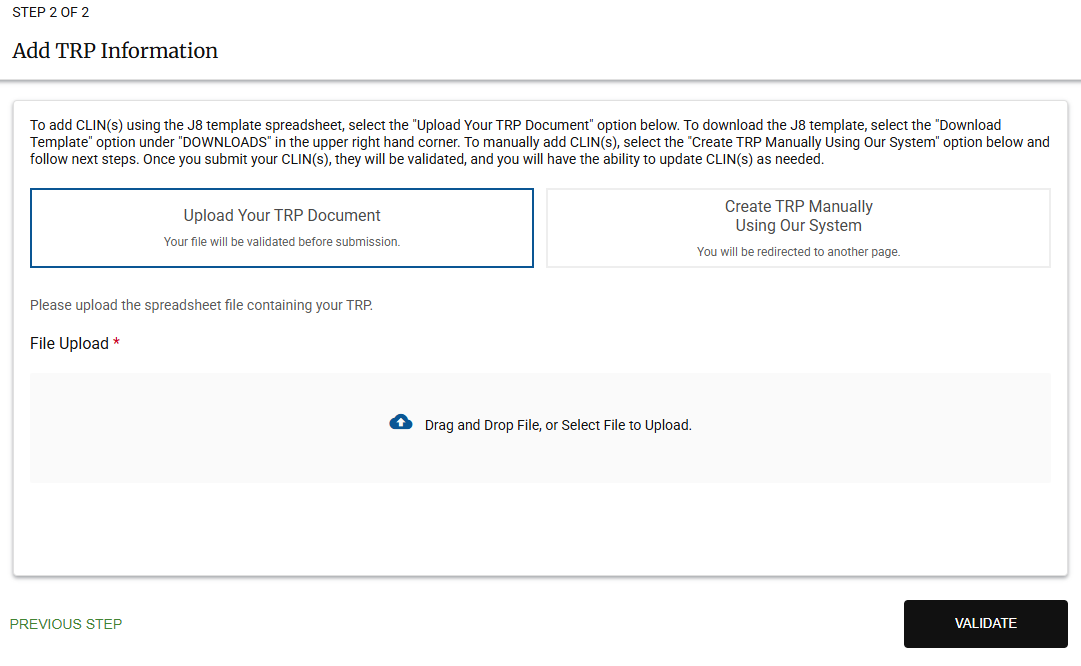
Use one of the following methods to add the TRP:
Bulk upload using the J8 template.
Tip
The J8 template includes instructions to help you complete and use it correctly.
Click Upload Your TRP Document.
Use the Drag and Drop File, or Select File to Upload to add a J8 file to upload.
Note
A message appears that the file is being validated.
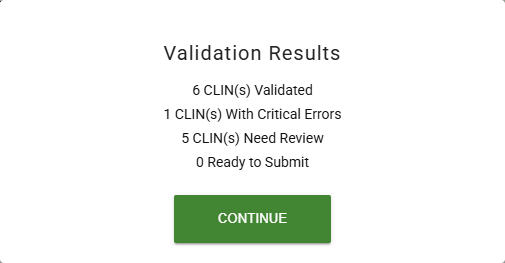
Click Validate. The Validation Results pop-up appears.
Note
The Validation Results pop-up includes the number of CLINs in each status.
Click Continue.
Manual creation of a single CLIN
Tip
Manual creation can be used to add a CLIN to an in-process bulk upload.
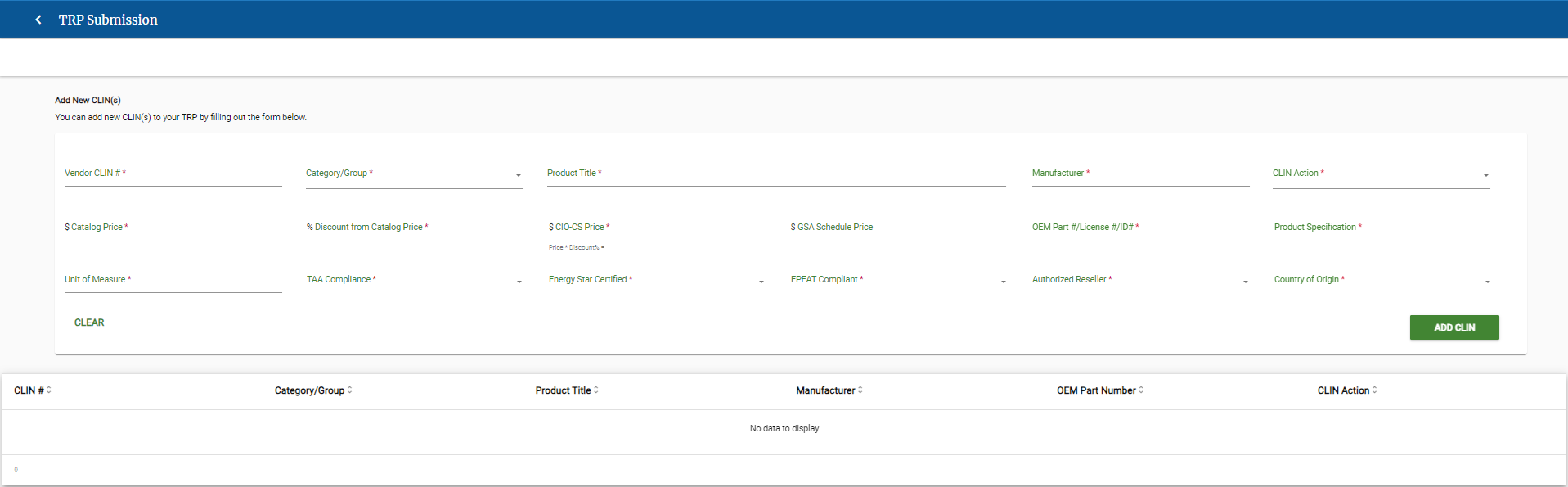
Click Create TRP Manually Using Our System.
Enter data for all required fields on the Add New CLINs screen.
Note
Required fields are marked with an *.
Click Add CLIN.
Note
The CLIN is added to the list of CLINs for submission.
Perform the following actions for each CLIN as needed.

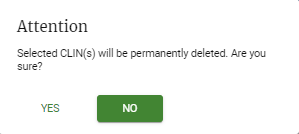
Delete CLINs
Attach Files
Click
 for a CLIN.
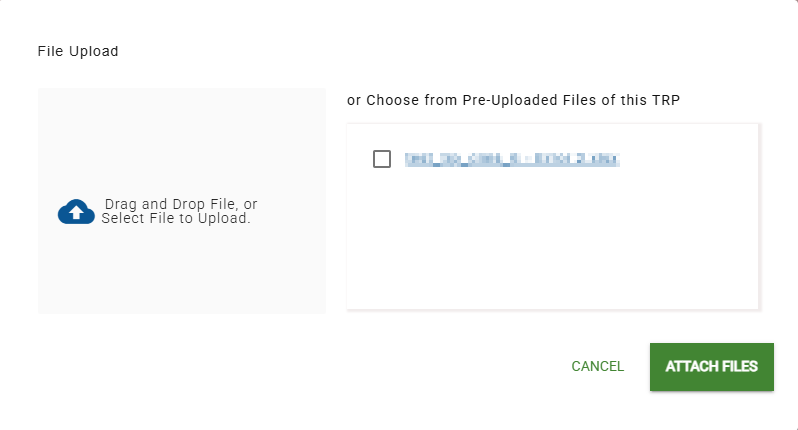
Click Attach Documents. Use the File Upload pop-up to upload any needed files.
In the File Upload page, do one of the following:
Drag and drop one or more files to upload to the Drag and Drop File area.
Click Drag and Drop File, or Select File to Upload and select one or more files to upload.
In the Choose from Pre-Uploaded Files of this TRP area, select the checkbox for any file that you want to attach.
Tip
When you upload a file, it appears in the Pre-Uploaded files area, with its checkbox selected.
Click Attach Files.
Verify that the file(s) are in the Supporting Documents Attachments for the CLIN.
Click Save Changes.
Tip
You can click Cancel Changes to remove your changes.
For each CLIN, do the following:
Click Validate. The Validation Results pop-up appears.
Note
The Validation Results pop-up includes the number of CLINs in each status.
Click Continue.
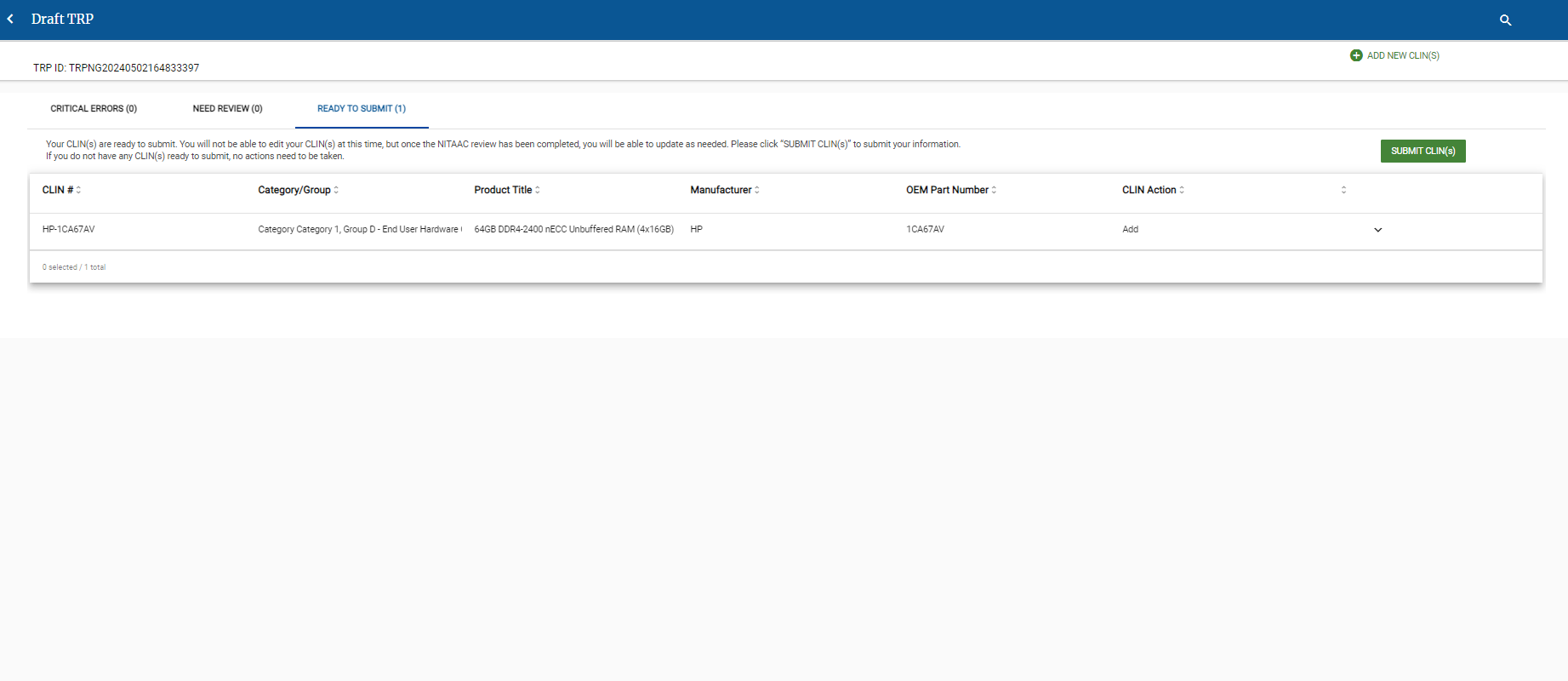
When you've uploaded or created the TRP, the Draft TRP page appears.
A Draft TRP displays CLINs in different validation statuses.
Important
You can only submit a CLIN if the status is Ready to Submit,
Review the following for instructions for each status to get each CLIN to Ready To Submit status.
Critical Errors: CLIN(s) received errors. You must correct the errors before they can be moved to Need Review.
On the Critical Errors tab, click
to view the details for the CLIN.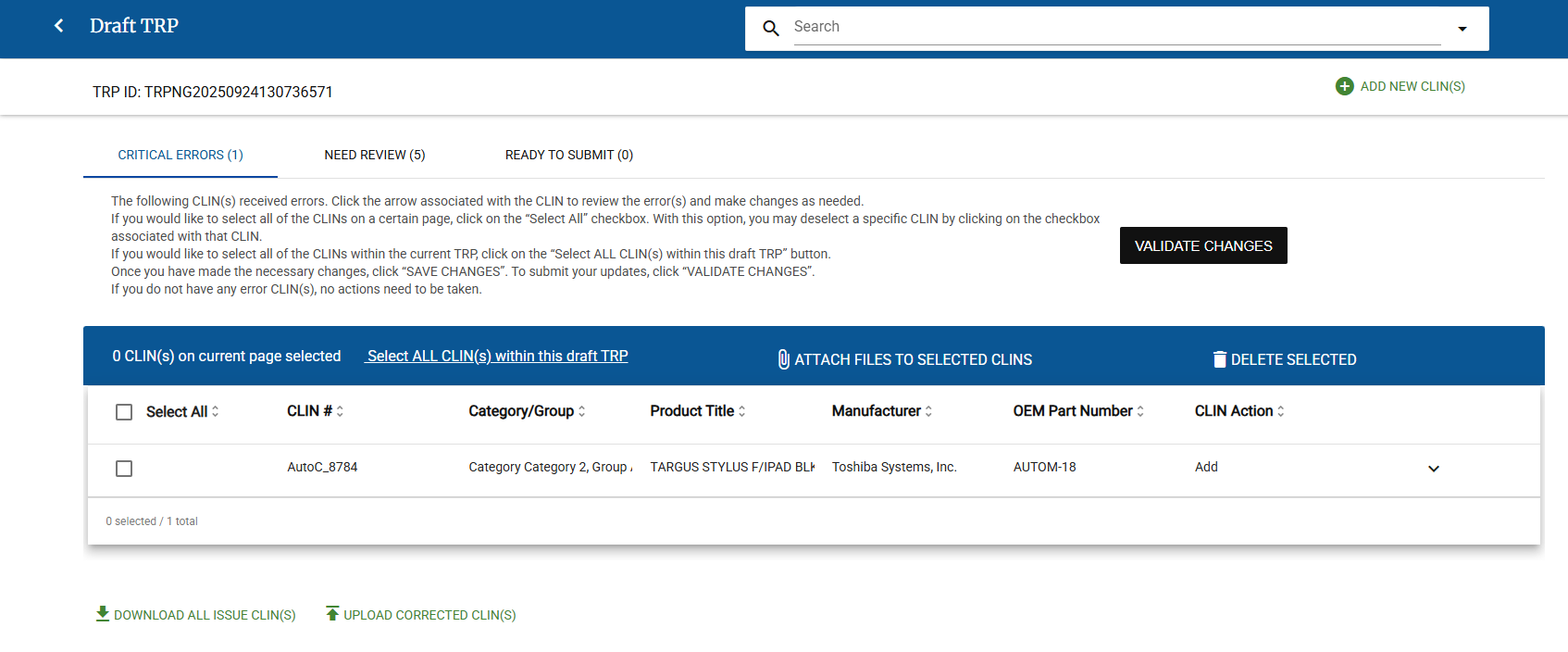
Review messages for the CLIN
Note
Example Message: In this example, the CLIN already exists, and is under review. Updates cannot be made to a CLIN that is under review.

Make necessary corrections for fields in the CLIN, if applicable. Depending on the CLIN issue, you may need to do one or more of the following for each CLIN:
Tip
Click Read more for any item below to see complete instructions for that process.
Edit CLIN Data
Click
to view the details for the CLIN.Review messages for the CLIN.
Note
Sample Message: In this sample, documentation is needed for submission.

Make necessary corrections for fields in the CLIN, if applicable.
Click Save Changes. A green bar appears next to the details drop-down (
) for the CLIN and the Validate Changes button is now available.
Correct CLINs Using Excel
Attach Files to a Single CLIN
Click
for a CLIN.Click Attach Documents. Use the File Upload pop-up to upload any needed files.
In the File Upload page, do one of the following:
Drag and drop one or more files to upload to the Drag and Drop File area.
Click Drag and Drop File, or Select File to Upload and select one or more files to upload.
In the Choose from Pre-Uploaded Files of this TRP area, select the checkbox for any file that you want to attach.
Tip
When you upload a file, it appears in the Pre-Uploaded files area, with its checkbox selected.
Click Attach Files.
Verify that the file(s) are in the Supporting Documents Attachments for the CLIN.
Click Save Changes.
Attach Files to Multiple CLINs
Select the checkbox (
 ) for all each CLIN you want to attach files.
Tip
If all the CLINs on the Draft TRP need the same attachments, click Select All.
Click Attach Files to Selected CLINs. Use the File Upload pop-up to upload any needed files.
In the File Upload page, do one of the following:
Drag and drop one or more files to upload to the Drag and Drop File area.
Click Drag and Drop File, or Select File to Upload and select one or more files to upload.
In the Choose from Pre-Uploaded Files of this TRP area, select the checkbox for any file that you want to attach.
Tip
When you upload a file, it appears in the Pre-Uploaded files area, with its checkbox selected.
Click Attach Files.
Verify that the file(s) are in the Supporting Documents Attachments for the CLINs.
Delete CLINs
Repeat as needed for each CLIN.
Click Validate. The Validation Results pop-up appears.
Note
The Validation Results pop-up includes the number of CLINs in each status.
Click Continue.
Need Review: One or more CLIN(s) need a final review before they can move to Ready to Submit.
On the Need Review tab, click
to view the details for the CLIN.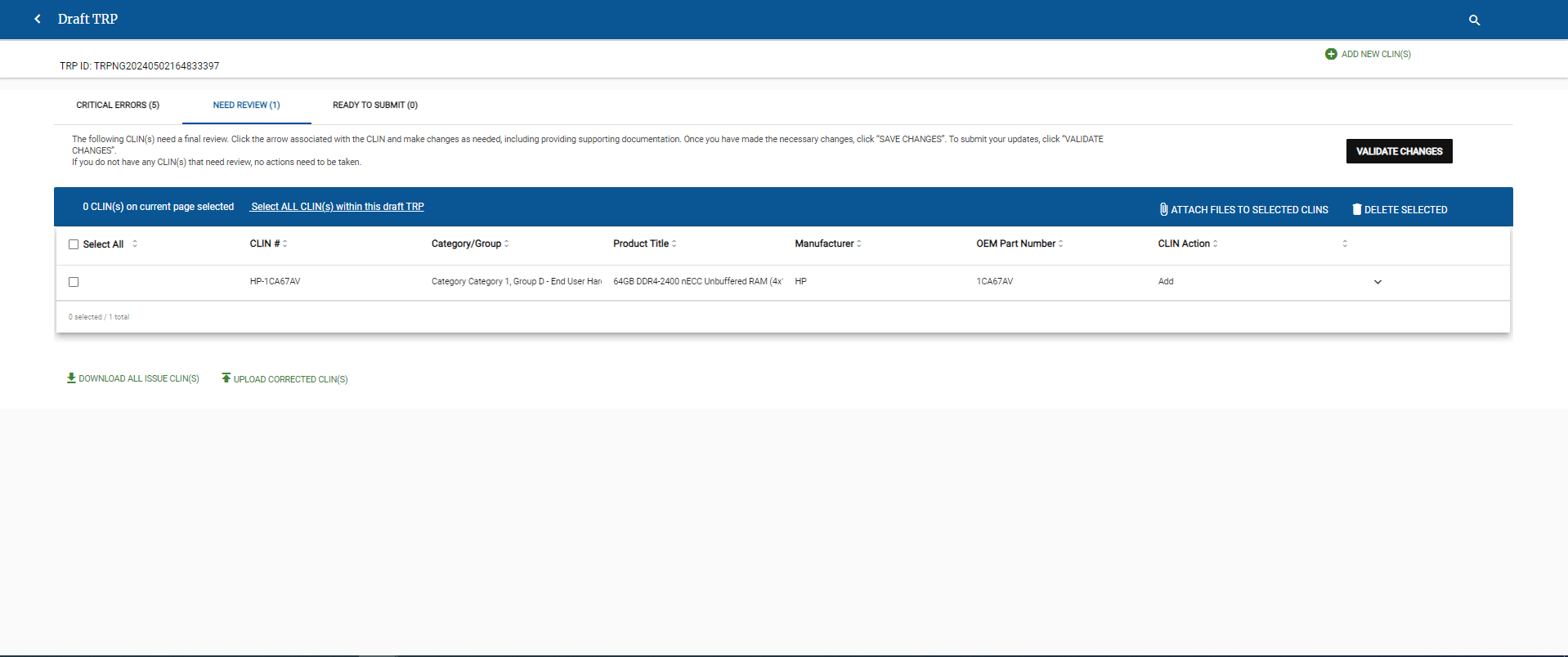
Review messages for the CLIN
Note
Sample Message: In this sample, documentation is needed for submission.
Make necessary corrections for fields in the CLIN, if applicable. Depending on the CLIN issue, you may need to do one or more of the following for each CLIN:
Tip
Click Read more for any item below to see complete instructions for that process.
Edit CLIN Data
Click
to view the details for the CLIN.Review messages for the CLIN.
Note
Sample Message: In this sample, documentation is needed for submission.
Make necessary corrections for fields in the CLIN, if applicable.
Click Save Changes. A green bar appears next to the details drop-down (
) for the CLIN and the Validate Changes button is now available.
Correct CLINs Using Excel
Attach Files to a Single CLIN
Click
for a CLIN.Click Attach Documents. Use the File Upload pop-up to upload any needed files.
In the File Upload page, do one of the following:
Drag and drop one or more files to upload to the Drag and Drop File area.
Click Drag and Drop File, or Select File to Upload and select one or more files to upload.
In the Choose from Pre-Uploaded Files of this TRP area, select the checkbox for any file that you want to attach.
Tip
When you upload a file, it appears in the Pre-Uploaded files area, with its checkbox selected.
Click Attach Files.
Verify that the file(s) are in the Supporting Documents Attachments for the CLIN.
Click Save Changes.
Attach Files to Multiple CLINs
Select the checkbox (
) for all each CLIN you want to attach files.Tip
If all the CLINs on the Draft TRP need the same attachments, click Select All.
Click Attach Files to Selected CLINs. Use the File Upload pop-up to upload any needed files.
In the File Upload page, do one of the following:
Drag and drop one or more files to upload to the Drag and Drop File area.
Click Drag and Drop File, or Select File to Upload and select one or more files to upload.
In the Choose from Pre-Uploaded Files of this TRP area, select the checkbox for any file that you want to attach.
Tip
When you upload a file, it appears in the Pre-Uploaded files area, with its checkbox selected.
Click Attach Files.
Verify that the file(s) are in the Supporting Documents Attachments for the CLINs.
Delete CLINs
Repeat as needed for each CLIN.
Click Validate. The Validation Results pop-up appears.
Note
The Validation Results pop-up includes the number of CLINs in each status.
Click Continue.
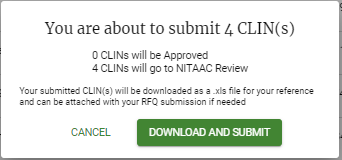
Ready to Submit: The CLIN(s) are ready to submit.