Manage TRP
The Manage TRP page displays all TRPs submitted, and the status of CLINs modified by the TRP.
Tip
Once a TRP is uploaded using the J8 template, or modified manually, it appears on the Manage TRP tab.
TRPs appear in tabular format. For each TRP in the table, you can view the following information:
TRP ID | The unique ID of the TRP. Click the link to view details about the TRP. |
Active CLINs | The total number of your Active CLINs in the Product Catalog |
Rejected CLINs | The number of CLINs that were rejected and have not yet been corrected. |
Under Review CLINs | The number of CLINs currently under review by NITAAC. |
Draft CLINs | The number of CLINs that have been uploaded but not yet submitted for review. |
CH Locked Date | The date that the TRP was locked for review. |
Review Status | The current status of the review. |
| Click to view metadata for the TRP. |

Tip
Click the header of any column in the table to sort by that column. Click again to reverse the sort order. You can only sort on a single column at a time.
An arrow pointing up in the heading for a column ( ) indicates that the table is sorted in ascending (a-z, 0-9) order on that column.
An arrow pointing down in the heading for a column ( ) indicates that the table is sorted in descending (z-a, 9-0) order on that column.
Note
When a TRP is locked, other users cannot edit it. NITAAC staff can complete reviews of locked TRPs.
To Manage TRP
Click the Manage TRP tab
On the Manage TRP tab, click the TRP ID link.
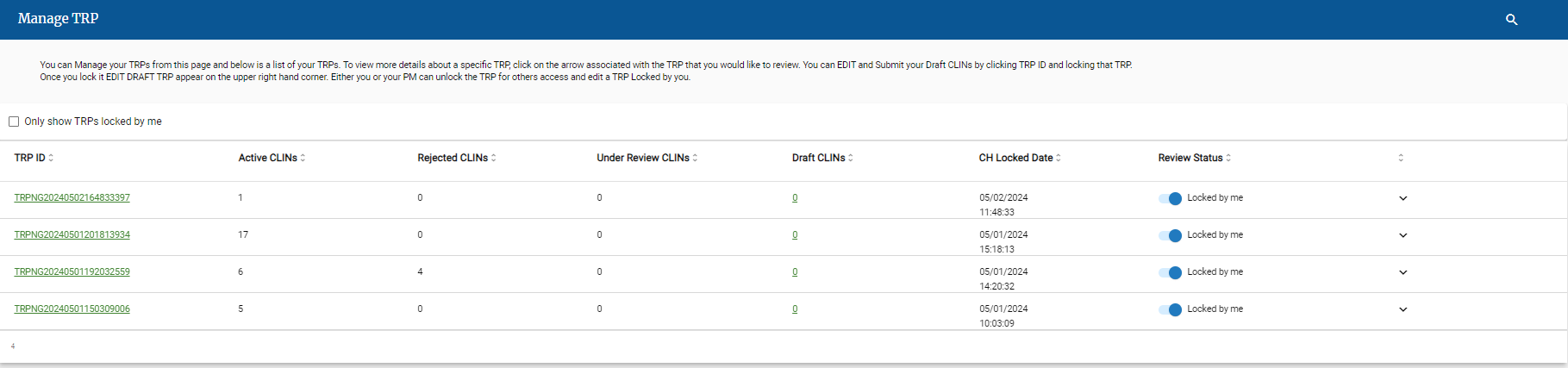
The TRP Details screen displays the list of CLINs in each status.
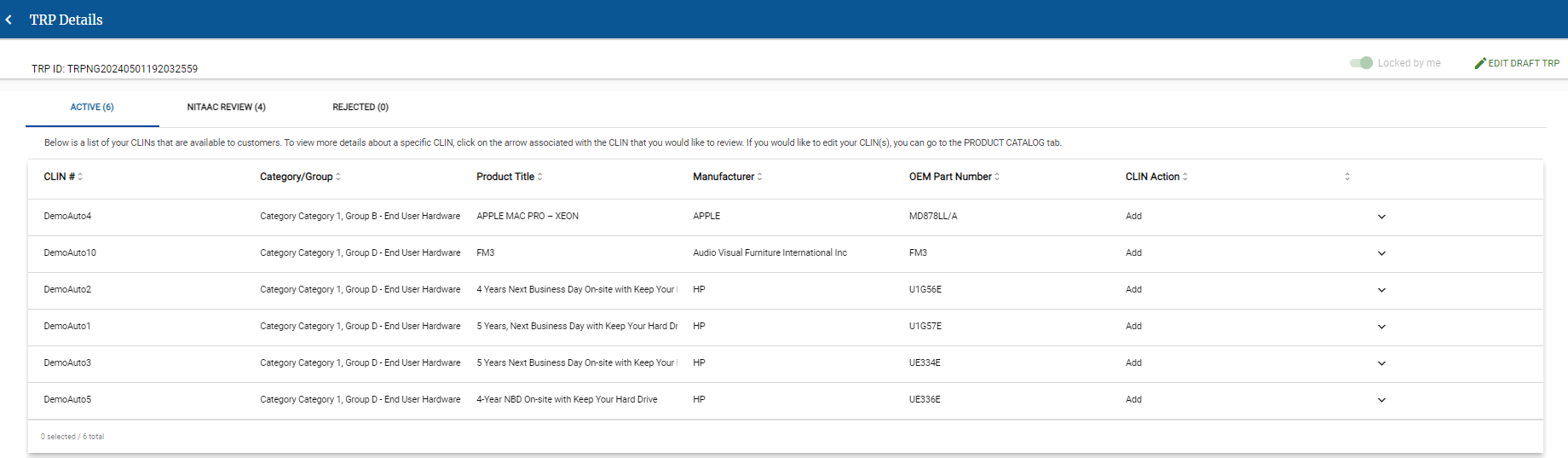
Click one of the following tabs to view the CLINs assigned that status.
Active
Approved CLINs that are visible to customers.
NITAAC Review
CLINs currently assigned to NITAAC for review.
Rejected
CLINs rejected by NITAAC.
From this view you can access the Draft TRP. Click View Draft TRP.
Click
 next to TRP Details to return to the Manage TRP tab.