To Change a User's Status
Note
When a new Contract Holder user registers, their account status is Initial. The Contractor Program Manger must set the user to Active status before they can log in.
On the Left Rail, click User Management. The User Management page appears.
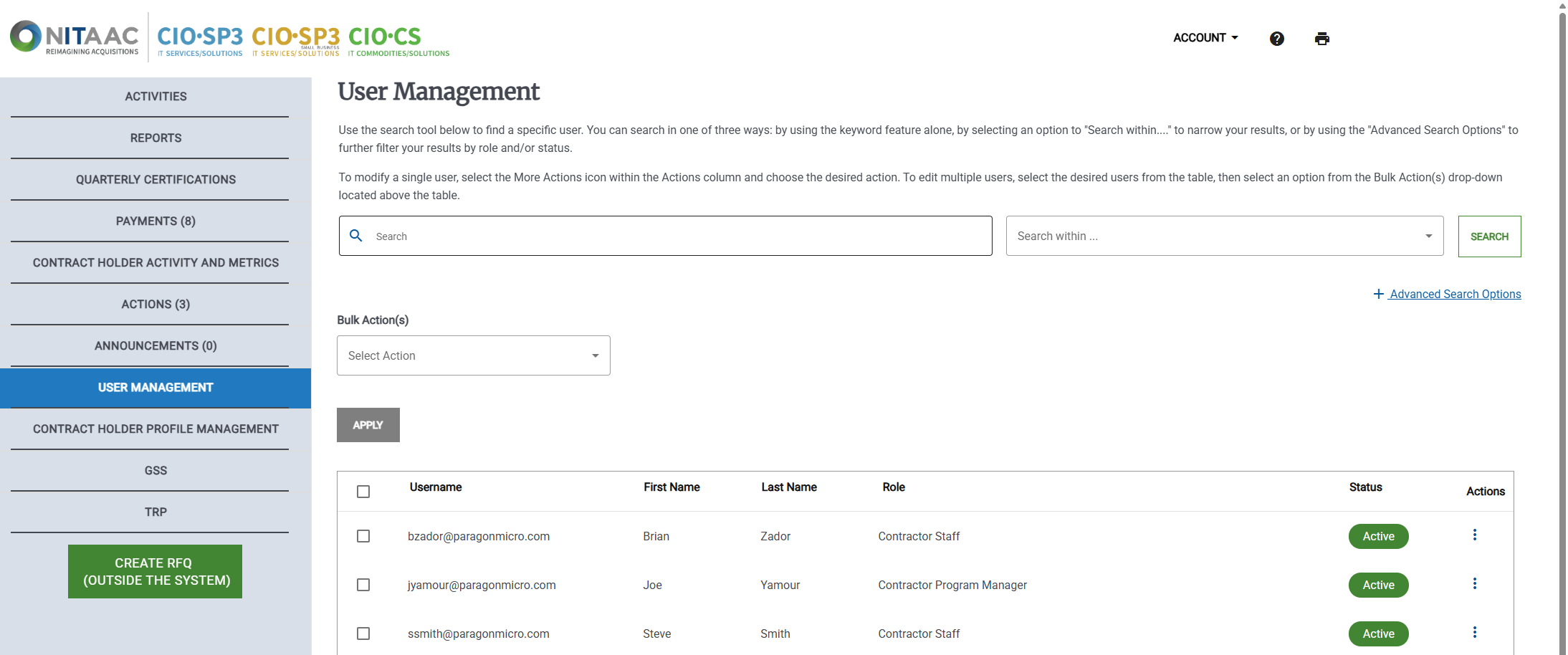
Click the Actions (
 ) button in the Actions column for the user. The Actions menu appears.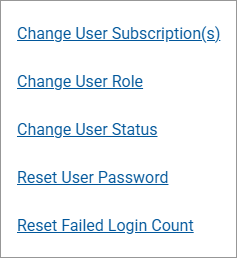
Click Change User Status. The User Information page appears.
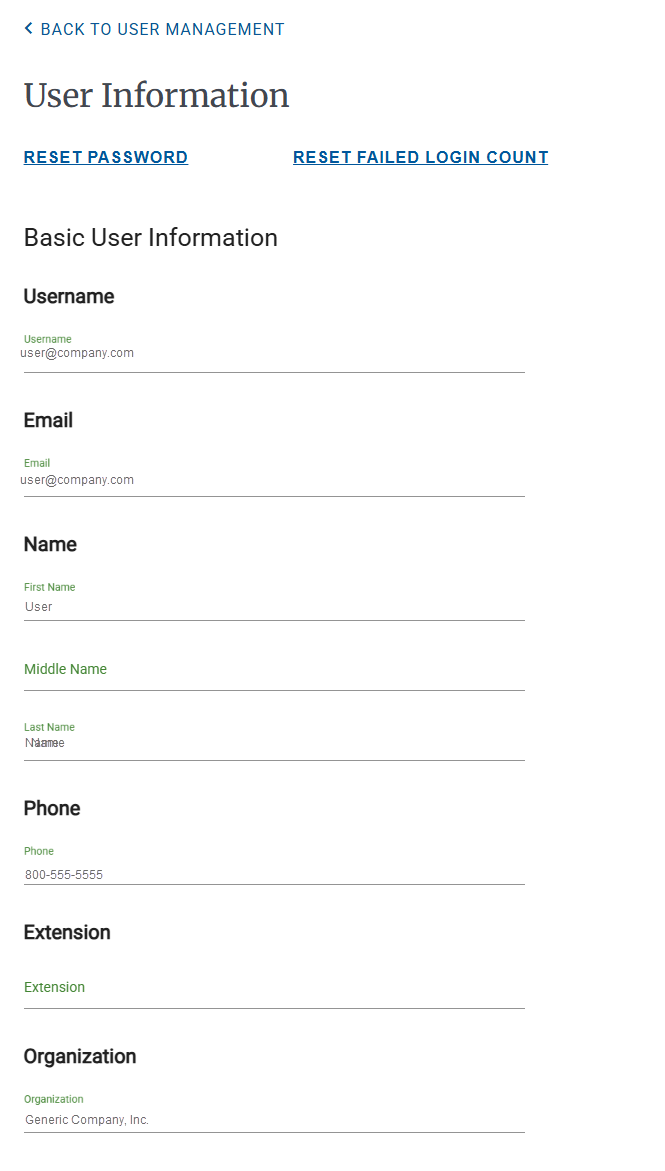
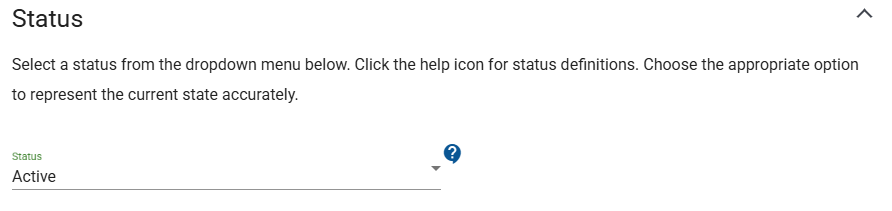
Locate the Status section of the User Information page.
Tip
You can click
 to view a definition of each status.
Click
 next to the status. The status list appears.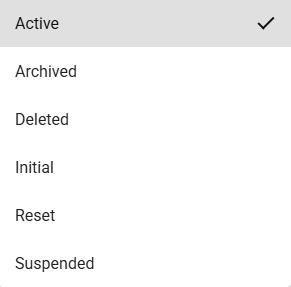
Click the new status.
Warning
If a user status is set to Deleted only NITAAC Support can reactivate them.
Note
Initial and Suspended are automatically set by e‑GOS. They cannot be selected.