To Change a User's Role
On the Left Rail, click User Management. The User Management page appears.
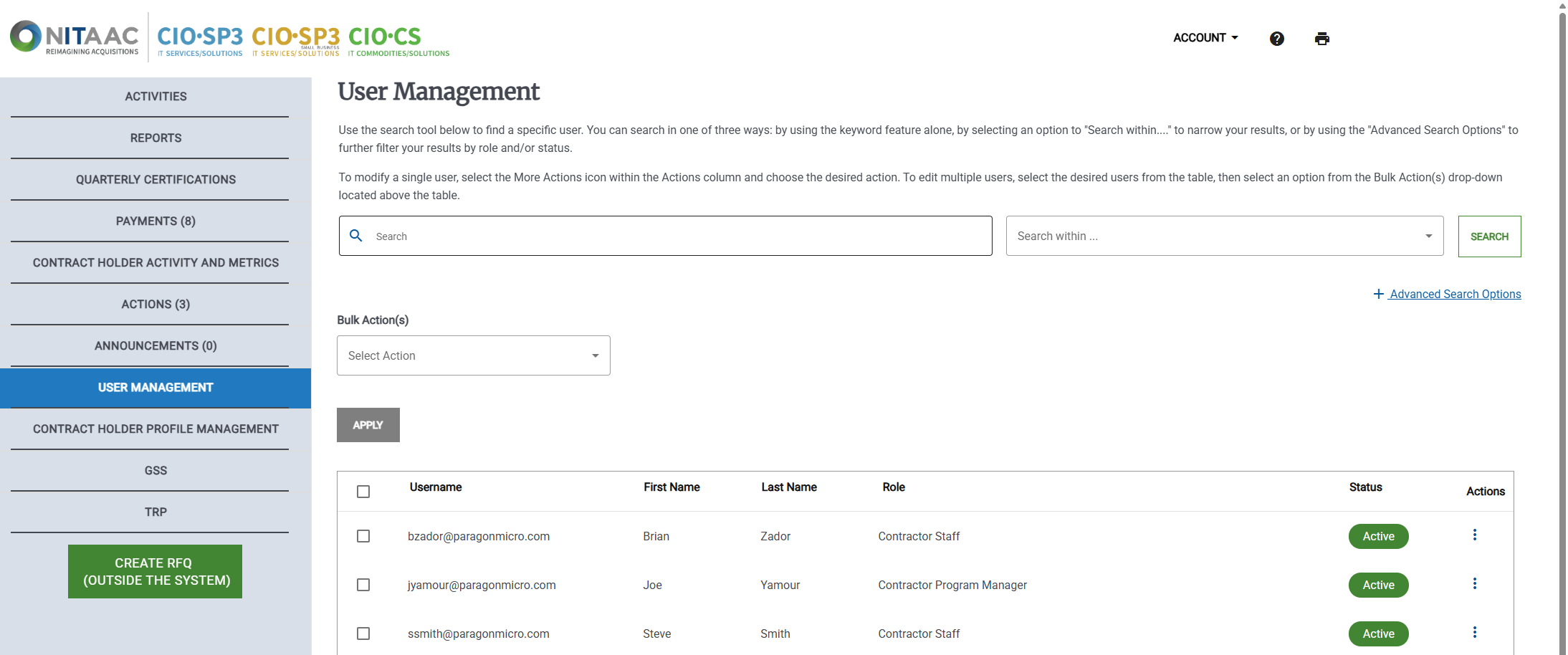
Click the Actions (
 ) button in the Actions column for the user. The Actions menu appears.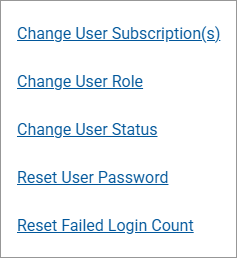
Click Change User Role. The User Information page appears.
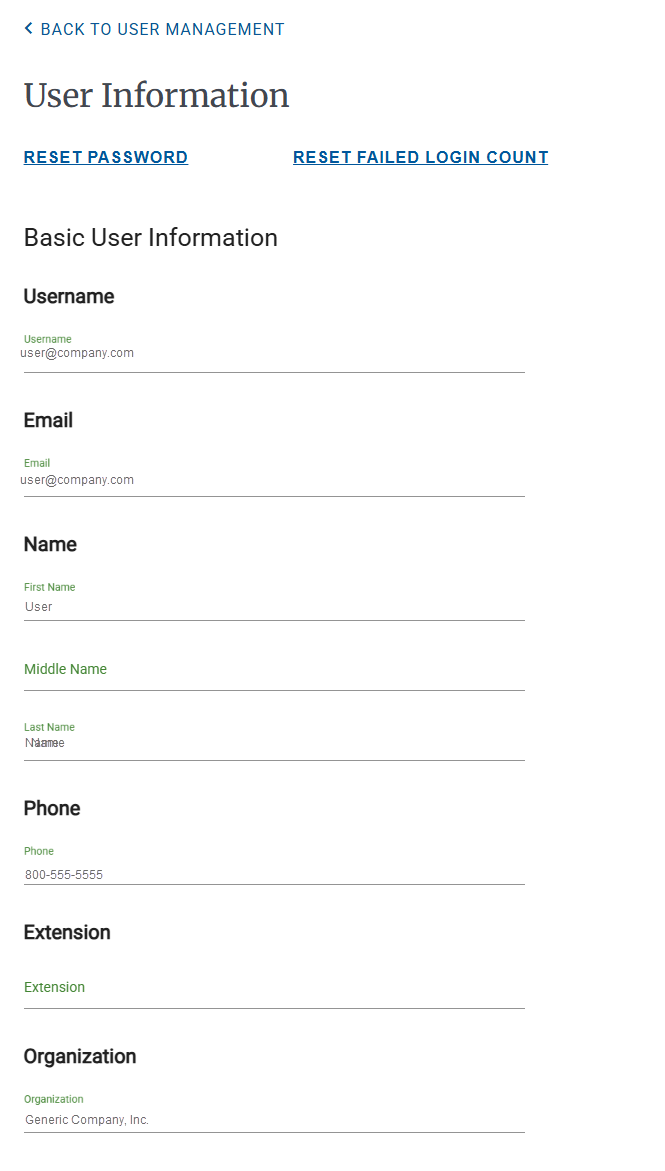
Locate the Membership Role section of the User Information screen.

Click
 next to the current role. The list of available roles appears.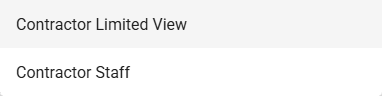
Tip
Contact NITAAC support to change the user to a role not listed.
Click the new role.
Do one of the following: