To Manage TRP
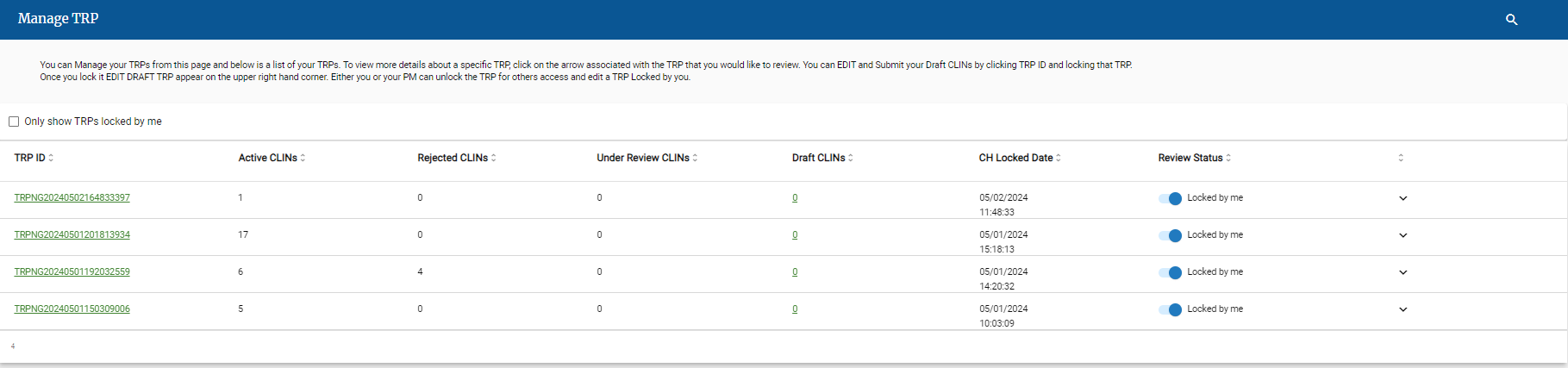
Click the Manage TRP tab
On the Manage TRP tab, click the TRP ID link.
The TRP Details screen displays the list of CLINs in each status.
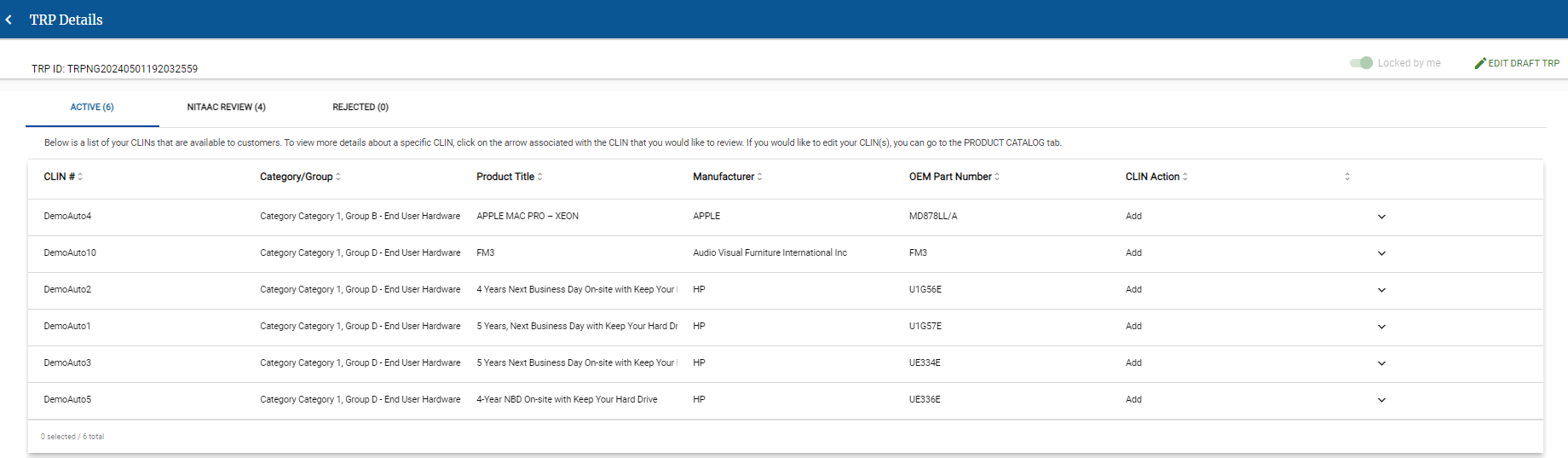
Click one of the following tabs to view the CLINs assigned that status.
Active
Approved CLINs that are visible to customers.
NITAAC Review
CLINs currently assigned to NITAAC for review.
Rejected
CLINs rejected by NITAAC.
From this view you can access the Draft TRP. Click View Draft TRP.
Click
 next to TRP Details to return to the Manage TRP tab.