To Create a Task Order Request (Outside the System)
In the Left Rail in the e‑GOS Dashboard, click Create, then click CIO-SP3/CIO-SP3 Small Business (IT Services & Solutions).
In the CIO-SP3/CIO-SP3 Small Business (IT Services &Solutions) page, click TOR Outside the System.
In the Enter Key Award Information to Begin the TOR Process page, enter the following information, then click Continue:
Order Number
Award Recipient
Award Date
Total Amount Including NCAF
In the Title and Description page, do the following:
Enter the following information:
Title
Description
Select the Customer's Department from the Select Department drop-down list.
Select the Customer's agency from the Select Agency drop-down list.
In the Primary Point of Contact area, click Other then enter the name of the Primary Point of Contact. Click Search, then select the contact.
Tip
Points of contact must be active in the e‑GOS system. You can send an invitation to users who do not have an e‑GOS. Until the user registers for e‑GOS, you cannot add them as a Point of Contact. You can wait for the user to register or select a different point of contact for the RFQ.
In the Secondary Point of Contact area, select a secondary point of contact.
Tip
The primary and secondary points of contact should be different users.
Click Save & Continue.
In the Determine your Contract Holder Selection page, do the following:
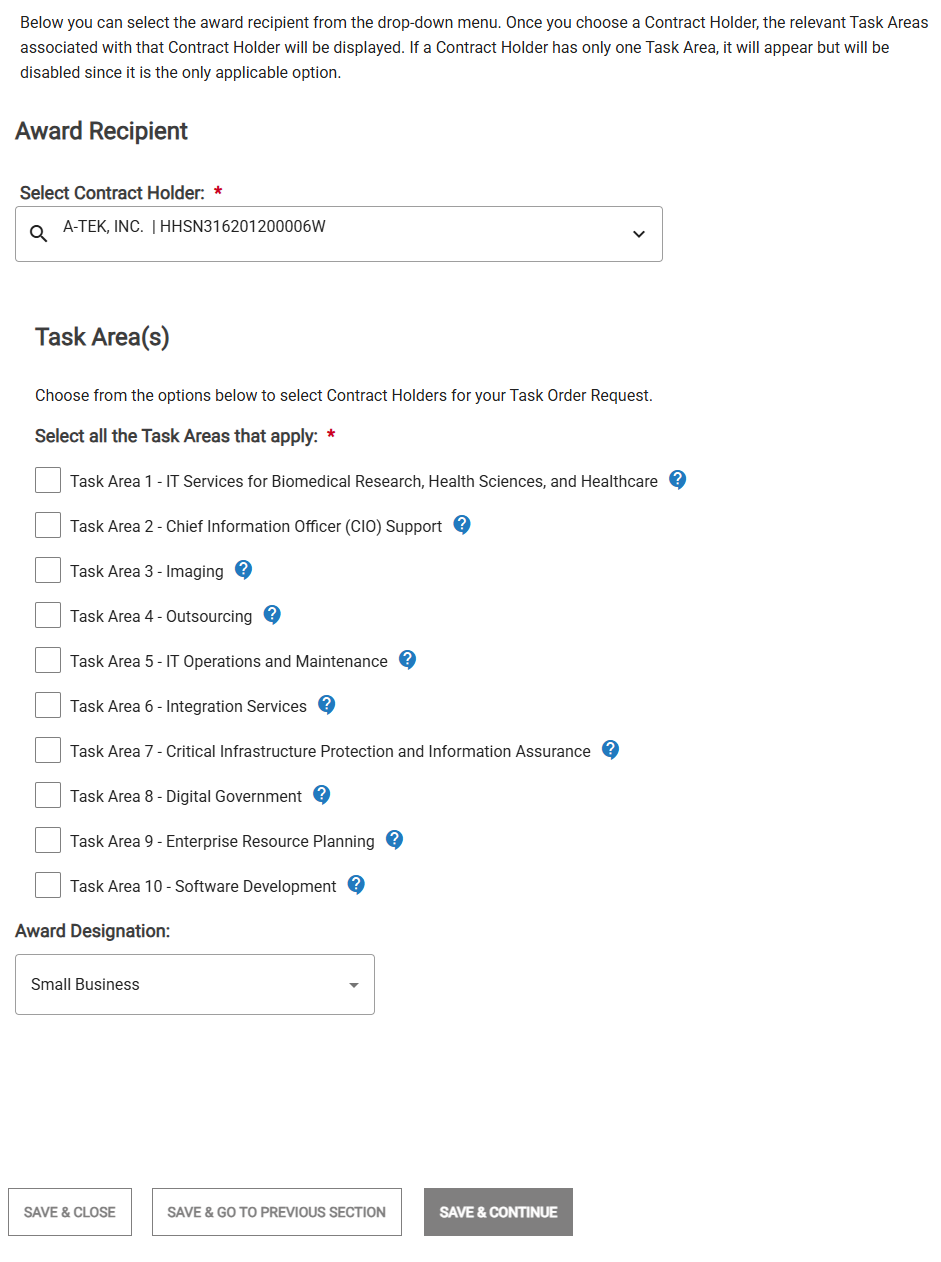
Verify that the correct Contract Holder is selected in the drop-down list.
Select the Task Areas that apply. You can select one or more task areas.
Tip
You can only select task areas that the Contract Holder is eligible for.
Select the Award type from the Award Designation drop-down list.
Click Save & Continue.
In the Independent Government Cost Estimate page, enter the total value of the IGCE, including options, then click Save & Continue.
In the Assisted Acquisition page, in the Is this an assisted acquisition? area, select Yes or No. If you select Yes, select the Assisting Agency and Requiring Agency from the drop-down lists. Click, Save & Continue.
In the Enter Award Information page, do the following:
Verify the NCAF Percent.
If needed, upload any supporting files.
in the Award Details area, do the following:
Click the pencil icon (
 ).
).in the Contract Holder Awardee page, do the following:
Verify the Order Number.
Enter the delivery date information.
Verify the Total Amount Including NCAF.
Upload an Award Document. You may also upload one or more Support Documents if needed.
Click Save.
Click Save & Continue.
In the TOR Processed Outside of e‑GOS page, do the following:
Review the information.
Select the I certify that all the information and values, to the best of my knowledge, match the award document and/or Contracting Officer's intent and authority checkbox.
Click Submit.
In the TOR (Outside of the System) has been successfully created pop-up, click Close. The Activities dashboard appears.